
How to fix PS5 padlock icons, missing games, and “buy again” errors guide)
You know you paid for it. You have the receipt. But your PlayStation is showing a giant padlock icon or, worse, asking you to pay another $70 for a game already in your library. If you're seeing this following the recent firmware updates, you aren't alone.
Don't panic—you haven't been banned, and your games haven't vanished. Whether it's a 'missing' title in your library or a locked icon, it's almost always a digital 'handshake' error between your console and Sony's servers. Following Sony's May 1st clarification on license timers, we now know exactly how to fix this in under 60 seconds.
⚡May 2026 update: The "30-day timer" explained
Have you noticed a 30-day countdown on your new digital games? While early reports suggested a mandatory monthly check-in, Sony has clarified that this is a one-time license verification for games purchased after March 2026.
- The fix: You simply need to be online once after the initial purchase window (usually 14–30 days) to "finalize" the license.
- The result: Once that one-time check happens, the padlock disappears forever, and you can go back to playing 100% offline.
- Tip: If your game is locked today, don't dive into settings—just connect to the internet for 60 seconds to let the "handshake" complete.
How to restore licenses (detailed step-by-step)
Think of your PS5 like a bouncer at a club. Sometimes he forgets you already showed your ID at the door — Restoring Licenses is just showing him your ID one more time.
Restoring licenses will NOT affect your data.
Note: You can no longer restore licenses for all owned games at once; the option now only works for games currently downloaded and installed on your PlayStation 5.
Method 1: From the Home screen (fastest)
- Select the game from the home screen or game library.
- Press the Options button (the small button with three lines) on your controller.
-
Choose Restore License.
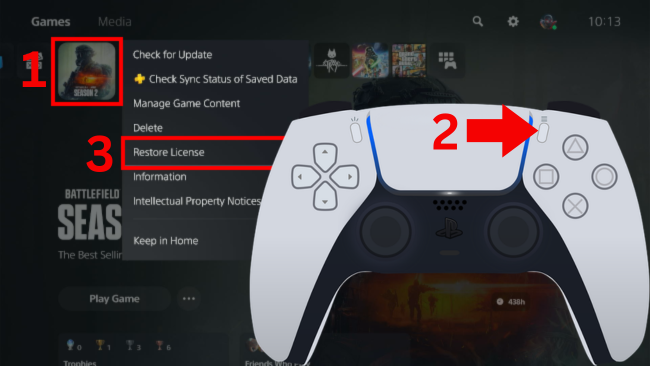
- On the next screen, click Restore.
- Your PS5 will now restore the license. When the process is complete, click OK.
Method 2: From Settings (full library)
- Open settings (gear icon).
- Open Users and Accounts.
- Select Other.
- Click Restore Licenses.
- Select the game or games for which you want to restore licenses.
-
Click Restore (bottom right).
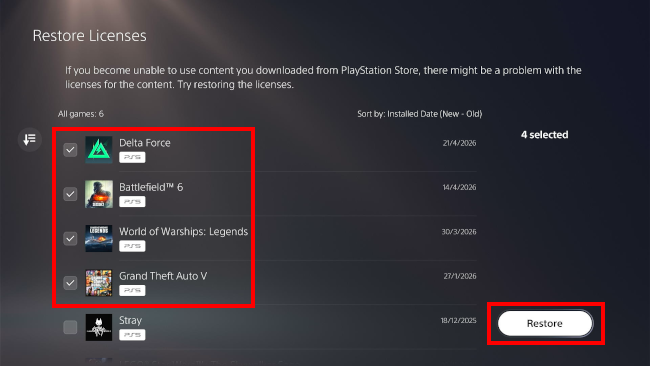
- Your PS5 will now restore the selected licenses. When the process is complete, click OK.
Enable Console Sharing and Offline Play
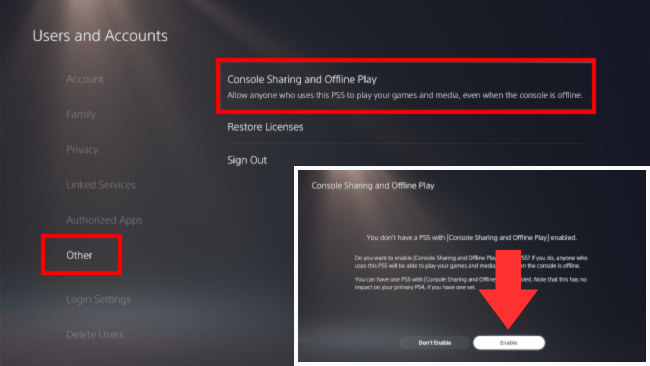
If this setting is Off, your PS5 can't verify licenses unless you are constantly online.
The fix: Settings > Users and Accounts > Other > Console Sharing and Offline Play > Enable.
The "missing" game library fix
Sometimes the game isn't "locked"—it's just hidden.
Check for hidden games and unhide them
Since the PlayStation allows you to hide titles you aren't currently playing, it’s possible you’ve hidden a game accidentally while trying to manage your storage.
- Go to your Game Library (the icon at the far right of your home screen).
- Select the Filter and Sort icon on the left side (the down-arrow with three lines).
-
Toggle on Hidden items.
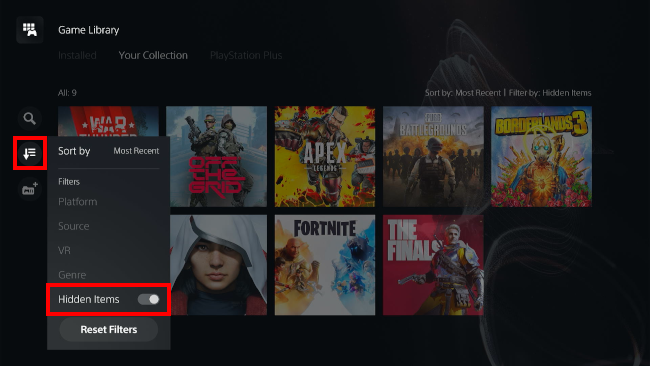
Note: Hidden games will now appear in your library but will look slightly "faded" or translucent.
- To unhide a game, highlight the faded game icon.
- Press the Options button on your controller (the small button with three horizontal lines).
-
Choose Unhide.
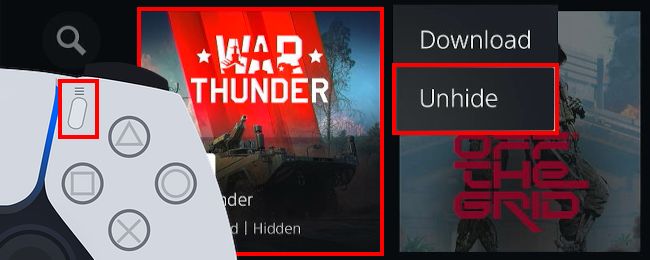
Done! The game will now stay visible in your "Your Collection" tab even after you turn the "Hidden items" filter back off.
Check the "Installed," "Your Collection," and "PlayStation Plus" tabs
If you don't see your game on the home screen, don't panic. The Game Library (at the far right of your home menu) is split into three specific areas. Use L1 and R1 to toggle between them:
- Installed: This only shows games currently taking up space on your console or SSD. If you deleted a game to save space, it will vanish from here.
- Your Collection: This is your "Master List." Every game you have ever purchased or claimed via a code lives here. If a game is "missing," this is the first place you should look.
- PlayStation Plus: This is a dedicated tab for games you've claimed through your subscription (Essential, Extra, or Premium). If your subscription has lapsed, games in this section may show a padlock icon.
The "PS4 vs. PS5 version" confusion
One of the most common "Buy Again" errors isn't a glitch at all—it’s just a version mismatch. Many games offer both a PS4 and a PS5 version. If you own the PS4 version but are looking at the PS5 version in the store, it will show a price tag instead of a "Download" button.
How to check which version you own:
- Highlight the game in your Game Library.
- Look at the title. If it’s the older version, you will see a small PS4 badge next to the name. If there is no badge (or a PS5 badge), you are looking at the current-gen version.
- The fix: Select the [...] button (the "More" menu) next to the "Play" or "Download" button.
- Select Select Version. This will open a list of every version of the game you own. If the PS5 version is a "Free Upgrade," you can claim it here for $0.00.
⚠️ The "Digital Deluxe" trap:
Sometimes, you might own the "Standard Edition" of a game, but the PlayStation Store defaults to showing you the "Gold Edition" or "Complete Bundle." If you see a price tag, always check the [...] menu to see if your Standard version is simply hidden behind a different store listing.
The "restore database" connection
If the padlock remains after restoring licenses, it might be a "Ghost Icon" issue where the database is corrupted.
🔗 Need more detail? Read our full PS5 "Rebuild Database" guide here.
Related:
How to fix PS5 problems: Troubleshooting guide
PS5 stuck in Safe Mode? How to exit the loop
How to rebuild PS5 database: Fix lag & crashing
How to clear PS5 cache | Fix UI lag & crashing
How to restore licenses on PS5: Fix locked games
How to remove deleted games from PS5 home screen
Stop PS5 from turning on with TV (step-by-step guide)
How to stop your PS5 from going into rest mode automatically
References:
https://www.playstation.com/en-us/support/games/restore-licences-playstation/
https://www.playstation.com/en-us/support/games/game-launch-issues/