
How to fix missing or blank taskbar icons in Windows 10 and 11
Missing or blank taskbar icons in Windows are usually caused by a corrupted icon cache or a frozen Windows Explorer process. Restarting Explorer in Task Manager is the fastest fix, and clearing the icon cache is the most reliable.
Restart Windows Explorer
Windows Explorer is the process that draws your taskbar, Start menu, and desktop. Restarting it refreshes all of those without closing your programs.
- Right-click an empty space on the taskbar.
- Click Task Manager.
Keyboard shortcut: hold down the Ctrl key, the Shift key, and the Esc key all at the same time.
- Find Windows Explorer in the list.
- Right-click Windows Explorer.
- Click Restart.
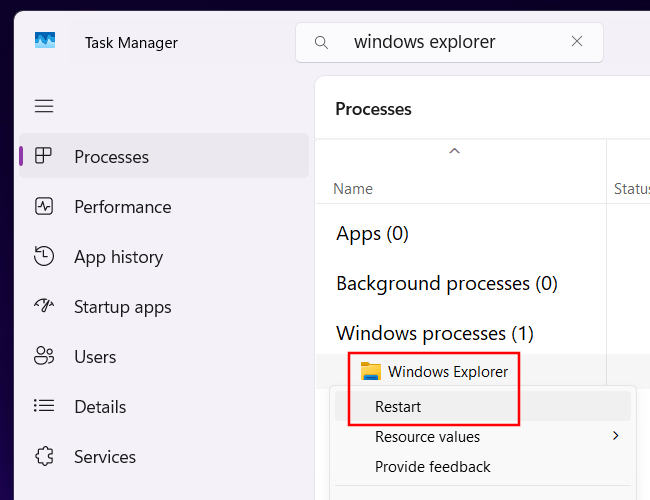
Your screen will go blank for a second, then the taskbar and desktop come back.
Clear the icon cache
- Open File Explorer.
- On Windows 11, click View in the top toolbar > hover over Show > click Hidden items. On Windows 10, click the View tab in the top toolbar and check the box next to Hidden items.
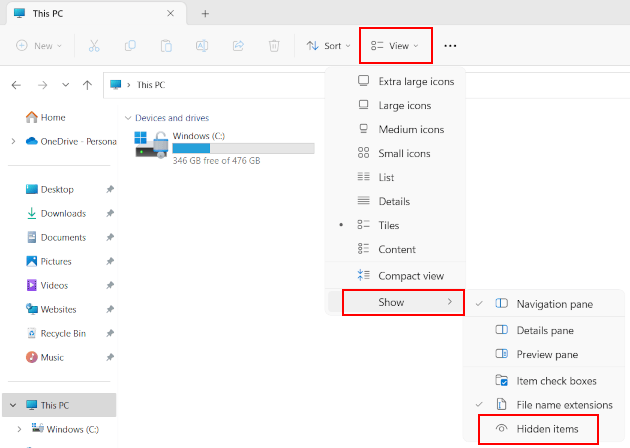
- In File Explorer, go to C:\Users\YourUserName\AppData\Local.
- Delete the IconCache.db file.
- Restart your computer.
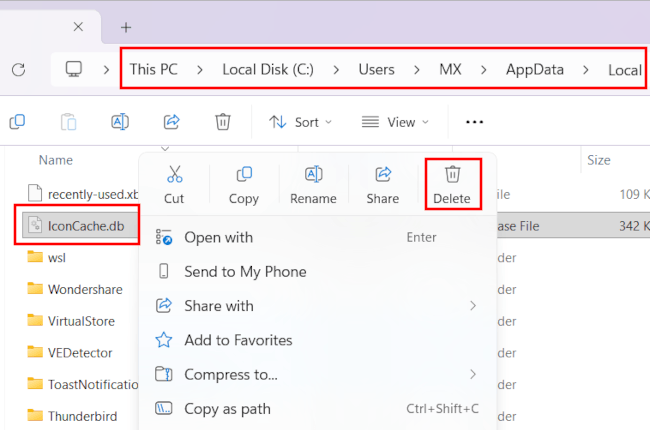
Windows rebuilds the IconCache.db file automatically, so deleting it is safe.
Update Windows
A Windows bug can cause blank taskbar icons, and Microsoft often fixes it in an update.
- If you're using Windows 11, go to Settings > Windows Update. On Windows 10, go to Settings > Update & Security > Windows Update.
- On the right side of the Settings window, click Check for updates, then download and install any available updates.
Run DISM and SFC to repair system files
SFC (System File Checker) is a built-in Windows tool that finds and repairs corrupt system files.
To run System File Checker:
- Right-click the Start button (Windows logo) on the taskbar.
- Click Terminal (Admin) or Command Prompt (Admin).
- Type (or copy and paste) the following command:
DISM /Online /Cleanup-Image /RestoreHealth - Press Enter.
- Wait for the verification to reach 100%. This process may take some time. It may appear stuck at around 60% for a few minutes. Do not close the window.
- Once DISM is finished, type:
sfc /scannow - Press Enter.
- Wait for the scan to complete. This process may take some time. SFC will show you whether it found corrupt system files and successfully repaired them.
- Restart your computer.
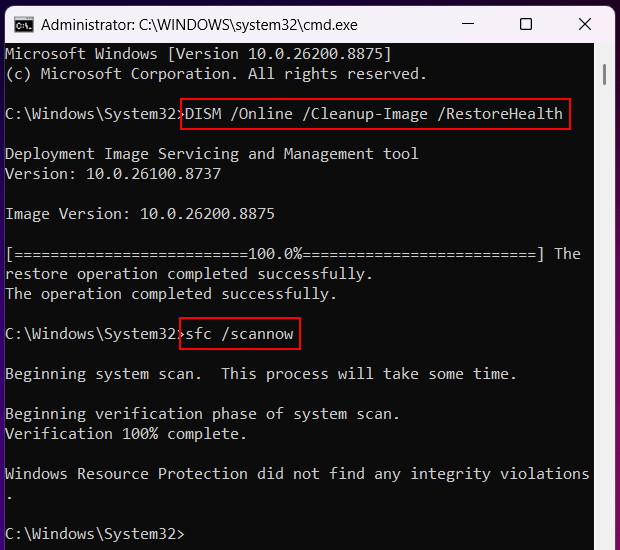
SFC needs clean copies of Windows files to fix damaged system files. DISM downloads them from Microsoft. That's why you need to run DISM before SFC.
If SFC can't fix the corrupt files, see my guide on SFC unable to fix corrupt files.
Uninstall a recent Windows update
If the icons went blank right after a Windows update, uninstall that update.
- Open Settings.
- Click Windows Update.
- Click Update history.
- Click Uninstall updates in the “Related settings” section.
- Click Uninstall next to the update you want to remove.
- Once the update is uninstalled, restart your computer.
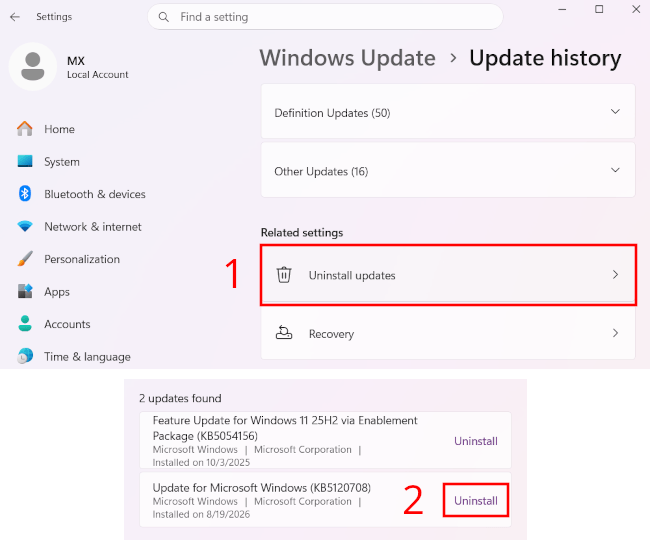
If the update caused the problem, wait a week before re-installing the update. Microsoft releases most updates on the second Tuesday of each month (Patch Tuesday) and pulls bad ones within a few days.
Delete the Iris service
Iris is a Windows service that manages Spotlight wallpapers, lock screen suggestions, the daily Bing wallpaper, and other things. Microsoft has confirmed it can also cause missing taskbar icons.
This solution will delete the Iris service, restart your PC, and then recreate the Iris service.
- Right-click the Start button (Windows logo) on the taskbar.
- Click Terminal (Admin) or Command Prompt (Admin).
- Type (or copy and paste) the following command:
reg delete HKCU\SOFTWARE\Microsoft\Windows\CurrentVersion\IrisService /f && shutdown -r -t 0 - Press Enter.
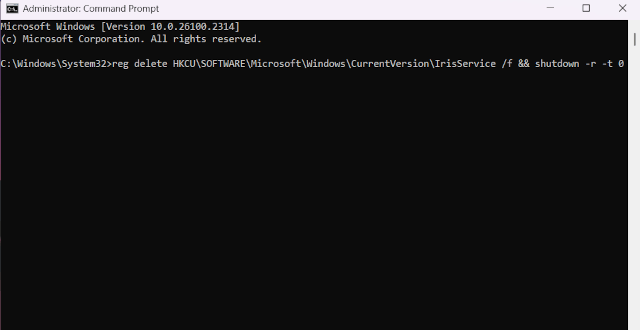
Update graphics drivers
An outdated graphics driver can make taskbar icons disappear or show as blank boxes. Updating the driver often fixes the problem.
- Right-click the Start button (Windows logo) on the taskbar.
- Click Run.
Keyboard shortcut: hold down the Windows key (the one with the Windows logo on it), then press the R key.
- Type
devmgmt.msc. - Press Enter or click OK.
- Expand Display adapters.
- Right-click your graphics card.
- Select Update driver.
- Choose Search automatically for drivers.
- If Device Manager says that you already installed the best drivers, click Search for updated drivers on Windows Update.
- Close the window if your driver was updated successfully.
- If your PC has more than one graphics card, repeat these steps for each one.
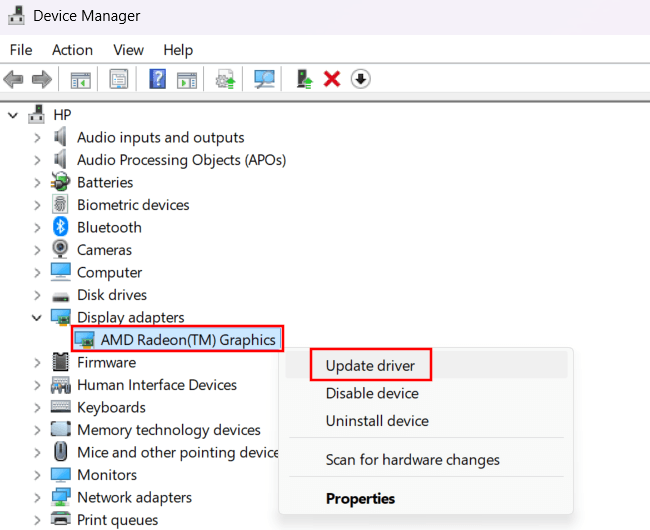
Related:
How to customize the Windows 11 taskbar (step-by-step guides)
How to stop taskbar icons from flashing in Windows 11
How to automatically hide the taskbar in Windows 10 and 11
How to pin a folder to the taskbar in Windows 10 and 11
How to pin a batch file to Windows 10 or 11 taskbar or start menu
Fix desktop icons missing or disappeared in Windows 10 & 11
How to fix Windows 10 and 11 Start menu button not working