
How to automatically hide the Windows taskbar
The Windows taskbar is useful, but it can take up valuable screen real estate, especially on laptops or small monitors. By setting it to hide automatically, you get a cleaner look and more room for your apps.
In this guide, I'll show you the quickest way to enable this feature in Windows 11 and the legacy steps for Windows 10. I’ll also cover the number 1 reason the taskbar sometimes refuses to hide.
How to automatically hide the taskbar in Windows 11
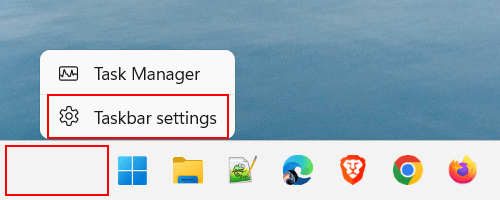
- Right-click any empty space on the taskbar.
-
Click Taskbar settings.
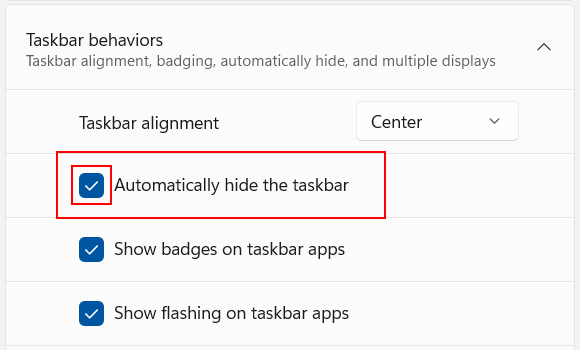
- Click Taskbar behaviors.
-
Check the box next to Automatically hide the taskbar.
- Close settings.
The taskbar will automatically hide when you move your mouse pointer away from it, and reappear when you bring the cursor back to the bottom of the screen.
How to automatically hide the taskbar in Windows 10 (legacy)
If you are still using Windows 10, the steps are slightly different but just as simple. Since this version of Windows is no longer officially supported, I recommend upgrading to Windows 11 for the best experience.
- Right-click an empty space on the taskbar.
- Click Taskbar settings.
- Toggle Automatically hide the taskbar in desktop mode to On.
The taskbar will automatically hide when you move your mouse pointer away from it, and reappear when you bring the cursor back to the bottom of the screen.
Taskbar won't hide? Here's the fix
Sometimes, the taskbar stays visible even when the "hide" setting is on. This usually happens because an app is demanding your attention.
- Check for notifications: Look for a flashing icon or a small red dot on an app (like Teams or Discord). Once you click the notification, the taskbar should hide.
- The "Restart Explorer" trick: If it's still stuck, press Ctrl + Shift + Esc to open Task Manager. Find Windows Explorer in the list, right-click it, and select Restart. This usually resets the taskbar behavior instantly.
Related:
How to stop taskbar icons from flashing in Windows 11
How to customize the Windows 11 taskbar (step-by-step guides)
How to fix missing or blank taskbar icons in Windows 10 & 11
How to make the Windows 11 taskbar fully transparent
How to pin a folder to the taskbar in Windows 10 and 11
How to pin a batch file to Windows 10 or 11 taskbar or start menu