
How to fix Windows 10 and 11 Start menu button not working
The Start button not responding usually means the Start process or Windows Explorer is frozen. Restarting either one in Task Manager is the fastest fix. If that doesn't work, this page also covers Windows Update, system file repair (DISM and SFC), graphics drivers, and PowerShell reregistration.
Video: Fix Start menu not working (2 quick fixes)
Restart the Start process in Task Manager
Windows runs the Start menu as a separate process called "Start." Ending it makes Windows restart it automatically.
- Right-click an empty space on the taskbar.
- Click Task Manager.
Keyboard shortcut: hold down the Ctrl key, the Shift key, and the Esc key all at the same time.
- Find Start.
- Right-click Start.
- Click End task.
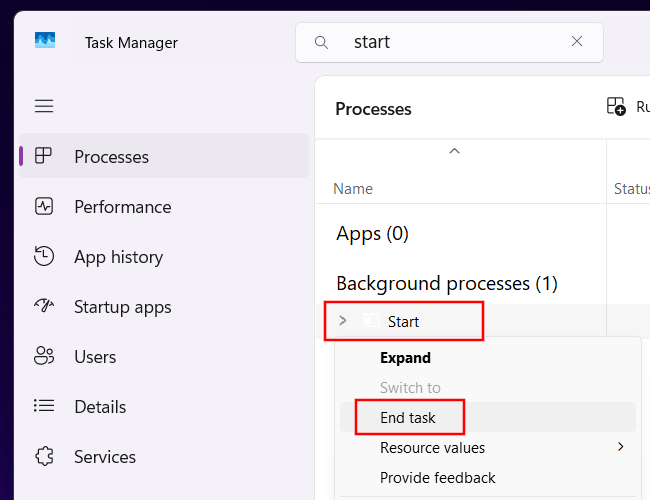
The Start process restarts on its own within a few seconds. Click the Start button to test it.
Restart Windows Explorer in Task Manager
If the Start process restart didn't help, restart Windows Explorer. This is the process that draws your desktop, taskbar, and Start menu. Your desktop will flash briefly, but your open programs stay running.
- Right-click an empty space on the taskbar.
- Click Task Manager.
Keyboard shortcut: hold down the Ctrl key, the Shift key, and the Esc key all at the same time.
- Find Windows Explorer.
- Right-click Windows Explorer.
- Click Restart.
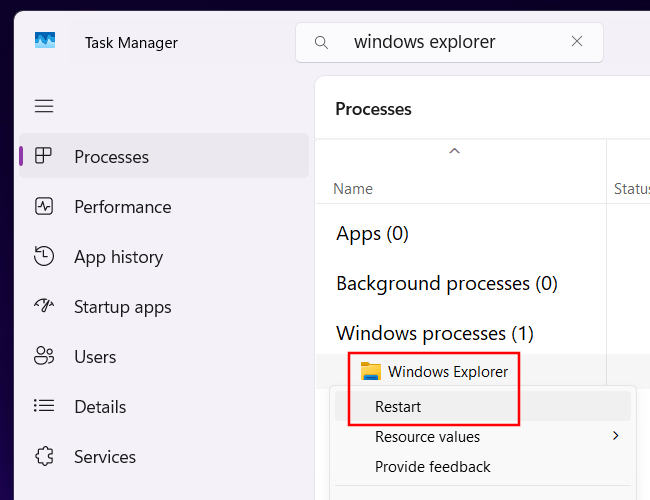
Your desktop will disappear for a second or two, then come back.
Update Windows
A bug in the Windows operating system might be causing the Start menu issue. Installing the latest update may fix it.
- If you're using Windows 11, go to Settings > Windows Update. On Windows 10, go to Settings > Update & Security > Windows Update.
- On the right side of the Settings window, click Check for updates, then download and install any available updates.
Repair corrupted system files with DISM and SFC
System File Checker (SFC) is a free Windows tool that finds and repairs damaged system files.
- Hold down the Windows key (the one with the Windows logo on it), then press the R key to open the Run box.
- Type
cmd. - Press Ctrl + Shift + Enter to open Command Prompt as administrator.
- Type (or copy and paste) the following command:
DISM /Online /Cleanup-Image /RestoreHealth - Press Enter.
- Wait until the progress bar reaches 100%. It may look stuck around 60% for a few minutes. Leave the window open.
- Once DISM is finished, type:
sfc /scannow - Press Enter.
- Wait for the scan to finish. SFC will tell you if it found and fixed any corrupt files.
- Restart your computer.
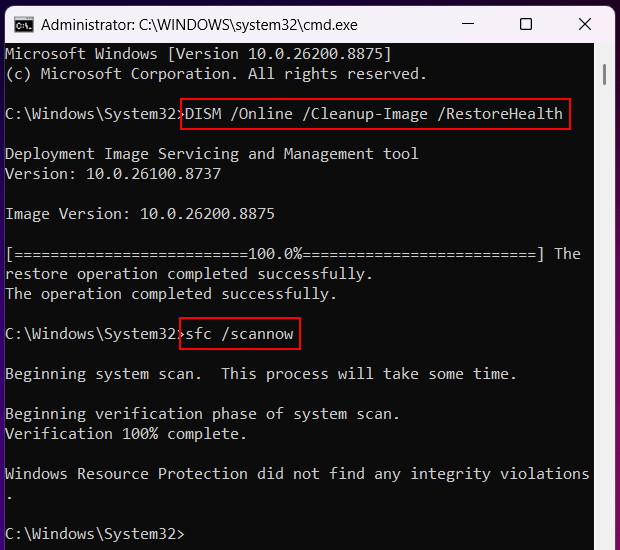
SFC needs clean copies of Windows files to fix damaged system files. DISM downloads them from Microsoft. That's why you need to run DISM before SFC.
If SFC can't fix the corrupt files, see my guide on SFC unable to fix corrupt files.
Uninstall a Windows update that broke the Start menu
If the Start button stopped working right after a Windows update, uninstall that update.
- Open Settings.
- Click Windows Update.
- Click Update history.
- Click Uninstall updates in the “Related settings” section.
- Click Uninstall next to the update you want to remove.
- Once the update is uninstalled, restart your computer.
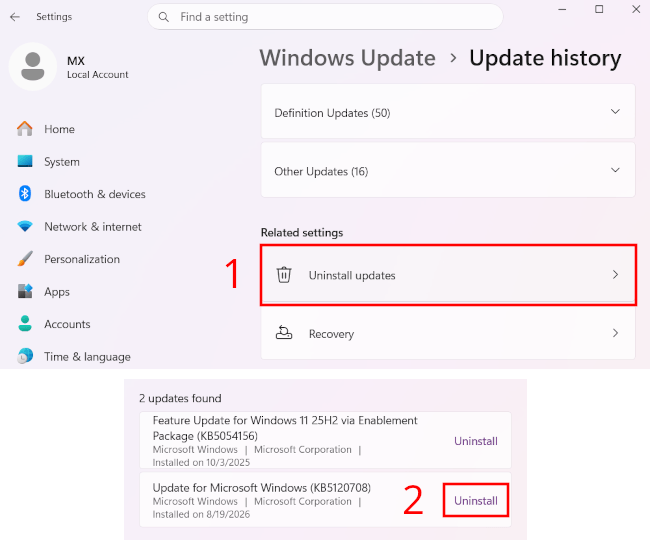
If this fixed your problem, wait about a week before letting Windows reinstall the update. Microsoft releases updates on the second Tuesday of each month (Patch Tuesday). Bad updates are usually pulled or patched within a few days.
Update your graphics driver
An outdated graphics driver can cause display glitches, including a Start menu that won't open. Updating the driver can fix this.
- Hold down the Windows key (the one with the Windows logo on it), then press the R key to open the Run box.
- Type
devmgmt.msc. - Press Enter or click OK.
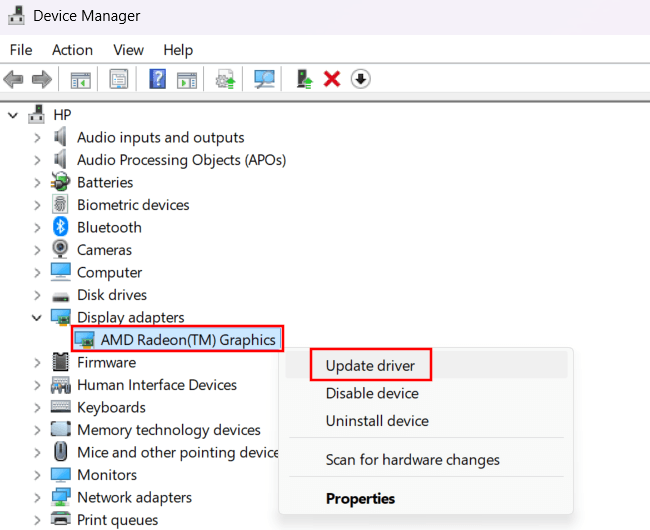
- Expand Display adapters.
- Right-click your graphics card.
- Select Update driver.
- Select Search automatically for drivers.
- If Device Manager says that you already installed the best drivers, click Search for updated drivers on Windows Update.
- Close the window if your driver was updated successfully.
- If you have more than one display adapter, repeat the above steps for every display adapter.
Reregister the Start menu packages (PowerShell)
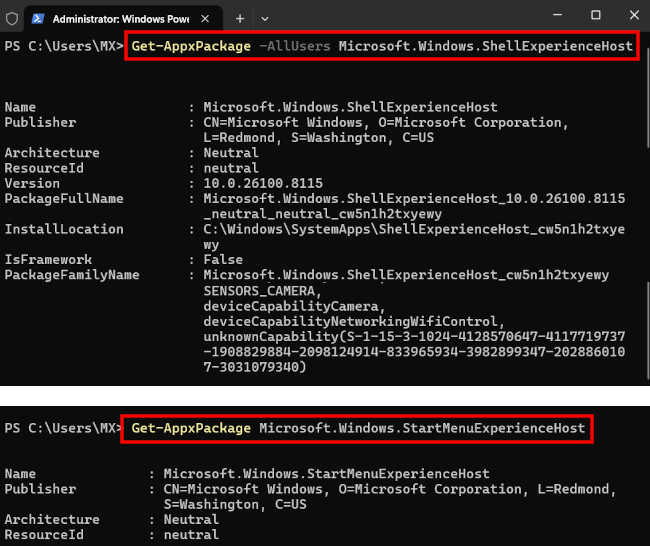
The Start menu is built from two Windows packages: Shell Experience Host and Start Menu Experience Host. Reregistering them can fix a Start menu that won't open.
- Hold down the Windows key (the one with the Windows logo on it), then press the R key to open the Run box.
- Type
wtorpowershell. - Press Ctrl + Shift + Enter to open Terminal or PowerShell as administrator.
- Copy and paste the following command:
Get-AppxPackage -AllUsers Microsoft.Windows.ShellExperienceHost - Press Enter.
- Copy and paste:
Get-AppxPackage Microsoft.Windows.StartMenuExperienceHost - Press Enter.
- Restart your computer.
Note: You may see red error text while the command runs. Most of it is harmless; it just means a package is already registered.
Related:
How to fix missing or blank taskbar icons in Windows 10 & 11
Fix desktop icons missing or disappeared in Windows 10 & 11