
How to make the Windows 11 taskbar completely transparent
The modern Windows 11 centered taskbar looks sleek, but it still takes up a giant block of solid color at the bottom of your screen. While Microsoft includes a native personalization toggle in the settings, it only provides a frosted, semi-opaque look. If you want a truly invisible, 100% clear workspace layout, you can learn how to make the Windows 11 taskbar completely transparent so your icons float seamlessly over your background image.
This tutorial walks you through two easy ways to modify your taskbar appearance, ranging from a default customization tweak that require zero extra software to a safe, lightweight utility hosted directly inside the official Microsoft Store.
Method 1: Turn on Transparency effects in Windows 11 settings
If you don't want to install third-party software, this is your only native option. It won't make the taskbar invisible, but it will tint it slightly to match your background wallpaper.
- Right-click the Windows start menu button.
- Click Settings.
- Click Personalization in the left menu.
- Click Colors on the right side of the window.
- Turn on Transparency effects by clicking the toggle button next to it.
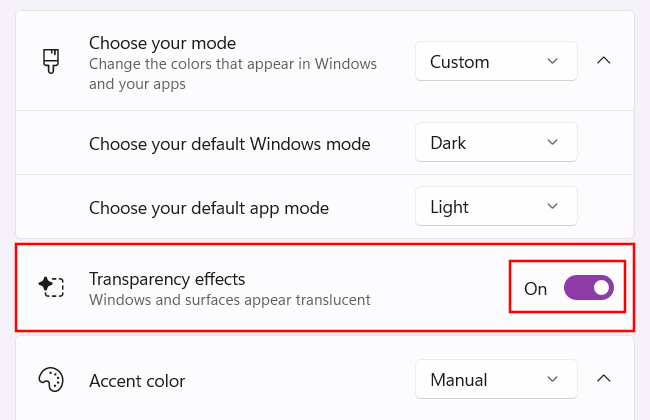
If you want to go beyond this basic tint and make the taskbar completely disappear, move on to Method 2 below.
Method 2: Get 100% transparency with TranslucentTB
To get a completely see-through taskbar, use a free, open-source tool called TranslucentTB. It is lightweight, uses virtually zero system resources, and is safely hosted inside the official Microsoft Store.
- Open the Microsoft Store app from the Start menu.
- In the top search bar, type in translucenttb and click on it.
- Click the Install (or Get) button.
- Once the download finishes, click Open.
- A welcome pop-up will appear; simply click Continue.
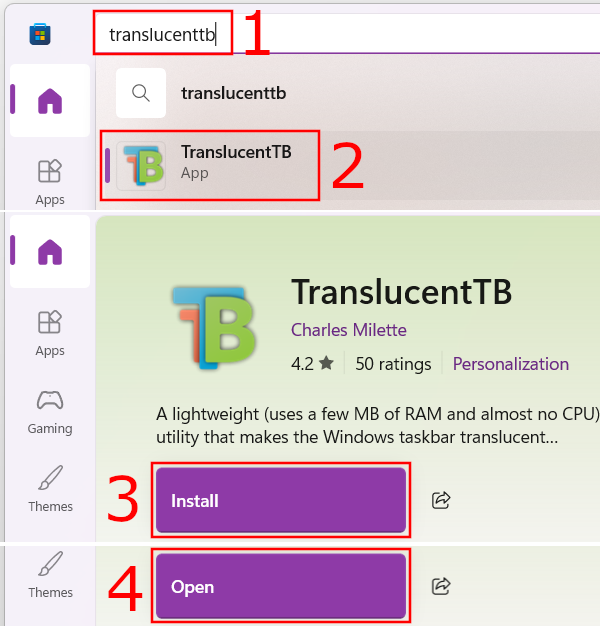
The moment the app launches, your taskbar will immediately become completely transparent. Your taskbar icons will now look like they are floating directly on your wallpaper.
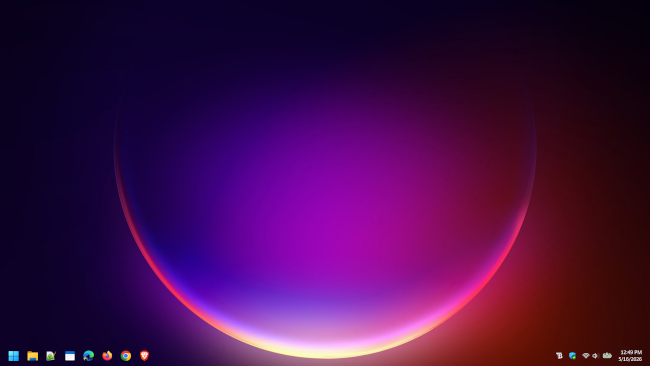
How to customize your transparent taskbar
One of the reasons I love TranslucentTB is that you can control exactly how it behaves depending on what you are doing on your PC. To adjust these options, click the small system tray arrow (next to your clock and WiFi icon) and click the TB icon.
From this menu, you can adjust these tweaks:
- Ensure Open at boot is checked so you don't have to launch the application manually every time you turn on your PC.
- TranslucentTB lets you customize individual states (such as Desktop, Visible window, Maximized window, Start opened, Search opened, Task View opened, and Battery saver). To edit one, click it, ensure it is set to Enabled, and then choose your look:
- Clear: Keeps the taskbar completely invisible during that specific action or state.
- Show taskbar border: Adds a clean, subtle line at the top of the taskbar when that option is active.
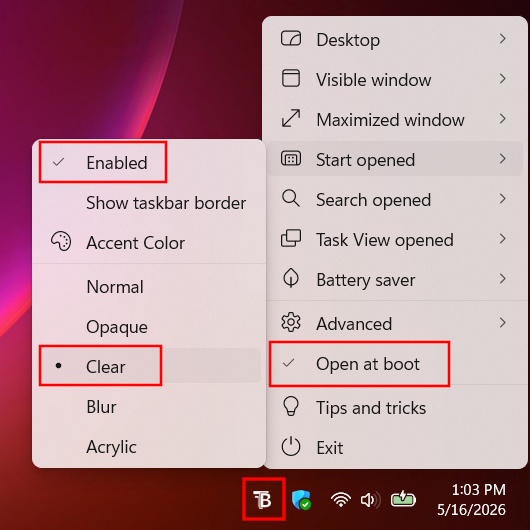
💡 Quick fix: If you ever want to revert your desktop back to the standard Windows 11 style, simply right-click the TB icon in your system tray and click Exit. The app will close, and your taskbar returns to normal instantly.
Related:
How to automatically hide the taskbar in Windows 11 (and 10)
How to stop taskbar icons from flashing in Windows 11
How to customize the Windows 11 taskbar (step-by-step guides)
How to pin a folder to the taskbar in Windows 10 and 11
How to pin a batch file to Windows 10 or 11 taskbar or start menu