
How to disable Google Assistant on any Android phone or tablet
Is Google Assistant constantly popping up when you don't want it to? Whether you find it intrusive or just prefer using your device without a voice assistant, you can completely turn it off. In this step-by-step guide, I will show you how to disable Google Assistant and remove it from the home button or navigation shortcuts on any Android phone or tablet.
Google Assistant is a virtual assistant developed by Google that triggers via voice activation, button presses, or gestures. If it triggers accidentally or slows down your device, following the methods below will turn it off completely across brands like Samsung, Google Pixel, Motorola, Xiaomi, Vivo, Oppo, and OnePlus.
How to turn off Google Assistant through the Google app (Universal Method)
Since the Google app layout is identical on almost all Android devices, this is the quickest and most reliable method to completely disable the voice assistant across all smartphone and tablet brands.
- Open the Google app.
- Tap your profile picture in the top-right corner of the Google app.
-
Select Settings from the menu.
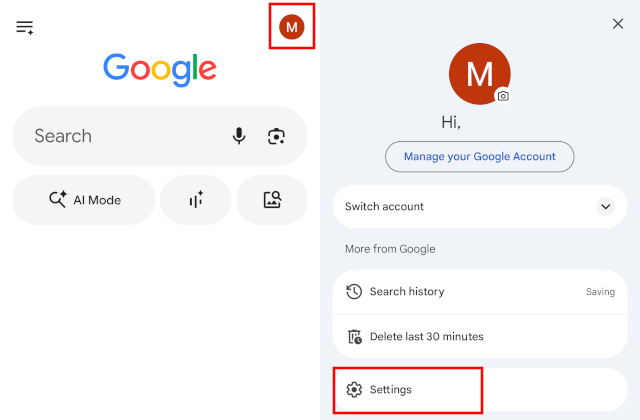
- Tap on Google Assistant.
- Scroll down and tap on General.
- Tap on the toggle switch next to Google Assistant to turn it off.
-
Tap Turn off to confirm.
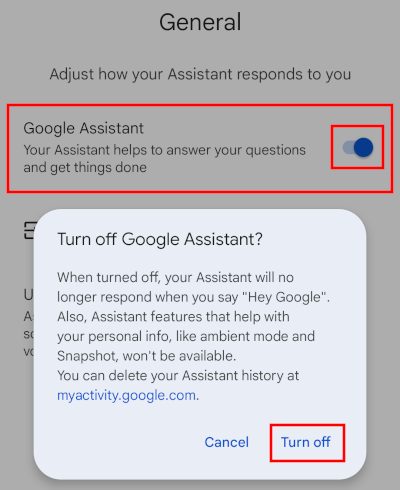
Google Assistant is now fully deactivated on your account and device. If you ever need to turn Google Assistant back on in the future, simply repeat these steps on your device and toggle the switch to active.
How to remove Google Assistant from the Home button or Navigation Gestures
Even when disabled, long-pressing the home button or swiping diagonally from the bottom corners might trigger a frustrating pop-up prompt asking you to turn Google Assistant back on. Here is how to completely disconnect the shortcut behavior on any Android UI.
-
Select None from the available selection list.
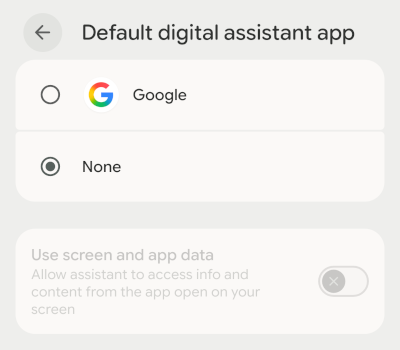
Your device's home button long-press or gesture shortcut will now remain completely silent and won't prompt you to reactivate anything.
Related:
How to turn off Google News notifications on Android
How to turn off the news feed (Discover) in the Google app
How to disable picture-in-picture on a Samsung phone
How to disable Samsung Free and remove it from the home screen
How to change Google Gemini button to power button on Pixel