
How to play media from a USB drive on your PlayStation 5
The PlayStation 5 plays videos, music, and photos, not just games. But if you're trying to play media from a USB drive, you might hit a "No Media Found" error. The PS5 is picky about how drives are organized. It expects your files in specific named folders at the root of the drive, not buried in subfolders. Here's how to get it working.
Is your PS5 ignoring your files?
- Do you get a "No Media Found" error even though the drive is plugged in?
- Is the "Music" icon in your Control Center greyed out?
- Are your 4K MKV files stuttering or refusing to open?
- Can't find the "USB" tab in your Media Gallery?
Here's how to fix it:
Step 1: Formatting for 4K (exFAT is key)
Many movie files are larger than 4GB. If your drive is formatted to the old FAT32 standard, these files won't even fit on the drive.
- Format to exFAT: On your PC or Mac, format your USB drive to exFAT. It handles files over 4GB, which FAT32 can't.
- Use the right port: For 4K, use the USB-C port on the front or the USB-A (10Gbps) ports on the back. The front USB-A is slower and can cause buffering.
Note: You cannot use the same drive for Media and Extended Game Storage. If you formatted your drive to store PS5 games, the console hides the file system, and you won't be able to add media to it. Use a separate USB stick or portable drive for media.
Step 2: The mandatory folder names
The PlayStation 5 will only see your media if you put it in a folder at the root directory (the very first screen you see when opening the drive).
- For music: Create a folder named Music.
- For videos: Create a folder named Video.
- For photos: Create a folder named Photos.
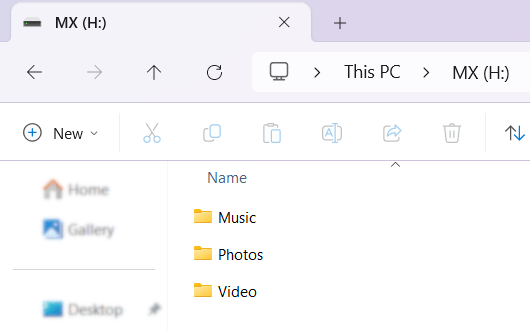
Note: These names are case-sensitive. music (lowercase) won't work. Stick to Music.
Step 3: Play USB media on PS5 (movies, videos, music & photos)
How to watch videos & photos
Your videos and photos live in the Media Gallery.
- Plug your USB drive into your PS5.
-
Go to your Games home screen and open Media Gallery.
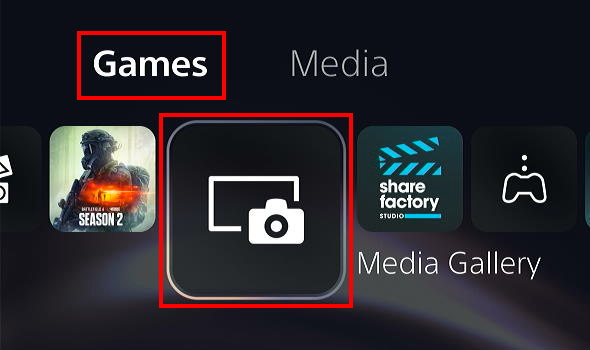
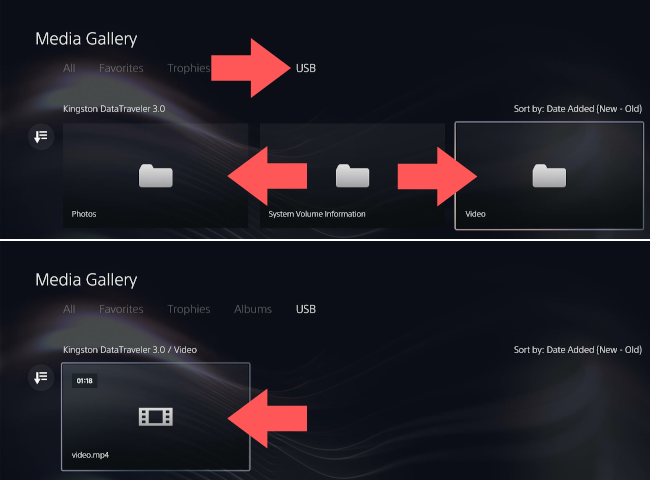
- Navigate to the USB tab at the top of the screen.
- If two USB drives are connected, select the one that contains the media files you want to watch.
- Open the Video or Photos folder.
-
Select a video or photo to watch it.
The PlayStation 5 supports MP4, MKV, and WebM. For 4K, stick with H.264 (AVC) or H.265 (HEVC).
How to play music while gaming
Music plays through the Control Center, so you can listen while you play.
- Plug your USB drive into your PS5.
- Press the PS button (PlayStation logo) on your controller once to open the Control Center.
- Select the Music icon (the musical note).
- Select your USB drive.
- Select a song to start playing music from your external drive.
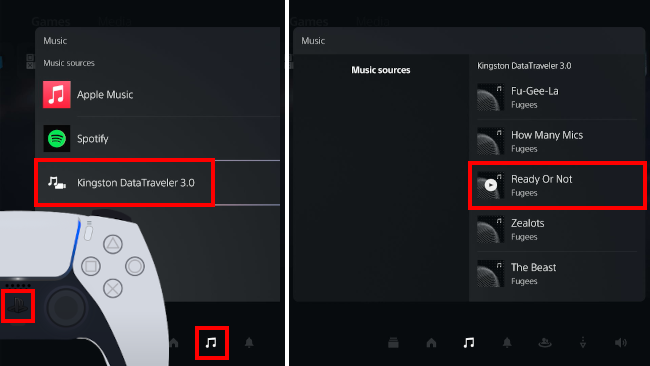
You can shuffle tracks or use the Audio Balance slider to mix your music with the game's audio.
Troubleshooting: Why isn't my file playing?
- Copyright protection: The PS5 won't play files with DRM.
- Video format: The PlayStation 5 supports MKV, MP4, and WEBM.
- Audio format: The PS5 supports FLAC, MP3, and AAC.
- Audio codec: If a video plays without sound, the audio codec is probably unsupported. Stick to AAC, MP3, or FLAC.
- 8K video: Even though the PS5 Pro box says 8K, USB media playback tops out at 4K (3840 x 2160). If your file is higher than that, it won't play.
Related:
How to play videos with subtitles on PS5 (SRT file fix)
How to format a USB drive for the PS5 (step-by-step)
How to copy PS5 screenshots and 4K videos to a USB drive
References:
https://www.playstation.com/en-us/support/hardware/play-video-music-discs-usb-drives/