
How to play media from a USB drive on your PS5
The PlayStation 5 is a 4K powerhouse, but it’s also a bit of a stickler for organization. If you’ve plugged in a USB drive only to see a "No Media Found" message, your console isn't broken—you’ve likely just run into Sony’s strict folder requirements.
Unlike a PC, the PS5 won't just scan your whole drive. It expects your files to be in specific, named folders in the root directory. Whether you’re listening to your own FLAC music library while playing Grand Theft Auto VI or watching high-bitrate 4K movies, here is the checklist to get your media playing instantly.
Is your PS5 ignoring your files?
- Do you get a "No Media Found" error even though the drive is plugged in?
- Is the "Music" icon in your Control Center greyed out?
- Are your 4K MKV files stuttering or refusing to open?
- Can't find the "USB" tab in your Media Gallery?
Follow the steps below to fix the formatting and folder structure.
Step 1: Formatting for 4K (exFAT is key)
Many movie files are larger than 4GB. If your drive is formatted to the old FAT32 standard, these files won't even fit on the drive.
- Format to exFAT: On your PC or Mac, format your USB drive to exFAT. This allows for massive file sizes and is the format the PS5 prefers for high-speed data.
- Use the right port: For 4K video, plug your drive into the USB-C port on the front or the USB-A (10Gbps) ports on the back. The front USB-A port is often slower and may cause 4K video to buffer.
⚠️ Note: You cannot use the same drive for Media and "Extended Game Storage." If you formatted your drive to store PS5 games, the console hides the file system, and you won't be able to add movies or music to it. Use a standard USB stick or a portable hard drive or SSD drive for your media.
Step 2: The mandatory folder names
The PS5 will only see your media if it is placed inside a folder at the root directory (the very first screen you see when opening the drive).
- For music: Create a folder named Music.
- For videos: Create a folder named Video.
- For photos: Create a folder named Photos.
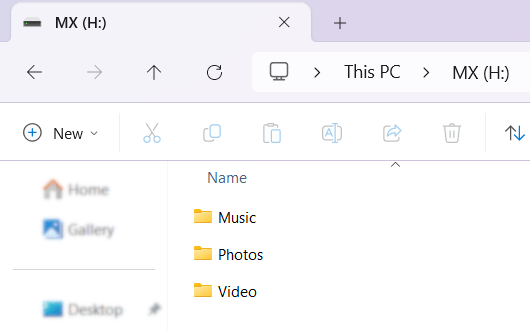
⚠️ Note: These names are case-sensitive. "music" (lowercase) may not work on some firmware versions—stick to Music.
Step 3: Play USB media on PS5 (movies, videos, music & photos)
Once you've formatted your USB drive to exFAT (step 1), created Music, Video, and Photos folders on it (step 2), copied the media files into the correct folders, and connected the drive to your PS5, you're ready to play the USB media on your PlayStation 5.
How to watch videos & photos
On a PS5, your videos, movies, and pictures live inside the Media Gallery app.
-
Go to your Games home screen and open Media Gallery.
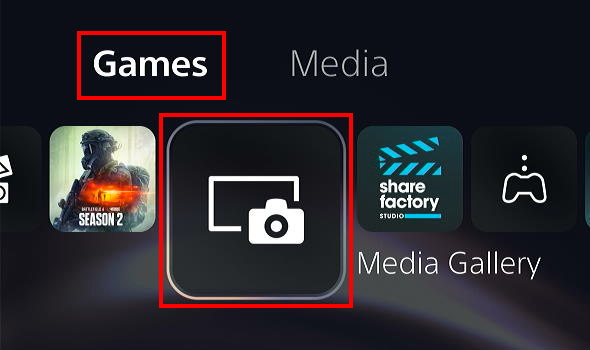
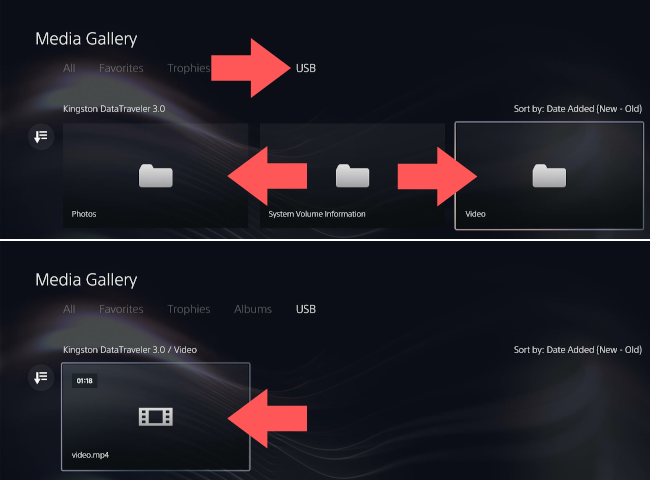
- Navigate to the USB tab at the top of the screen.
- If two USB drives are connected, select the one that contains the media files you want to watch.
- Open the Video or Photos folder.
-
Click a video or photo to watch it.
Supported formats: The PS5 supports MP4, MKV, and WebM. For the best experience, ensure your 4K videos use the H.264 (AVC) or H.265 (HEVC) codec.
How to play music while gaming
Music is handled via the Control Center so you can listen to your own tracks in the background while you play.
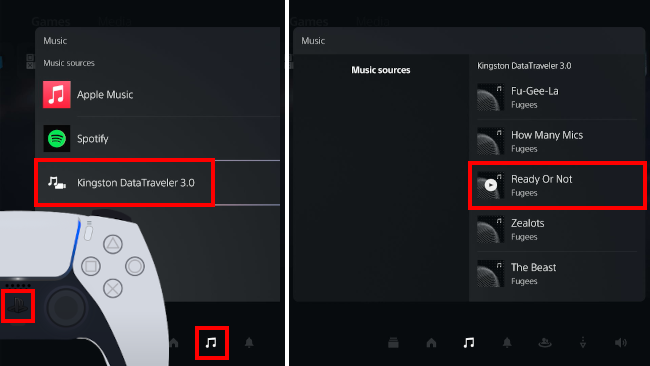
- Press the PS button (PlayStation logo) on your controller once to open the Control Center.
- Select the Music icon (the musical note).
- Select your USB drive.
- Select a song to start playing music from your external drive.
You can shuffle tracks or use the "Audio Balance" slider to mix your music with the game's sound effects.
Troubleshooting: Why isn't my file playing?
- Copyright protection: The PS5 will not play files with DRM (copyright protection).
- Video format: The PS5 supports the following video formats: MKV, MP4, and WEBM.
- Audio format The PS5 supports the following audio file formats: FLAC, MP3, and AAC.
- Audio codec: If a video plays without sound, the audio codec may be unsupported (like certain DTS formats). Stick to AAC, MP3, or FLAC.
- 8K video: Even though the PS5 Pro box says 8K, the Media Gallery often caps USB playback at 4K (3840 x 2160). If your file is a higher resolution than that, it won't play.
Related:
How to play videos with subtitles on PS5 (SRT file fix)
How to format a USB drive for the PS5 (step-by-step)
How to copy PS5 screenshots & 4K video to USB
References:
https://www.playstation.com/en-us/support/hardware/play-video-music-discs-usb-drives/