
How to mute the PS5 controller microphone
There is nothing more awkward than realizing your entire lobby just heard your private conversation because your PS5 controller was 'live.' By default, the DualSense microphone is set to 'Always On,' which can be a massive privacy headache.
Whether you need a one-tap mute for a quick phone call or you want to disable the microphone permanently so it never catches you off guard again, this guide covers the three fastest ways to stay private on your PlayStation 5.
Method 1: Use the physical mute button
The fastest way to silence yourself is the dedicated button located directly below the PlayStation (PS) logo on your controller.
- To mute: Tap the button once. It will glow solid orange.
- To unmute: Tap the button again. The light will turn off.
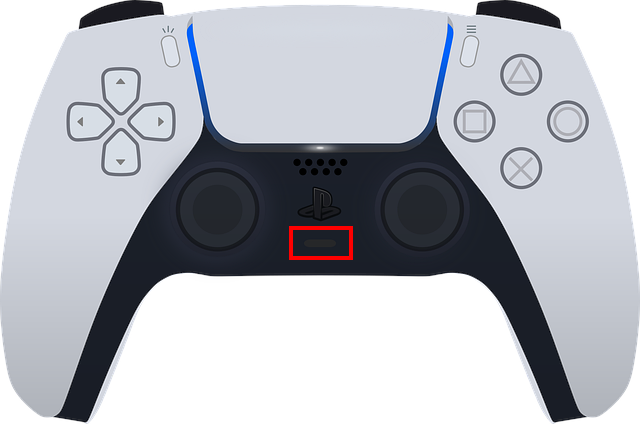
Note: A small microphone icon with a slash through it will also appear briefly in the top-right corner of your TV screen to confirm you are muted.
Method 2: The "mute everything" shortcut
If your phone rings or someone walks into the room, you can silence your entire PlayStation setup (both your mic AND your TV/Headset audio) with one hand.
- Hold the Mute button for 2 seconds.
- The button will start pulsing orange.
- Your microphone is now muted, and all game/system sound is silenced.
- To restore sound: Tap the button once.
Method 3: How to mute the mic permanently
Tired of manually muting every time you log in? You can change your PS5 settings so your microphone starts in the "Muted" state every time you turn on the console.
- Open Settings (the gear icon at the top right).
- Navigate to Sound.
- Select Microphone from the left-hand menu.
- Change Microphone Status When Logged In to Mute.
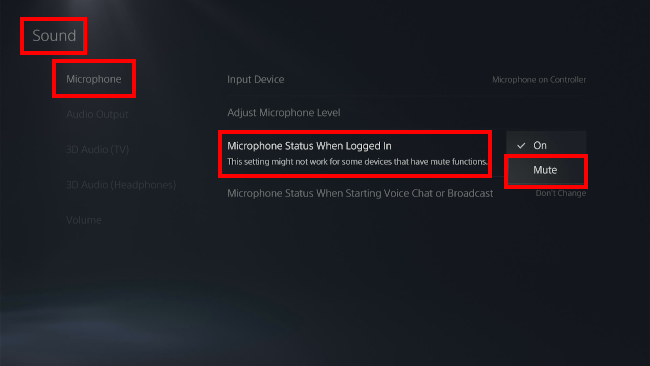
Tip: Even with this setting enabled, you can still unmute yourself at any time by tapping the controller button.
Bonus: How to mute the controller speaker
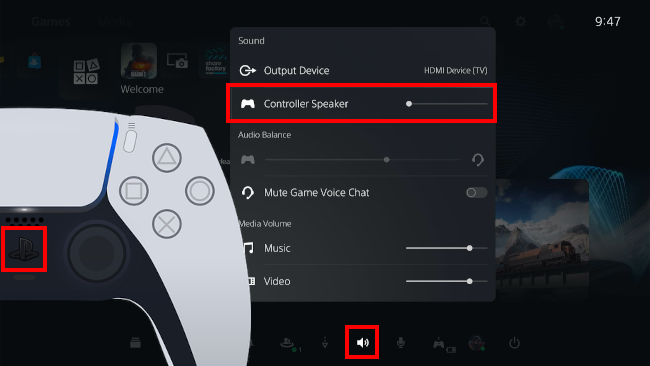
Sometimes it’s not the mic that’s the problem—it’s the loud chirping or dialogue coming out of the controller itself. To silence the controller speaker:
- Press the PS button on your controller.
- Select Sound from the bottom menu.
- Select Controller Speaker.
- Slide the volume all the way to the left to mute it.
⚠️ Voice Command Note: If your controller is muted (orange light is on), the "Hey PlayStation" voice assistant will not be able to hear you. You must unmute the mic if you want to use voice-activated game launches or system searches.
Related:
How to turn off a PS5 controller (with or without a console)
How to make PS5 controller battery last longer
How to mute or lower the PS5 startup beep sound