
How to turn off a PS5 controller: 4 easy methods
There is nothing more annoying than coming back to your console for a second session only to find your battery is dead. Once you're done gaming, it's a good idea to turn off your PS5 controller to save battery life, help your hardware last longer, and avoid those accidental button presses that can ruin a movie or skip a scene while you're streaming content.
Whether you’re switching to Netflix or just heading to bed, turning off your DualSense manually is the best way to ensure it's charged and ready the next time you need it.
Need to shut down your controller?
- Want to turn it off manually in just two clicks?
- Need the "10-second" shortcut for when your TV is already off?
- Using your controller on a PC, Mac, or phone and need to turn it off without a console?
- Tired of the battery draining because you forgot to shut it down?
- Dealing with a frozen controller that won't turn off at all?
Find the fastest way to kill the lights and save your battery below.
Method 1: The Control Center (the standard way)
- Press the PS button (PlayStation logo) on your controller once to open the Control Center (the row of icons at the bottom).
- Navigate to the Accessories icon (it looks like a controller).
- Select your DualSense Wireless Controller.
- Select Turn Off.
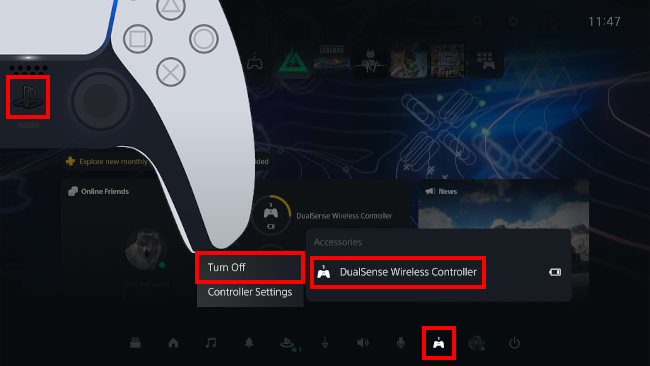
💡 Tip: In a firmware update, Sony moved the Accessories icon to the far left for some users. If you don't see it, press the Options button while the menu is open to "pin" it back to the front.
Method 2: The "10-second" emergency shortcut
If your controller is acting up, or if your TV is off and you just want to kill the controller light without looking at a menu, use this physical shortcut.
- Hold the PS button on your controller for 10 to 15 seconds.
- The blue light strips will blink once and then go dark.
- This "force-quits" the controller connection immediately.
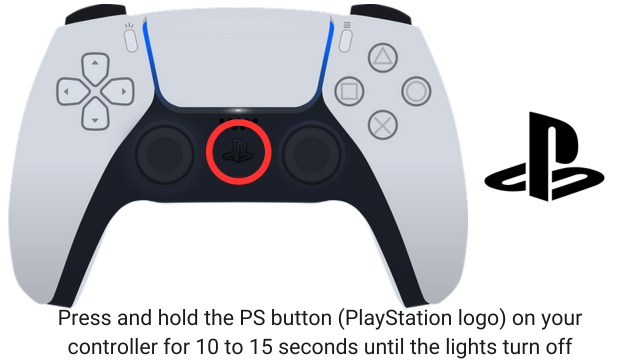
This is the same method used for turning off the controller without a console (see below).
Method 3: The "Set it and forget it" fix (Auto-Off)
If you are tired of manually turning off the controller, let the PS5 do the work for you. This is the best way to preserve your battery's long-term health.
- Go to Settings (the gear icon).
- Select System > Power Saving.
- Select Set Time Until Controllers Turn Off.
- Choose After 10 Minutes.
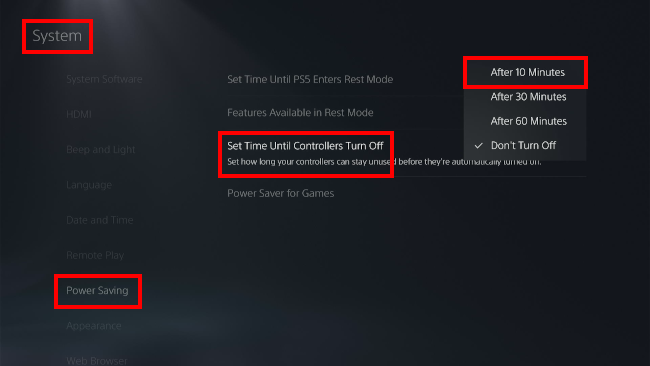
Now, if you fall asleep during a movie or walk away from a game, your controller will automatically go to sleep to save power.
Method 4: How to turn off a PS5 controller without a console
If you are using your DualSense controller to play games on a PC, Mac, iPhone, or Android device, you won't have access to the PlayStation "Control Center" menu to shut it down.
To turn off a PS5 controller without a console, use the Hardware Shutdown shortcut:
- Hold the PS Button for 10–15 seconds.
- Keep holding until the light strips around the touchpad turn completely off.
- Once the lights are out, the Bluetooth connection is severed, and the controller is powered down.
Note for PC players: If you are playing on Steam, you can also configure the controller to turn off automatically when you exit "Big Picture Mode" in the Steam Controller Settings.
Troubleshooting: Controller won't turn off?
If the light stays on even after holding the button, your controller might be "stuck" in a pairing loop.
The fix: Turn the controller over and look for the tiny pinhole next to the Sony logo. Use a paperclip to press the button inside for 5 seconds. This resets the hardware and forces it to shut down.
Related:
How to make PS5 controller battery last longer
How to mute the PS5 controller mic (3 fast ways)
References:
https://www.lifewire.com/turn-off-ps5-controller-7636634
https://beebom.com/how-turn-off-ps5-dualsense-controller/
https://www.slashgear.com/1668501/how-to-completely-turn-off-ps5-controller/
https://www.tomsguide.com/how-to/how-to-turn-off-ps5-controller