
How to block ads on Android phones and tablets (without apps)
Want to get rid of annoying ads on your Android smartphone or tablet without installing third-party ad-blockers or heavy VPN apps? Android has a built-in feature called Private DNS that lets you block ads, pop-ups, and trackers across your entire device—including web browsers like Google Chrome, Firefox, and Samsung Internet, as well as many mobile apps and games.
In this step-by-step guide, you’ll learn how to enable Private DNS on any Android phone or tablet in under a minute—completely free, safe, and with no extra app downloads required.
These steps work for all Android phones and tablets, including Samsung Galaxy, Google Pixel, Motorola, OnePlus, Xiaomi, and other modern devices.
How to block ads on Android using Private DNS & AdGuard DNS
- Open Settings on your Android phone or tablet.
- Tap Network and internet (or Connections, Connection & sharing, or More connectivity options).
- Tap More connection settings (Samsung only).
-
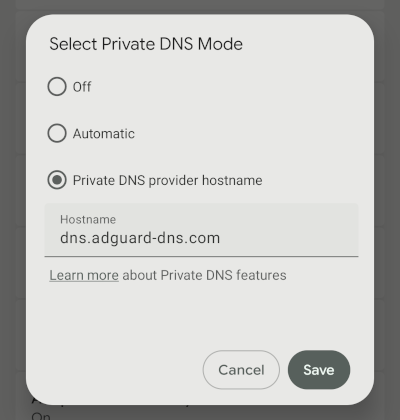
Tap Private DNS.
Tip: If you can't find Private DNS, open your phone's Settings app, tap the search bar at the top, and type Private DNS.
- Select Private DNS provider hostname.
- Enter the hostname dns.adguard-dns.com.
-
Tap Save.
Alternative DNS hostnames
- AdGuard Family Protection (blocks ads, trackers, and adult content):
family.adguard-dns.com - Control D (blocks ads and trackers):
p2.freedns.controld.com - NextDNS (customizable): Create a free account at NextDNS.io to generate your own custom DNS hostname. This gives you full control to block specific apps, websites, and trackers, as well as view real-time query logs to monitor network traffic across your devices.
What Private DNS does (and doesn't) block
- What it blocks: Banner ads, pop-ups, video ads on most websites (Chrome, Samsung Internet, Opera), mobile game ads, and background tracking servers.
- What it doesn't block: Sponsored videos or inline video ads served directly within apps like YouTube or Instagram (because those ads are served from the same server domain as the main content).
Troubleshooting and quick fixes
- Website / link not loading? Some affiliate or sponsored shopping links (like Google Shopping search results) might get blocked by ad-blocking DNS servers. You can temporarily switch Private DNS to Automatic or Off if a specific page fails to load.
- Public Wi-Fi / captive portals: Note that some strict public Wi-Fi networks (airports, hotels) block custom DNS ports. If Wi-Fi says "No Internet connection", switching Private DNS to Automatic temporarily resolves it.
Related:
How to use Private DNS on an Android phone or tablet
How to access blocked websites on Android (6 safe methods)
How to set up DNS on any Android phone or tablet
References: