
How to save all bookmarks to an HTML file in Chrome, Edge, Brave, and Firefox
Shifting your daily browsing to a different app, setting up a clean installation of Windows 11, or moving to a brand-new computer? You don't have to leave your saved links behind. Exporting your browser bookmarks into a universal HTML backup file is incredibly simple and takes under 30 seconds.
In this step-by-step guide, you will learn exactly how to export bookmarks (or favorites) into a single portable file, no matter which major web browser you currently use.
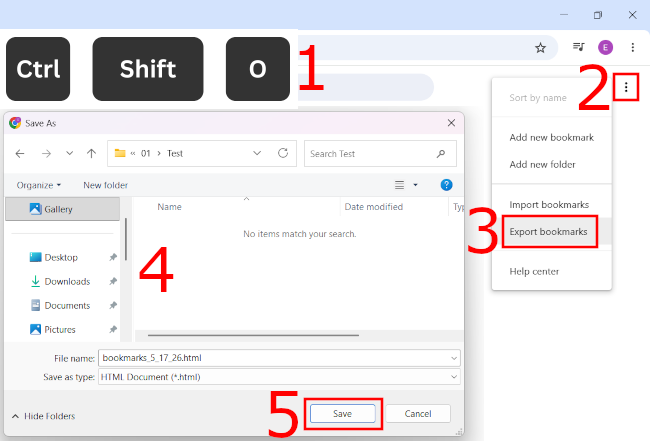
How to save all bookmarks to an HTML file in Google Chrome
Google Chrome saves your bookmarks directly to a universally compatible HTML file through its native manager utility.
- Open Chrome.
- Press Ctrl + Shift + O to jump instantly to the Bookmark Manager.
- In the top-right corner of the bookmarks manager bar, click the three vertical dots icon (organize menu).
- Select Export bookmarks from the dropdown menu.
- Choose where you want to save the HTML file on your PC.
- Click Save.
How to save all bookmarks to an HTML file in Microsoft Edge
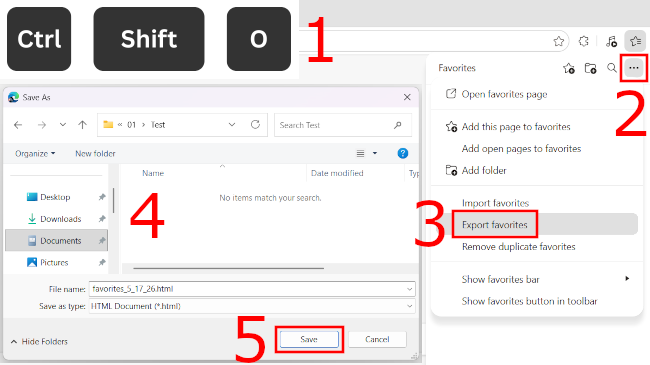
Microsoft treats saved links slightly differently by calling them favorites, but the underlying system still uses the same cross-compatible file layout.
- Open Edge.
- Press Ctrl + Shift + O to open the flyout menu for your favorites.
- At the top of the small favorites window that appears, click the three horizontal dots (More options).
- Click Export favorites.
- Choose where you want to save the HTML file on your computer.
- Click Save.
How to save all bookmarks to an HTML file in Brave Browser
Because Brave is built on the same underlying engine as Chrome, it uses the exact same layout and keyboard shortcuts to handle data management.
- Open Brave.
- Press Ctrl + Shift + O to jump instantly to the Bookmark Manager.
- In the top-right corner of the bookmarks manager bar, click the three vertical dots icon (organize menu).
- Select Export bookmarks from the dropdown menu.
- Choose where you want to save the HTML file on your PC.
- Click Save.
How to save all bookmarks to an HTML file in Firefox
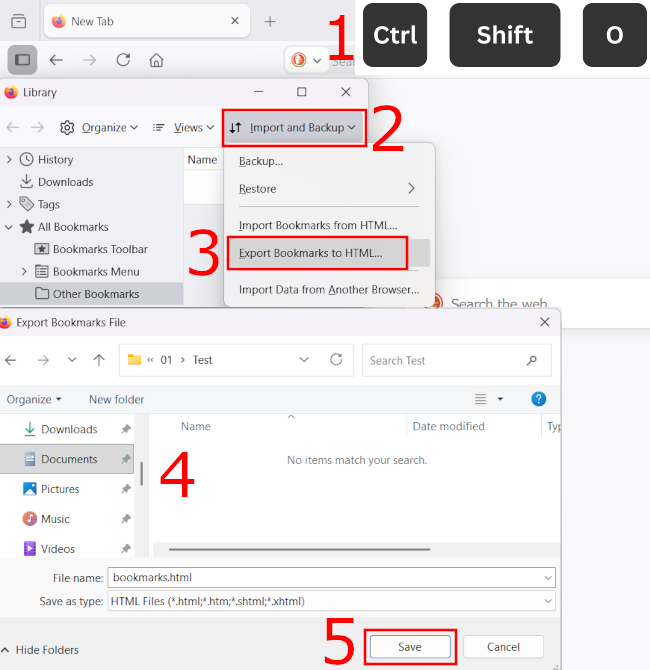
Firefox handles data management through its classic 'Library' panel system, which requires an extra step to navigate.
- Open Firefox.
- Press Ctrl + Shift + O to launch the library management window.
- Along the top toolbar of this pop-up window, click Import and Backup (the icon with two arrows).
- Select Export Bookmarks to HTML... from the contextual menu.
- Choose where you want to save the HTML file on your PC.
- Click Save.
What should you do with this HTML file?
Once you finish clicking save, you will have a lightweight file named something like bookmarks_5_17_26.html. I highly recommend saving a copy of this file to an external USB drive or dropping it into a secure cloud storage folder.
When you are ready to set up your new browser, simply go back to these exact same menus, select Import instead of export, and point the browser toward your saved HTML file. Every single folder structure, link description, and nested tag will instantly populate your new setup exactly the way you left it.
Related:
How to bookmark all open tabs in Chrome, Edge, Firefox & Brave
How to bookmark local files in Chrome, Edge, Firefox & Brave
Find bookmark file locations: Chrome, Edge, Brave & Firefox
How to export saved passwords to a CSV file from your browser