
How to export saved passwords to a CSV file from Chrome, Edge, Brave & Firefox
Before you clear out your browser's credential registry or migrate to a dedicated password manager, you need to create a backup of your data. Exporting your credentials to a CSV (Comma-Separated Values) file ensures you do not lose access to your accounts.
⚠️ Security alert: Password CSV files are completely unencrypted. Anyone with access to your computer can open this file and read your passwords in plain text. Store this file in a secure, encrypted folder, or delete it permanently as soon as you are done importing it into your new password manager.
How to export saved passwords to a CSV file from Google Chrome
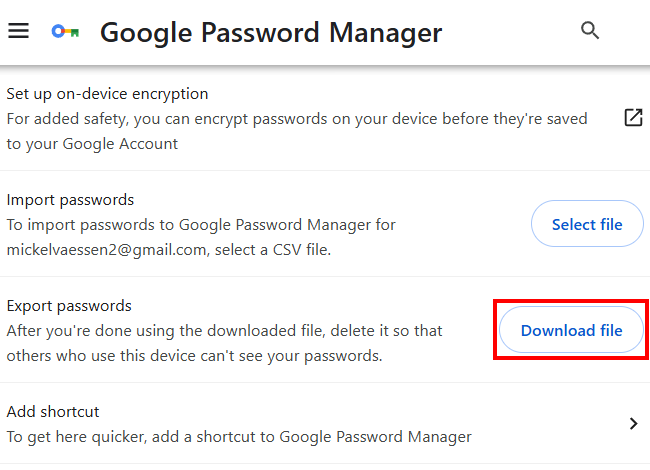
Before wiping your data, you can export your entire vault into a readable CSV spreadsheet through the Google Password Manager settings panel:
- Open Chrome.
- Click the three-dot menu button in the top right corner.
- Hover over Passwords and autofill.
- Select Google Password Manager.
- Click Settings in the left-hand navigation sidebar.
- Scroll down to the Export passwords section and click the Download file button.
- Verify your identity by entering your computer's Windows PIN/password or Mac Touch ID.
- Choose a safe folder on your hard drive.
- Click Save to download your .csv file.
How to export saved passwords to a CSV file from Microsoft Edge
While Microsoft hides its deletion features, downloading your saved credential backup is fully supported right inside your profile options:
- Open Edge.
- Click the three-dot menu button in the top right corner.
- Click Passwords.
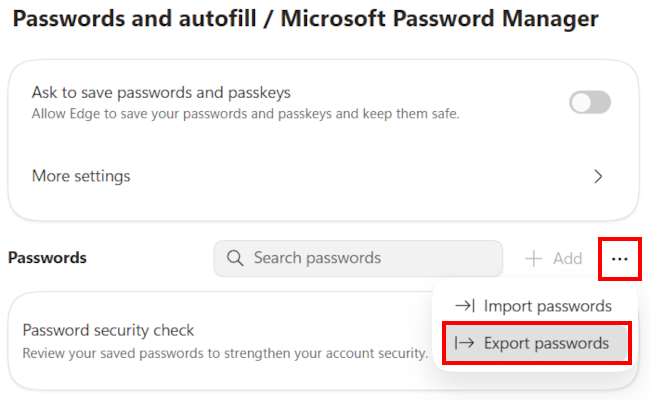
- Locate the Passwords heading. Click the three-dot menu (... More actions) button sitting directly to its right.
- Select Export passwords from the dropdown choice.
- Click the Export confirmation button on the pop-up.
- Provide your system PIN or password to authorize the download.
- Choose your destination folder.
- Click Save to download your password file.
How to export saved passwords to a CSV file from Brave Browser
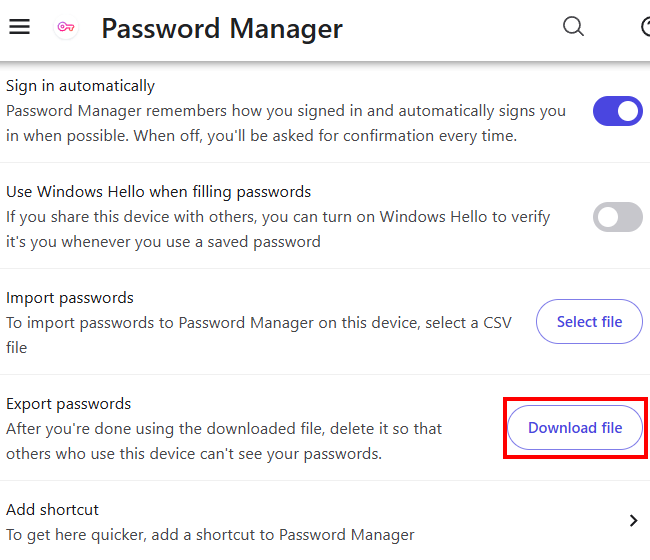
Brave mirrors the core architecture of Chrome, keeping its manual data backup option nested safely within its localized password hub:
- Open Brave.
- Click the three-line menu button (hamburger icon) in the top right corner.
- Hover over Passwords and autofill.
- Select Password Manager.
- Click Settings on the left side of the screen.
- Locate Export passwords and click the Download file button.
- Enter your local system password or PIN to authorize the secure download.
- Select a location on your computer.
- Click Save to store the CSV file.
How to export saved passwords to a CSV file from Firefox
Firefox features a highly intuitive, single-click export function right from its specialized password manager portal:
- Open Firefox.
- Click the menu icon (three horizontal lines) in the top-right corner.
- Select Passwords from the menu.
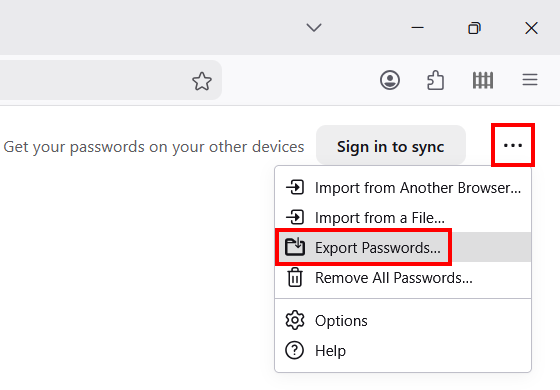
- In the right-hand panel of the logins page, click the three dots (...) icon in the top right corner.
- Select Export Passwords from the drop-down menu options.
- Read the warning reminding you that CSV files store data in plain text, then click the red Continue with export confirmation button.
- Enter your Windows or Mac master account login info to unlock the vault.
- Select a folder to save the file.
- Click Save to download the file.
Related:
How to delete all saved passwords at once in your browser
How to export bookmarks to an HTML file (all major browsers)