
How to stop websites from asking for your location on PC and Android
Website location prompts are a constant distraction and a privacy risk. Whether you are using Google Chrome, Microsoft Edge, Firefox, Brave, or Samsung Browser (formerly Samsung Internet), this guide will show you exactly how to block these annoying location permission pop-ups for good on both desktop and mobile.
ADVERTISEMENT
Tip: On mobile, blocking location in the browser only stops websites from asking. To stop the browser app itself from knowing where you are, you also need to check your Android system privacy settings.
How to turn off location requests in Google Chrome on PC
- Open Chrome.
- Click the three-dot menu button in the top right corner.
- Click Settings.
- Click Privacy and security in the left menu.
- Click Site settings.
- Click Location.
-
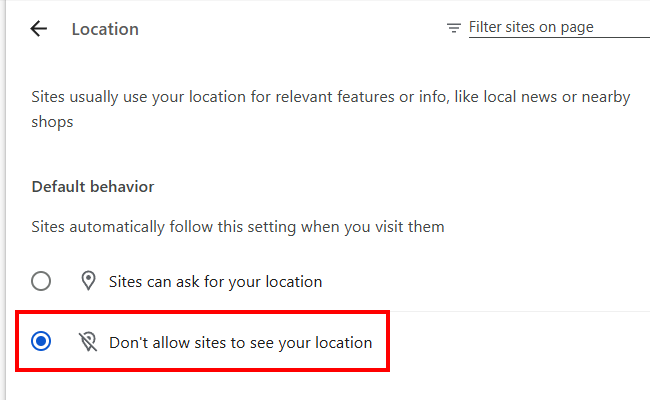
Select the Don't allow sites to see your location option.
ADVERTISEMENT
How to turn off location requests in Microsoft Edge on PC
- Open Edge.
- Click the three-dot menu button in the top right corner.
- Click Settings.
- Click Privacy, search, and services in the left menu.
- Click Site permissions.
- Click All permissions.
- Click Location.
-
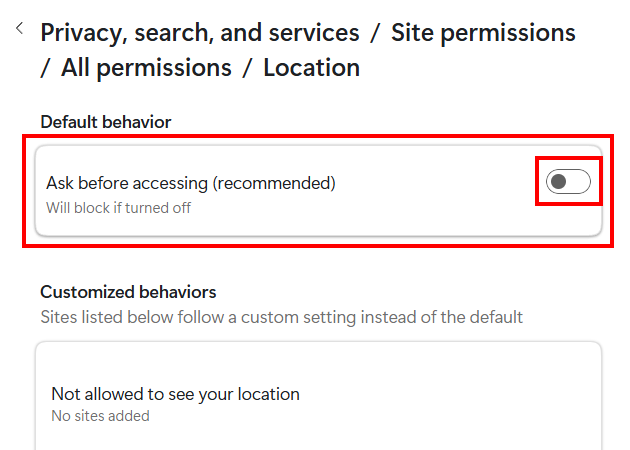
Click Ask before accessing or the toggle button next to it to turn this option off.
SPONSORED
How to turn off location requests in Firefox on PC
- Open Firefox.
- Click the three-line menu button in the top right corner.
- Click Settings.
- Click Privacy & Security in the left menu.
- Scroll down to the Permissions section.
- Click the Settings button next to Location.
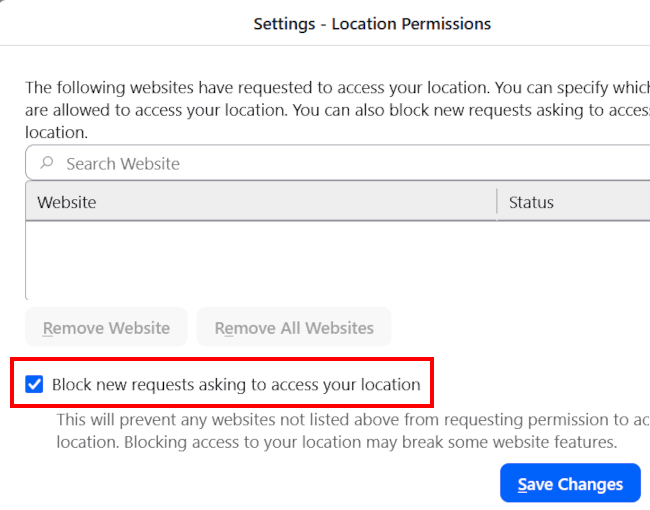
- Check the box next to Block new requests asking to access your location.
-
Click Save Changes.
SPONSORED
How to turn off location requests in Brave Browser on PC
- Open Brave.
- Click the three-line menu button in the top right corner.
- Click Settings.
- Click Privacy and security in the left menu.
- Click Site and Shields Settings.
- Click Location.
-
Select the Don't allow sites to see your location option.

SPONSORED
How to turn off location requests in Google Chrome on Android
- Open Chrome.
- Tap the three-dot menu button in the top right corner.
- Tap Settings.
- Tap Site settings.
- Tap Location.
-
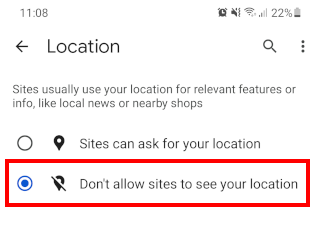
Select the Don't allow sites to see your location option.
SPONSORED
How to turn off location requests in Microsoft Edge on Android
- Open Edge.
- Tap the three-line menu button in either the bottom-right or top-right corner.
- Tap Settings.
- Tap Site settings.
- Tap Site permissions.
- Tap Location.
-
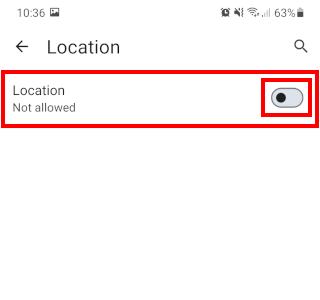
Tap Location or the toggle button next to it to turn this option off.
SPONSORED
How to turn off location requests in Firefox on Android
- Open Firefox.
- Tap the three-dot menu button in the top right corner.
- Tap Settings.
- Tap Site settings.
- Tap Location.
-
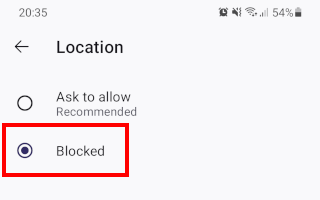
Select the Blocked option.
SPONSORED
How to turn off location requests in Brave Browser on Android
- Open Brave.
- Tap the three-dot menu button in the top right corner.
- Tap Settings.
- Tap Site settings.
- Tap Location.
-
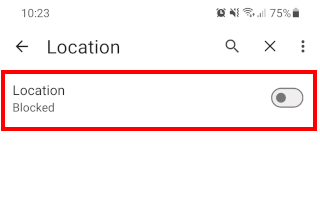
Tap Location to disable this option.
SPONSORED
How to turn off location requests in Samsung Browser (Samsung Internet)
- Open Samsung Browser (Samsung Internet).
- Tap the menu button (three dots or three lines) in the bottom right corner.
- Tap Settings.
- Tap Sites and downloads.
- Tap Site permissions.
-
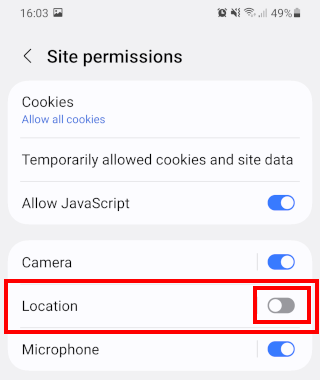
Tap the toggle button next to Location to turn this option off.
SPONSORED
ADVERTISEMENT
Related:
How to stop browsers from asking to save passwords
Stop Autoplay Videos: Edge, Firefox, Brave & Samsung Internet