
How to stop browsers from asking to save passwords
Whether you use a dedicated password manager like Bitwarden or 1Password, or you just prefer the privacy of not saving credentials in your browser, that 'Save Password?' pop-up can be incredibly annoying. This guide will show you how to stop Google Chrome, Microsoft Edge, Firefox, and Brave from asking to save passwords on both desktop and mobile.
ADVERTISEMENT
I personally use KeePass and KeePass2Android Offline as my password managers. KeePassXC and Bitwarden are also good options.
What happens to your existing passwords?
- Turning off the prompt does not delete the passwords already saved in the browser.
- You should also go to the "Managed Passwords" section to delete old passwords if you're moving to a new password manager.
How to stop Google Chrome from asking to save passwords on PC
- Open Chrome.
- Click the three-dot menu button in the top right corner.
- Hover over Passwords and autofill.
- Click Google Password Manager.
- Click Settings in the left menu.
-
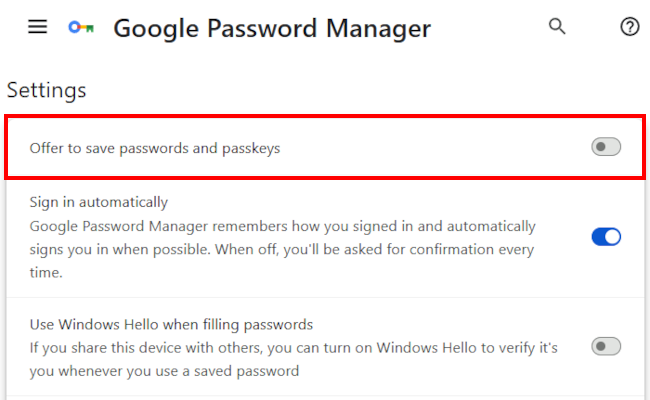
Click Offer to save passwords and passkeys or the toggle button next to it to turn this option off.
ADVERTISEMENT
How to stop Microsoft Edge from asking to save passwords on PC
- Open Edge.
- Click the three-dot menu button in the top right corner.
- Click Passwords.
-
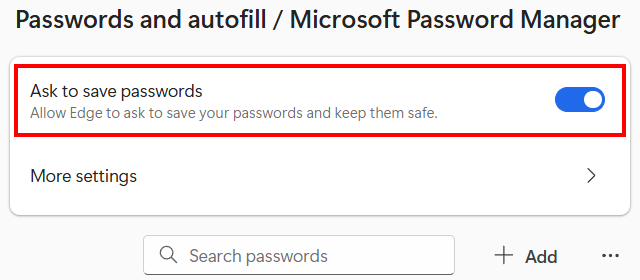
Click Ask to save passwords or the toggle button next to it to turn this option off.
SPONSORED
How to stop Firefox from asking to save passwords on PC
- Open Firefox.
- Click the three-line menu button in the top right corner.
- Click Passwords.
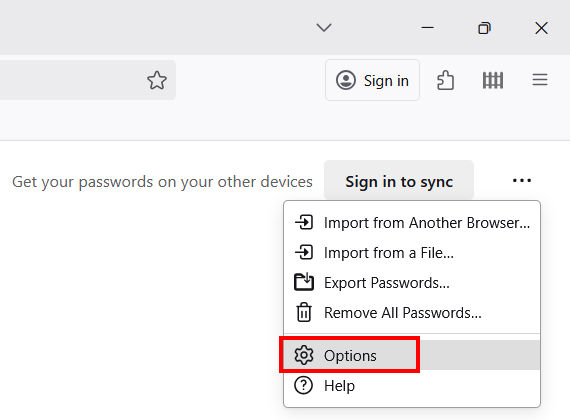
- Click the three-dot options button in the top right corner.
-
Click Options.
-
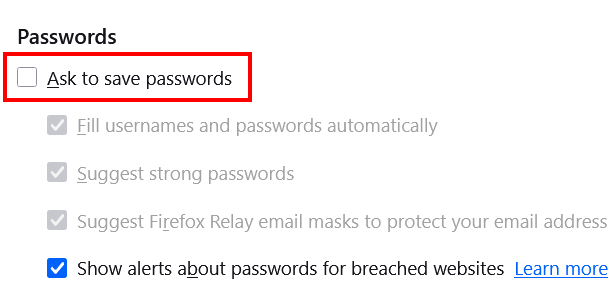
Uncheck the Ask to save passwords option.
SPONSORED
How to stop Brave Browser from asking to save passwords on PC
- Open Brave.
- Click the three-line menu button in the top right corner.
- Hover over Passwords and autofill.
- Click Password Manager.
- Click Settings in the left menu.
-
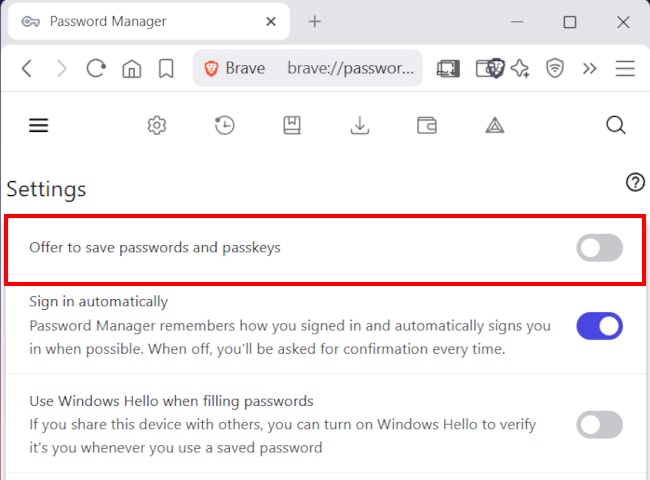
Click Offer to save passwords and passkeys or the toggle button next to it to turn this option off.
SPONSORED
How to stop Google Chrome from asking to save passwords on Android
- Open Chrome.
- Tap the three-dot menu button in the top right corner.
- Tap Settings.
- Tap Google Password Manager.
- Tap Settings.
-
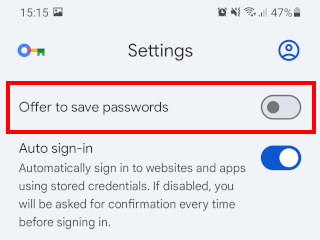
Tap Offer to save passwords or the toggle button next to it to turn this option off.
SPONSORED
How to stop Microsoft Edge from asking to save passwords on Android
- Open Edge.
- Tap the three-line menu button in the top right or bottom right corner.
- Tap Settings.
- Tap Microsoft password manager.
- Tap Password settings.
-
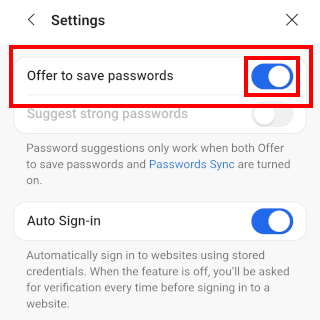
Tap Offer to save passwords or the toggle button next to it to turn this option off.
SPONSORED
How to stop Firefox from asking to save passwords on Android
- Open Firefox.
- Tap the three-dot menu button in the top right corner.
- Tap Settings.
- Tap Passwords.
- Tap Save passwords.
-
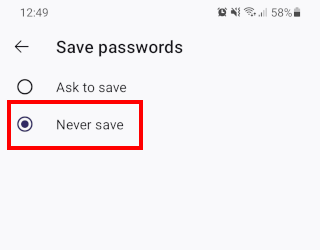
Select the Never save option.
SPONSORED
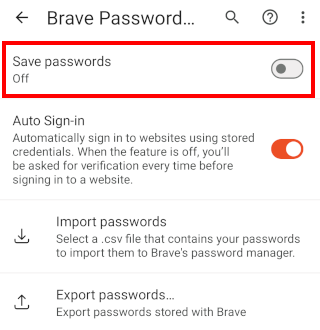
How to stop Brave Browser from asking to save passwords on Android
- Open Brave.
- Tap the three-dot menu button in the top right corner.
- Tap Settings.
- Tap Brave Password Manager.
-
Tap Save passwords or the toggle button next to it to turn this option off.
SPONSORED
ADVERTISEMENT
Related:
How to stop websites from asking for your location
Stop Autoplay Videos: Edge, Firefox, Brave & Samsung Internet