
How to stop autoplay videos in Edge, Firefox, Brave, & Samsung Internet
Autoplaying videos can be one of the most annoying parts of browsing the web—suddenly a tab starts blasting audio, or a video begins playing before you’re ready.
The good news is that several browsers give you control over this behavior. In this guide, you’ll learn exactly how to stop videos from automatically playing in Microsoft Edge, Firefox, Brave, and Samsung Browser (formerly Samsung Internet) on both your computer and your mobile devices, with simple steps that put you back in charge of your browsing experience.
Can you turn off video autoplay in Google Chrome?
Chrome lacks a setting to disable autoplay videos, which is somewhat disappointing. To block autoplay videos in Google Chrome, you can use third‑party extensions like Video Blocker, Disable HTML5 Autoplay (M3), or AutoplayStopper from the Chrome Web Store.
WARNING! Be careful with browser extensions. Some malicious extensions can capture your passwords, track your browsing activity, insert ads into the pages you visit, or even infect your computer with malware [1] [2] [3].
Can you turn off video autoplay in Edge for Android?
Edge for Android phones and tablets doesn’t have a setting to turn off autoplay videos, which is somewhat disappointing.
How to stop autoplay videos in Microsoft Edge on PC
- Open Edge.
- Click the three-dot menu button in the top right corner.
- Click Settings.
- Click Privacy, search, and services in the left menu.
- Click Site permissions.
- Click All permissions.
- Click Media autoplay.
-
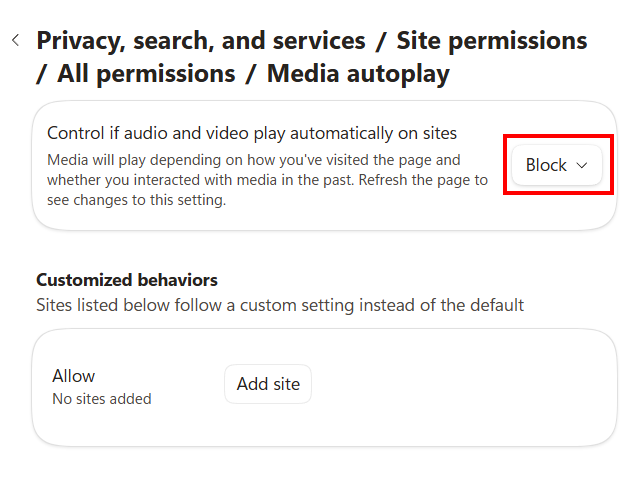
Next to Control if audio and video play automatically on sites, click the dropdown menu and select Block.
- Restart Edge.
How to stop autoplay videos in Firefox on a computer
- Open Firefox.
- Click the three-line menu button in the top right corner.
- Click Settings.
- Click Privacy & Security in the left menu.
- Scroll down to the Permissions section.
- Click on the Settings button next to Autoplay.
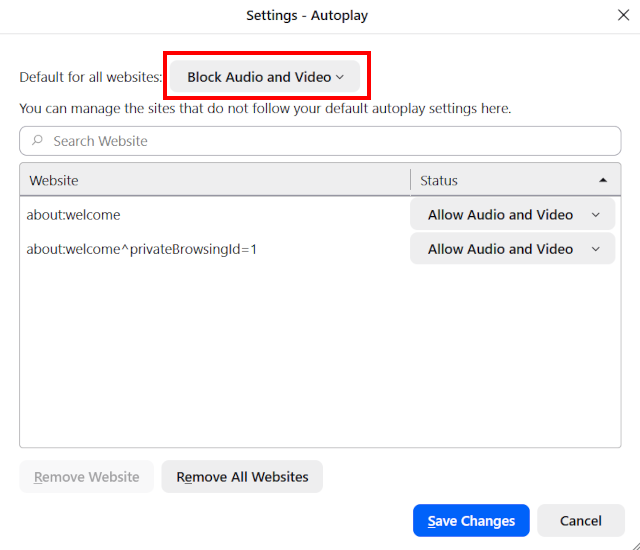
- Select Block Audio and Video.
-
Click Save Changes.
- Restart Firefox.
How to stop autoplay videos in Brave on PC
- Open Brave.
- Click the three-line menu button in the top right corner.
- Click Settings.
- Click Privacy and security in the left menu.
- Click Site and Shields Settings.
- Click Additional permissions.
- Click Autoplay.
-
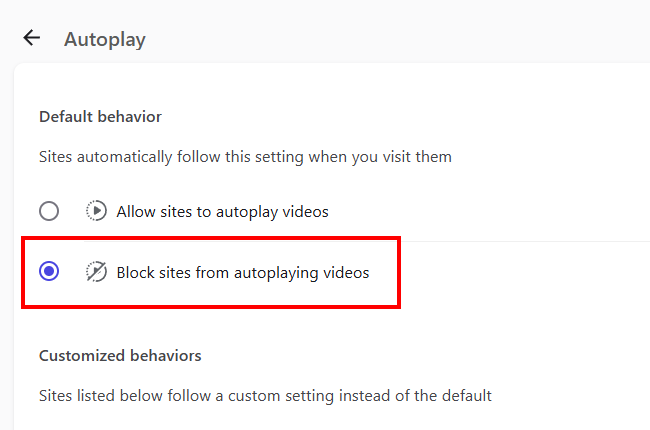
Select the Block sites from autoplaying videos option.
- Restart Brave.
How to stop autoplay videos in Firefox on Android
- Open Firefox.
- Tap the three-dot menu button in the top right corner.
- Tap Settings.
- Tap Site settings.
- Tap Autoplay.
-
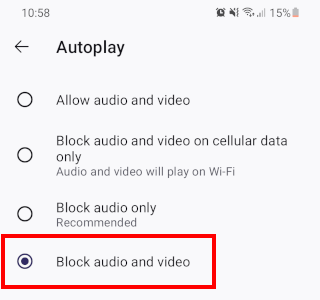
Select Block audio and video.
- Restart Firefox
How to stop autoplay videos in Brave on Android
- Open Brave.
- Tap the three-dot menu button in the top right corner.
- Tap Settings.
- Tap Site settings.
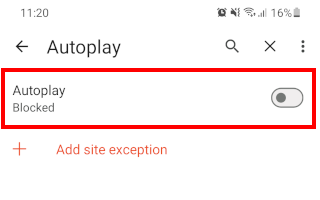
- Tap Autoplay.
-
Tap Autoplay or the toggle switch next to it to turn the feature off.
- Restart Brave.
How to stop autoplay videos in Samsung Browser (Samsung Internet)
- Open Samsung Browser (Samsung Internet).
- Tap the menu button (three dots or three lines) in the bottom right corner.
- Tap Settings.
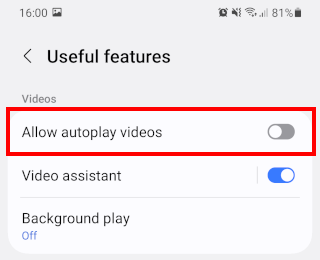
- Tap Useful features.
-
Tap Allow autoplay videos or the toggle switch next to it to turn this option off.
- Restart Samsung Browser.
Related:
How to stop browsers from asking to save passwords
How to stop websites from asking for your location