
How to remove Google Gemini or Assistant from the power button on a Pixel
Is your Google Pixel phone or tablet opening Google Gemini or Google Assistant every time you try to turn it off? In this step-by-step guide, I will show you how to change the side button back to the traditional power menu on your Android device.
ADVERTISEMENT
How to change Gemini or Assistant back to the power menu
- Open settings on your Google Pixel.
- Scroll down and tap on System.
-
Tap on Gestures.
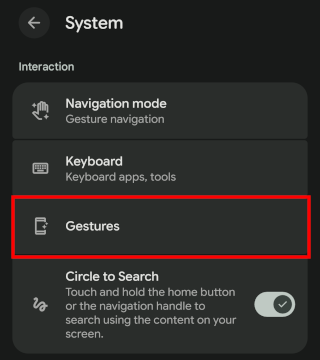
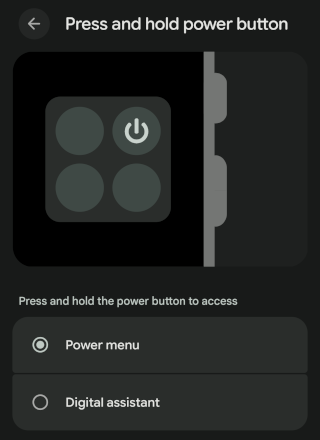
- Tap on Press and hold power button.
-
Switch the selection from Digital assistant (which triggers Gemini or Google Assistant) to Power menu.
- Close settings.
That's it! Now, when you press and hold the power button on your Pixel, it will bring up the classic power menu (Power off, Restart, Lockdown) instead of launching the digital assistant.
ADVERTISEMENT
Related:
How to disable Bixby button & change to power button on Samsung
How to disable Google Assistant on any Android phone or tablet