
How to open a ZIP, RAR or 7Z file on Windows 11
This step-by-step tutorial will show you how to natively open and extract a ZIP, RAR, or 7Z file on Windows 11 without installing third-party programs like WinRAR, WinZip, or 7-Zip.
ZIP, RAR, and 7Z are archive formats that combine multiple files and folders into a single compressed file. This makes files much easier to transfer and saves valuable storage space on your hard drive, USB flash drive, or cloud storage.
Step-by-step instructions
- Open File Explorer (click the folder icon on your taskbar or press the Windows + E keys on your keyboard).
- Go to the archive file you want to open.
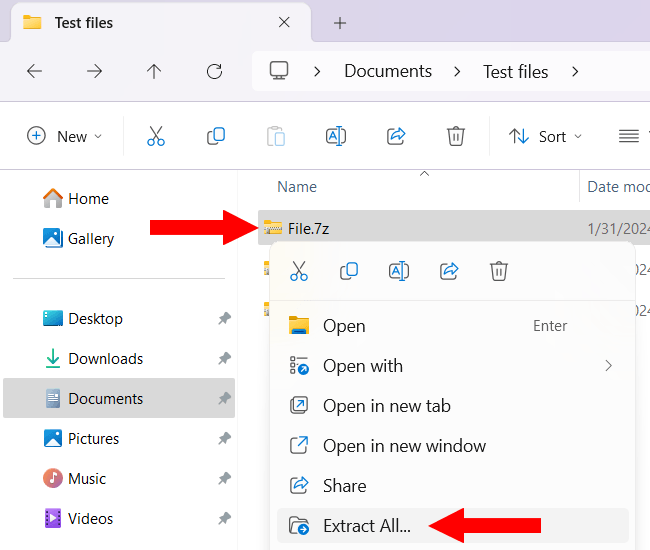
- Right-click on the file.
-
Click on Extract All.
-
In the next window, click on Extract in the bottom right corner of the window.
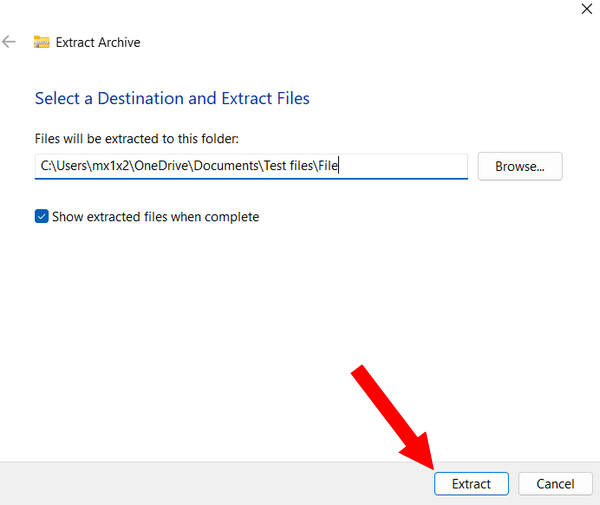
Windows 11 will now unzip the ZIP, RAR, or 7Z file.
Related:
How to Zip, RAR, and password protect files in Windows 11
References:
https://www.intowindows.com/how-to-open-7z-rar-files-without-7-zip-winzip-or-winrar-in-windows-11/