
How to make your browser ask where to save every download
By default, most web browsers are set to "Auto-pilot." When you click a download link, the file is instantly sent to your Downloads folder without a second thought. While this is fast, it’s also a recipe for a cluttered computer. Before you know it, your Downloads folder is an abyss of PDFs, installers, and images that you can never find again.
The good news? You can take back control. By toggling one simple setting, you can force Chrome, Edge, Brave, or Firefox to pause and ask you exactly where you want a file to go before it starts downloading.
ADVERTISEMENT
In this guide, you’ll learn:
- Step-by-step layouts: Separate, direct instructions for Chrome, Edge, Brave, and Firefox.
- Firefox: The specific path to change your download behavior in Mozilla's browser.
- The Benefit: How this one change keeps your PC organized and prevents "duplicate download" clutter.
Method 1: Google Chrome
- Open Chrome.
- Click the three-dot menu button in the top right corner.
- Click Settings.
- Click Downloads in the left menu.
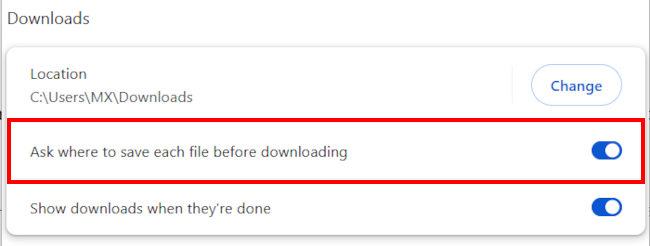
- Click Ask where to save each file before downloading to enable this option.
ADVERTISEMENT
Method 2: Microsoft Edge
- Open Edge.
- Click the three-dot menu button in the top right corner.
- Click Settings.
- Click Downloads in the left menu.
- Click Ask where to save each file before downloading to enable this option.
Method 3: Brave Browser
- Open Brave.
- Click the three-line menu button in the top right corner.
- Click Settings.
- Click Downloads in the left menu.
- Click Ask where to save each file before downloading to enable this option.
Method 4: Firefox
- Open Firefox.
- Click the menu button in the top right corner.
- Click Settings.
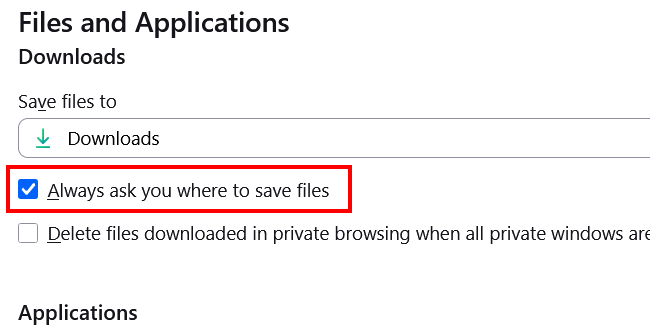
- Scroll down to the Files and Applications section.
- Check the box next to Always ask where to save files.
Why this is a good idea
- Organization: You can save work files to your work folder and personal photos to your pictures folder immediately.
- Security: If a website tries to "drive-by download" a file you didn't ask for, the "Save As" box will pop up, alerting you that something is trying to download so you can hit Cancel.
ADVERTISEMENT
Related:
How to stop browsers from asking to save passwords
How to stop websites from asking for your location