
How to turn off the notification sound when changing volume in Windows 11
Adjusting your audio shouldn't disrupt your music, movies, or meetings. The default system beep provides audio feedback whenever you adjust your slider, but you can easily turn off the notification sound when changing volume in Windows 11.
Whether you want to disable this audio cue permanently through system settings or use a quick taskbar shortcut, this guide covers three easy ways to control your volume in complete silence.
ADVERTISEMENT
This tutorial covers:
- The "Ninja" trick: How to change volume without triggering any sound at all.
- Permanent fix: How to disable the "Default Beep" in your system settings.
- The Nuclear option: How to mute all system notifications for a truly silent experience.
The Quickest Way: Avoid the 'ding' without changing settings
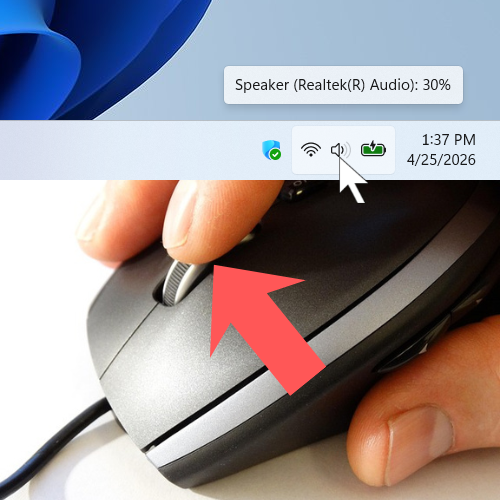
Hover your mouse over the speaker icon in the taskbar and use the scroll wheel to change the Windows 11 volume in silence.
ADVERTISEMENT
How to permanently disable the volume sound
- Right-click the speaker icon located in the Windows system tray.
-
Click Sound settings.
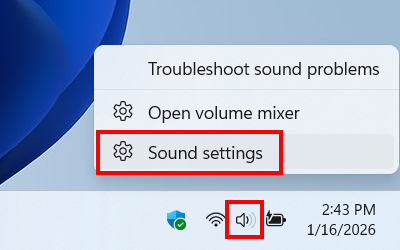
- Click More sound settings.
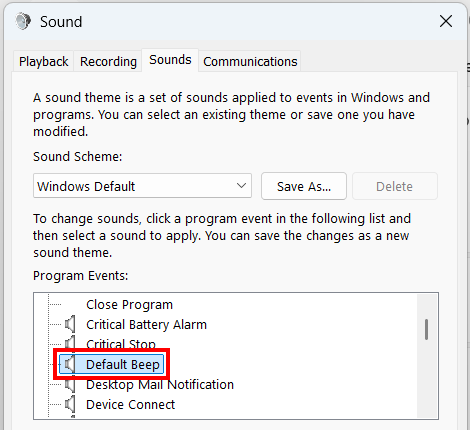
- Click the Sounds tab.
-
Click Default Beep.
-
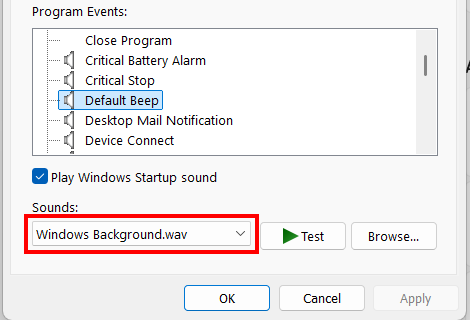
Click the Sounds selection menu.
-
Select (None).
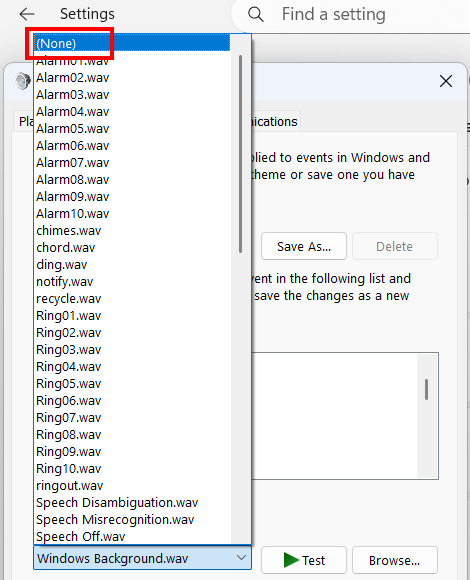
- Click Apply in the bottom right corner of the Sound window.
- Click OK.
- Close settings.
- You may need to restart your computer.
SPONSORED
Alternative: Muting system sounds via Volume Mixer
- Right-click the speaker icon located in the Windows system tray.
-
Click Open volume mixer.
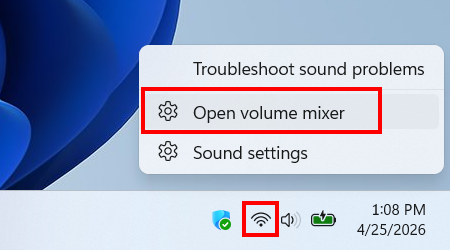
- Find System sounds.
-
Click the speaker icon to mute or slide to 0.
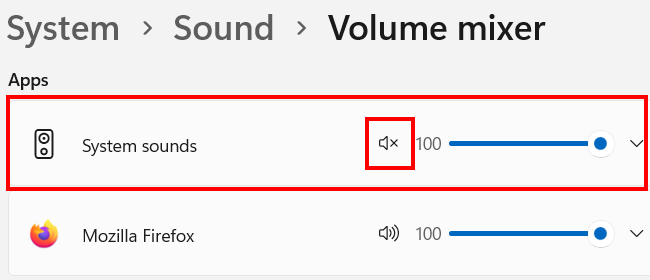
- Close settings.
This stops all system beeps and bongs, not just the ones controlled by the volume slider, which you may actually prefer.
SPONSORED
Troubleshooting: Why is it still beeping?
- Tip 1: The Restart. Many Windows 11 systems require a full reboot for the sound changes to take effect in the taskbar.
- Tip 2: Bluetooth headsets. Some Bluetooth headphones have a beep built into the hardware when they receive a volume change command. If it happens on headphones but not speakers, it’s a hardware feature, not a Windows setting.
Which method should you use?
| Method | Best for | Pros | Cons |
|---|---|---|---|
| Mouse scroll | Occasional use | No settings to change | Only works with a mouse |
| Default beep (None) | Most users | Only targets the "ding" | Requires a restart |
| Mute system sounds | Total silence | 100% works instantly | Mutes other alerts (like low battery) |
ADVERTISEMENT