
How to block adult content websites on Windows 11
This step-by-step tutorial will show you how to permanently block adult content websites on your Windows 11 PC without using any third-party software or Microsoft Family Safety parental controls.
You can effectively restrict access to explicit content simply by changing two numbers in your network settings: the primary and secondary DNS addresses. This method uses Cloudflare's free family DNS service to automatically filter out adult websites and malware, making it one of the simplest and most reliable ways to safeguard your computer.
🛡️ Why this method is good
This method blocks adult content sites across every browser (Chrome, Edge, Firefox, etc.) installed on your PC. Since the change happens at the system level, you don't need to waste time installing separate filtering extensions for each browser.
How to block adult content websites on Windows 11
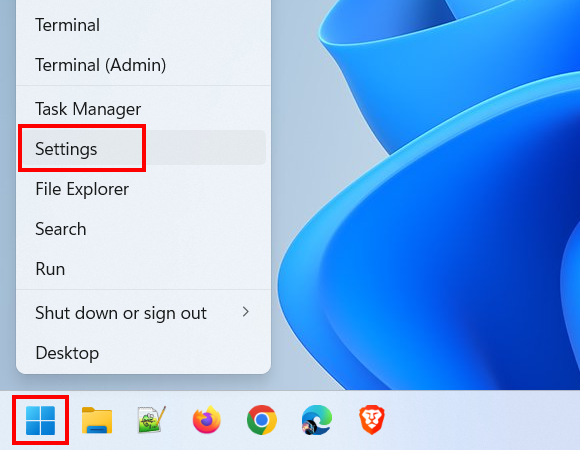
- Right-click the Windows start menu button.
-
Click Settings.
-
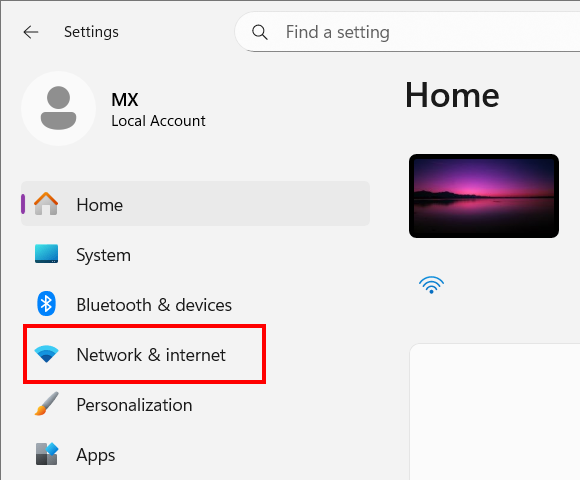
Click Network & internet.
-
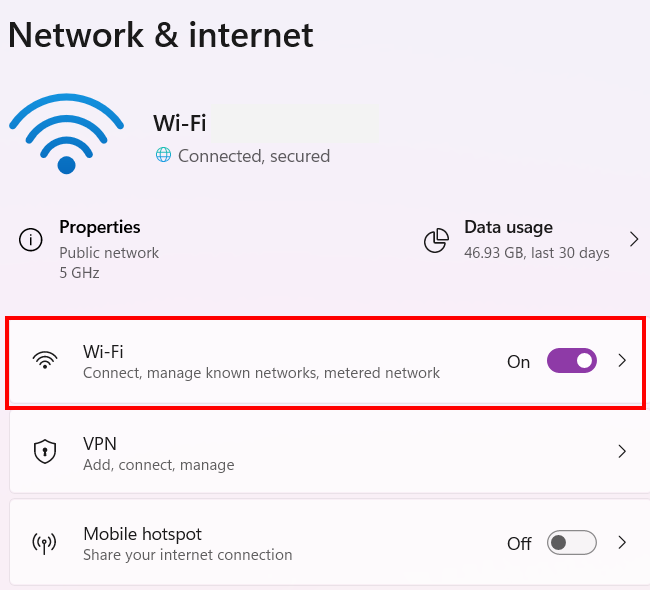
Click Wi-Fi or Ethernet, depending on how your computer is connected to the internet.
-
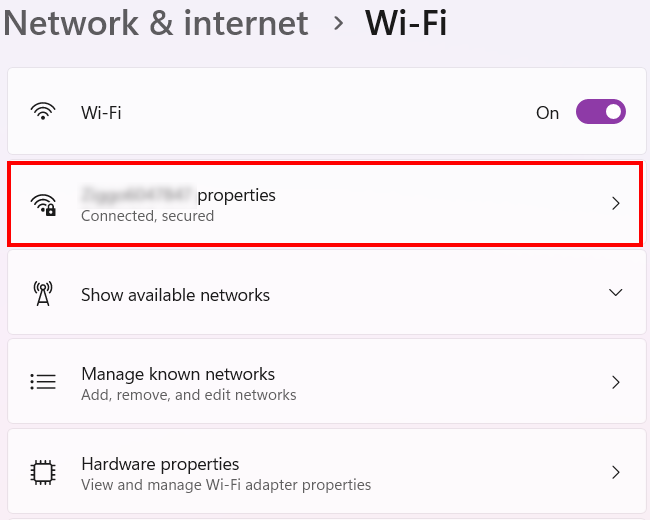
If your PC is connected to the internet via Wi-Fi, click the properties settings.
-
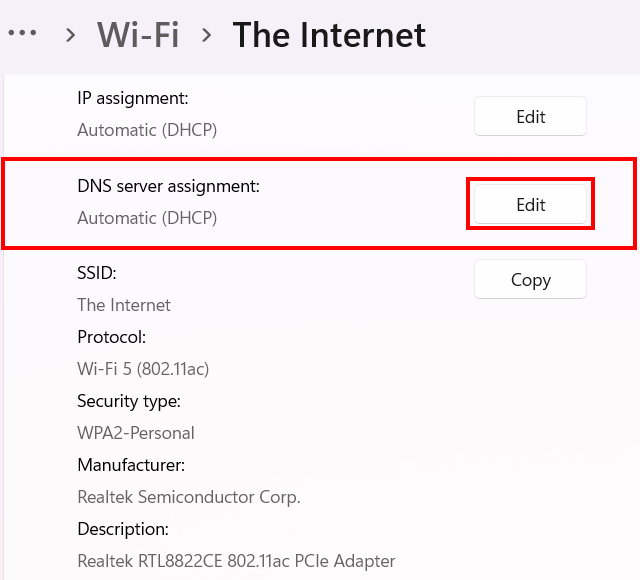
Click the Edit button next to DNS server assignment.
-
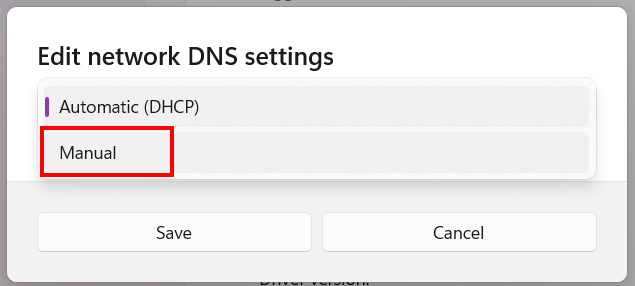
In the next window, select Manual.
-
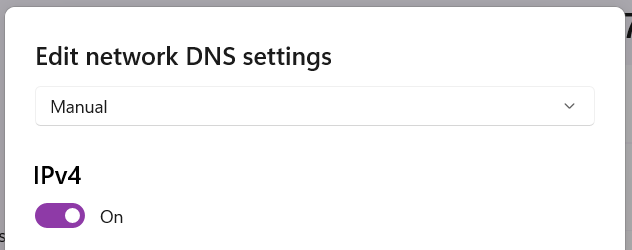
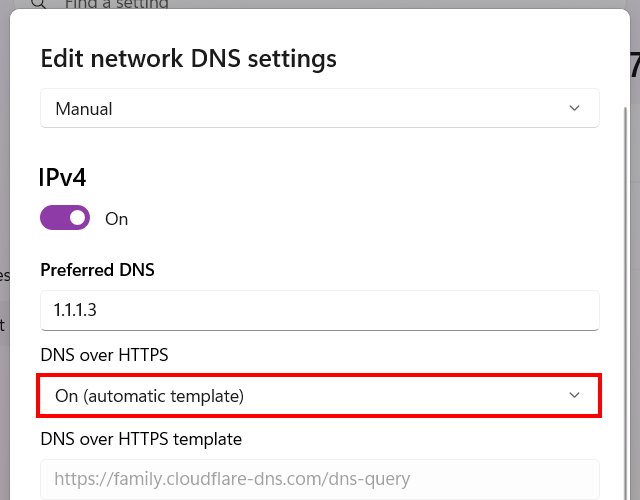
Enable IPv4.
-
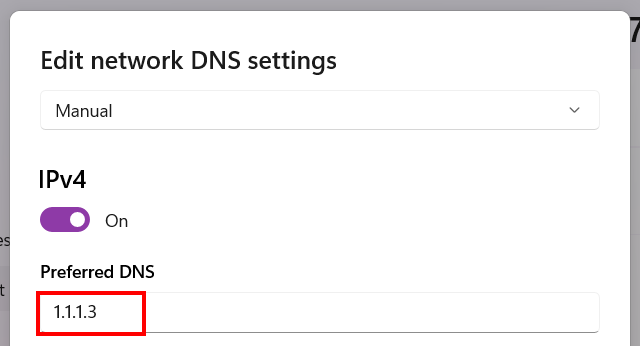
In the 'Preferred DNS' field, enter 1.1.1.3.
-
Set DNS over HTTPS to On (automatic template).
-
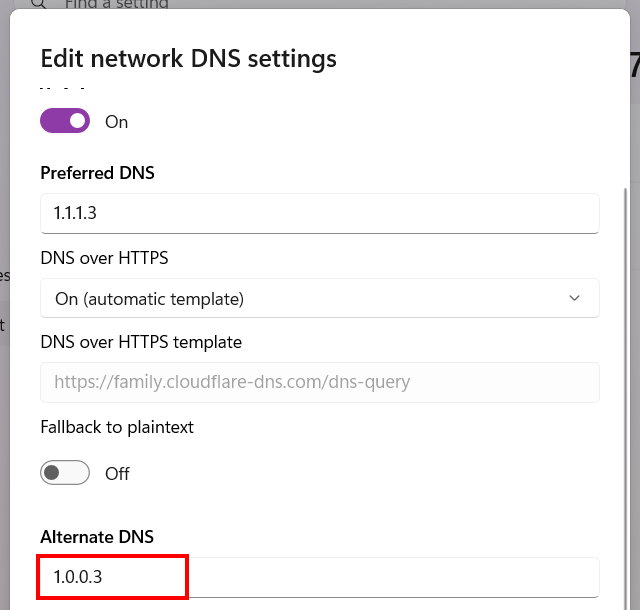
In the 'Alternate DNS' field, enter 1.0.0.3.
-
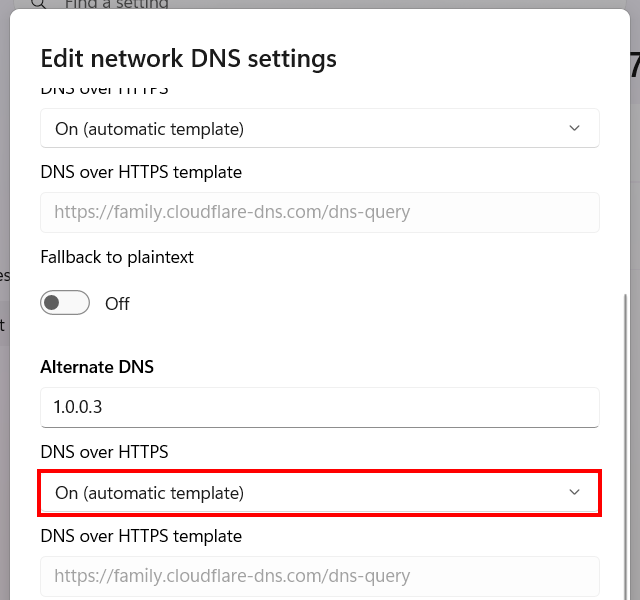
Set DNS over HTTPS to On (automatic template).
-
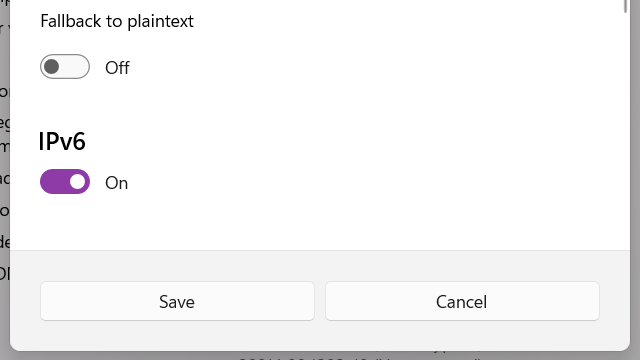
Enable IPv6.
-
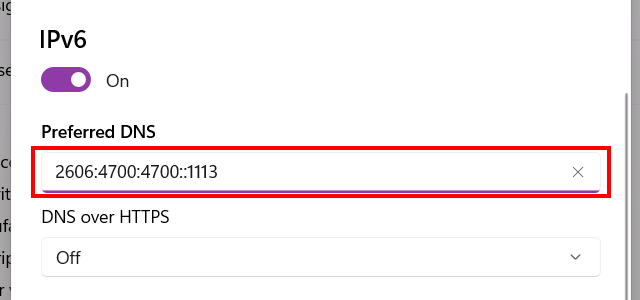
In the 'Preferred DNS' field, enter 2606:4700:4700::1113.
-
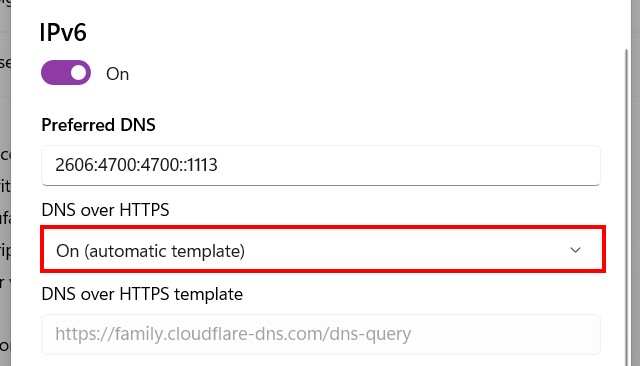
Set DNS over HTTPS to On (automatic template).
-
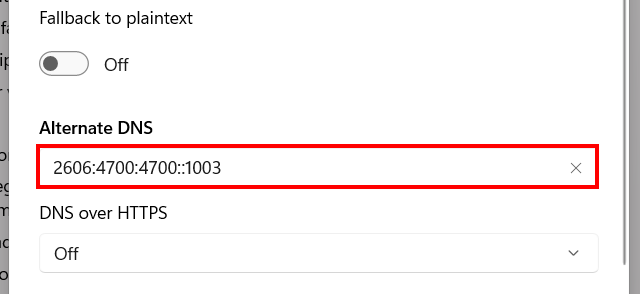
In the 'Alternate DNS' field, enter 2606:4700:4700::1003.
-
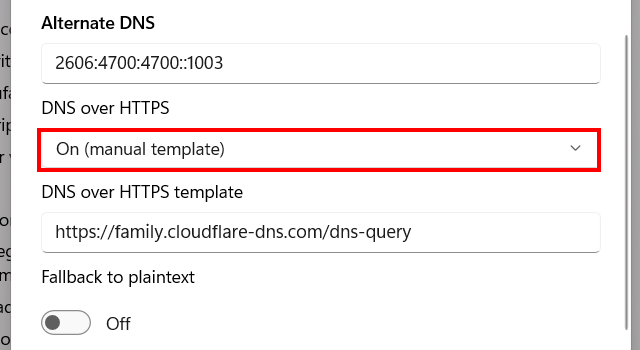
Set DNS over HTTPS to On (automatic template).
-
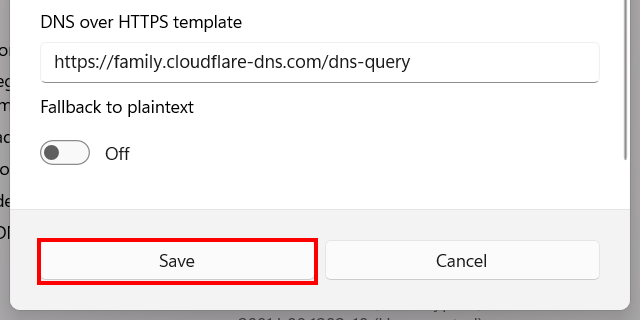
Click Save.
Related:
How to block a website in Windows 10 and 11 (step by step)
Block websites with NextDNS: Chrome, Edge, Brave & Firefox
How to block a program from accessing the internet on Windows
How to unblock blocked websites (5 safe and free methods)
References:
https://blog.cloudflare.com/introducing-1-1-1-1-for-families/