
How to hide files and folders in Windows 10 and 11
Whether you want to keep personal documents private on a shared PC or stop sensitive folders from appearing in daily searches, Windows 10 and 11 offer built-in ways to keep your data out of sight. You can quickly toggle File Explorer settings or use Command Prompt to deeply hide items from standard searches.
For an even higher level of privacy, you can also use audio steganography. This step-by-step guide covers both native Windows methods, plus how to conceal confidential files inside playable music tracks using DeepSound and how to unhide your content whenever you need access.
| Method | Security level | Hidden from search? | Best for |
|---|---|---|---|
| File Explorer properties | Basic | No | Quickly hiding files from casual viewers |
| CMD / Terminal (attrib) | Medium | Yes | Hiding folders even when "Show hidden items" is ON |
| DeepSound Steganography | High (AES-256) | Yes | Encrypting files inside playable audio tracks |
Method 1: How to hide files and folders using File Explorer
This is the fastest built-in method to hide files on Windows 10 and 11. It prevents casual users from seeing your files in standard folder view.
- Open File Explorer.
- Locate the file or folder you want to hide.
- Right-click the item and select Properties.
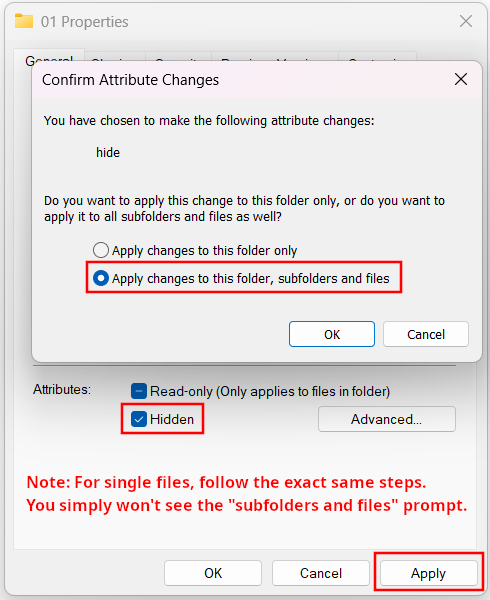
- Under the General tab, check the box next to Hidden.
- Click Apply.
- If hiding a folder, select Apply changes to this folder, subfolders, and files and click OK.
- Click OK to close Properties.
Method 2: Deeply hide files or folders using Command Prompt or Terminal
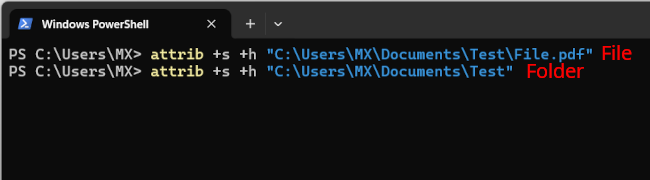
Standard hidden files and folders reappear whenever someone turns on "Show hidden items." Using the system attribute (+s +h) via Command Prompt or Windows Terminal hides the file or folder even if hidden items are enabled in File Explorer.
- Right-click the Start menu button and select Command Prompt (Windows 10) or Terminal (Windows 11).
- Type the following command and press Enter:
attrib +s +h "C:\Path\To\Your\Folder"
To make the file or folder visible again in the future, run the reverse command:
attrib -s -h "C:\Path\To\Your\Folder"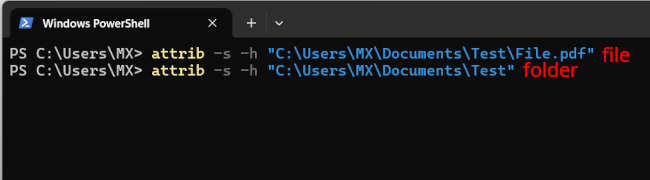
How to view and unhide hidden files in Windows 10 and 11
On Windows 11:
- Open File Explorer.
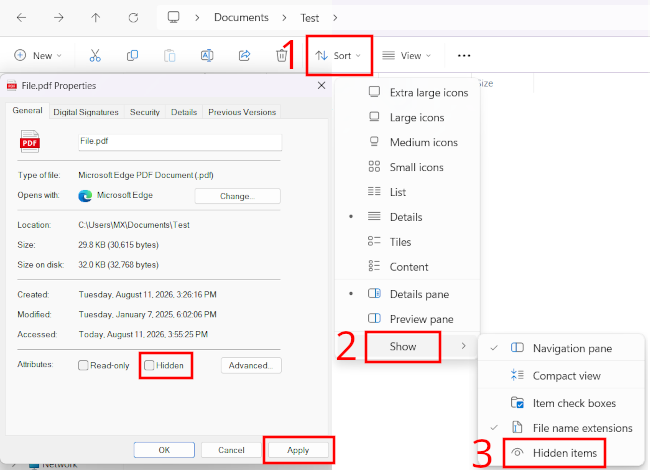
- Click View in the top toolbar > hover over Show > click Hidden items.
- Right-click the hidden file, select Properties, uncheck Hidden, and click Apply.
On Windows 10:
- Open File Explorer.
- Click the View tab in the top ribbon menu.
- Check the box next to Hidden items.
- Right-click the translucent file, select Properties, uncheck Hidden, and click Apply.
Method 3: Hide files and folders in audio files using DeepSound
DeepSound allows you to encrypt and hide confidential files inside carrier audio tracks (like .MP3 or .WAV) using AES-256 bit encryption.
- Open DeepSound.
-
Click Open carrier files.
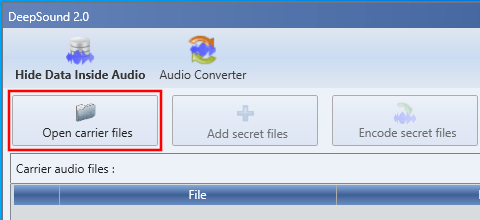
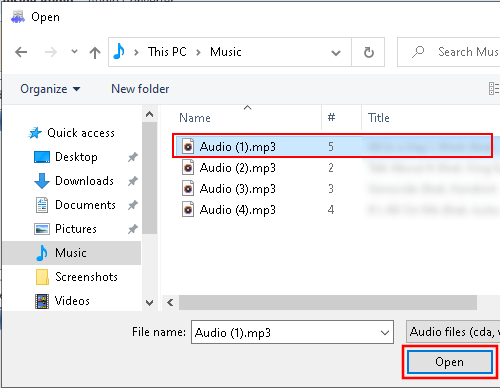
- In the next window, select the audio file you want to use to hide your secret data.
-
Click Open.
-
Click Add secret files.
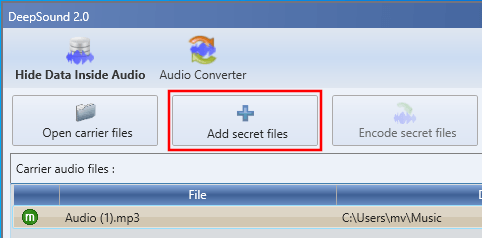
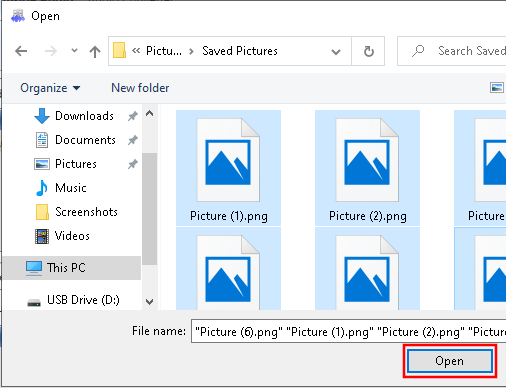
- In the next window, select the files or folders you want to hide.
-
Click Open.
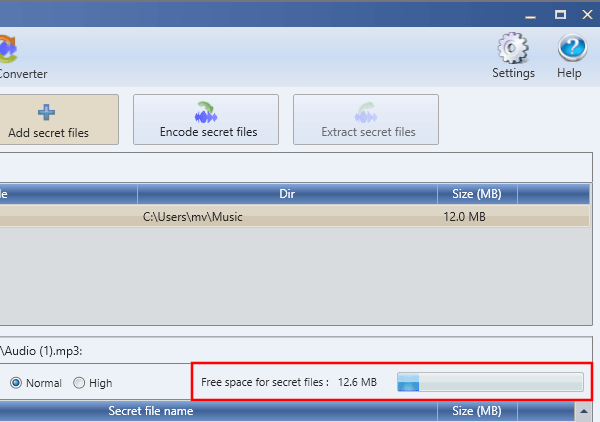
At Free space for secret files, you can see how much data (in MB) you can hide in the audio file.
-
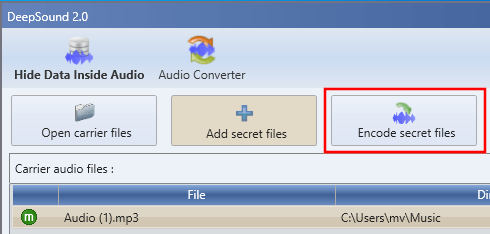
Click Encode secret files.
- In the next window, select an audio format at Output format.
- At Output directory, you can see and change the location on your computer where DeepSound will save the audio file.
- If you want to hide and protect your files or folder with a password, check the Encrypt secret files (AES 256) option. If not, skip this and the next step and continue with the last step.
-
Type your password twice.
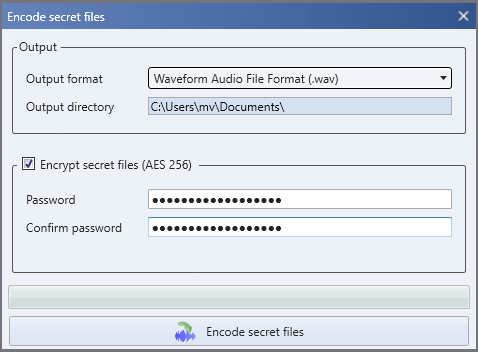
- Click Encode secret files at the bottom of the 'Encode secret files' window.
DeepSound will now hide your files or folders in an audio file.
To extract your files or folders from the audio file; click Open carrier files > select the audio file > click Open > enter your password > click OK > click Extract secret files.
Related:
How to password protect a PDF for free offline (without Adobe)
How to Zip, RAR, and password protect files in Windows 11
References:
https://www.windowscentral.com/how-hide-files-and-folders-windows-10
https://www.groovypost.com/howto/hide-files-and-folders-on-windows-11/
https://www.digitalcitizen.life/hide-files-folders-windows/
https://www.tomsguide.com/how-to/how-to-hide-folders-on-windows-11