
How to delete all saved passwords at once in Chrome, Edge, Brave & Firefox
If you're moving to a password manager or clearing a shared computer, your browser's saved passwords are a liability. Here's how to delete them all at once in Chrome, Edge, Brave, and Firefox.
This can't be undone. Export your saved passwords to a backup file or a password manager before you continue.
How to delete all saved passwords at once in Google Chrome
Chrome has a built-in option to delete all saved passwords in one click.
- Open Chrome.
- Click the three-dot menu button in the top right corner.
- Hover over Passwords and autofill.
- Click Google Password Manager.
- Click Settings in the left menu.
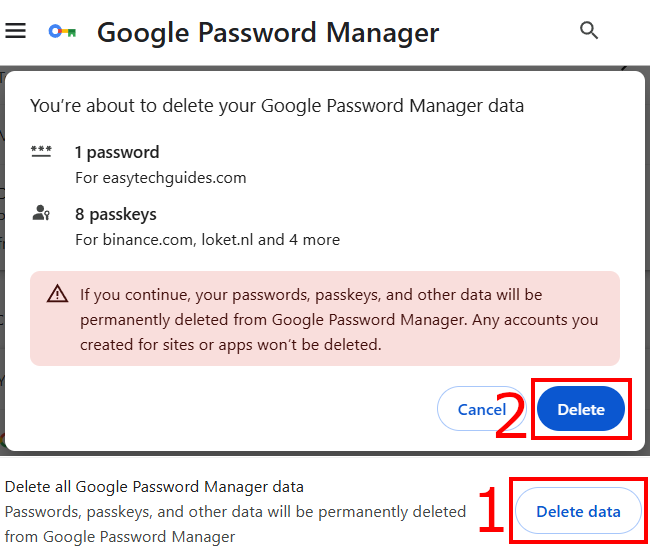
- Locate the Delete all Google Password Manager data option and click the Delete data button.
- Click Delete on the final prompt to confirm.
How to delete all saved passwords at once in Microsoft Edge
Edge doesn't have a "delete all passwords" button. You have to delete the password files manually.
Note: If you don't sync to a Microsoft Account, skip to step 6.
- Open Edge.
- Click your profile icon in the top right corner of Edge.
-
Click Sync.
Tip: If the screen reads 'Sign in to sync data,' sync is already off — skip to step 5.
- Locate the Passwords and passkeys toggle switch and turn it off.
- Close Microsoft Edge completely.
- Press Ctrl + Shift + Esc to open Task Manager. If any background Microsoft Edge processes are still running in the active list, right-click them and select End task.
- Press the Windows + R keys on your keyboard to open the Run command box.
-
Paste the following absolute system directory path into the field:
%LOCALAPPDATA%\Microsoft\Edge\User Data\ - Click OK or press Enter.
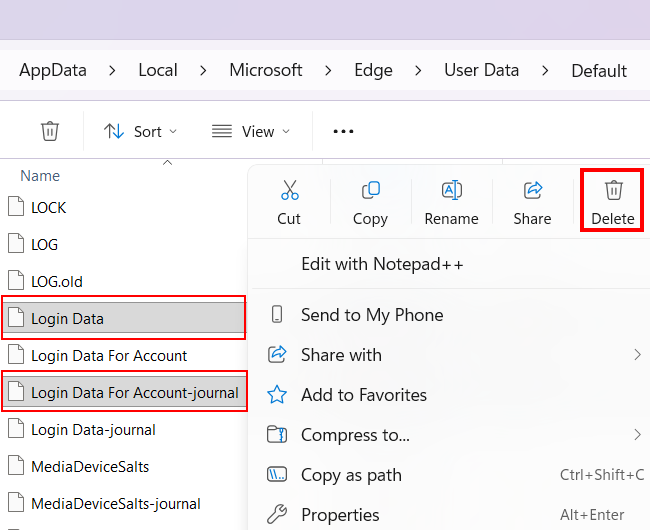
- Open the folder named Default. If you manage multiple browser profiles, open the corresponding folder path (such as Profile 1 or Profile 2).
-
Delete these two files: Login Data and Login Data-journal.
- Reopen Microsoft Edge (your password list will be empty).
- Click your profile icon in the top right corner of Edge.
- Click Sync.
-
Click the Reset sync option button.
This removes your passwords from Microsoft's servers so they don't sync back.
How to delete all saved passwords at once in Brave Browser
Brave uses the same password manager as Chrome.
- Open Brave.
- Click the three-line menu button in the top right corner.
- Hover over Passwords and autofill.
- Click Password Manager.
- Click Settings in the left menu.
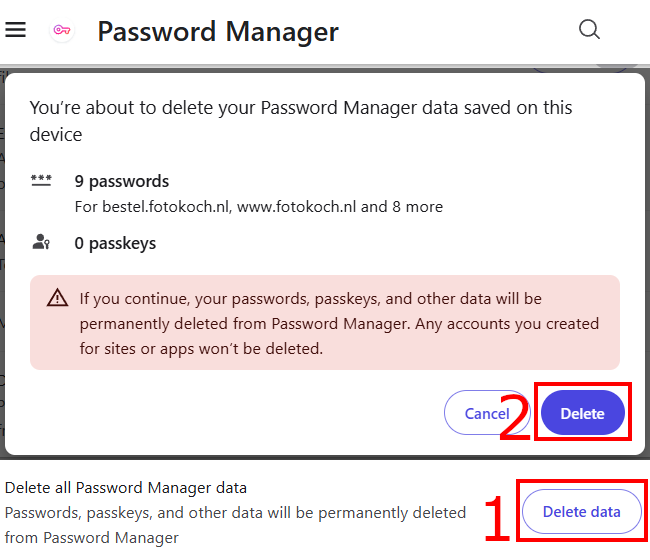
- Locate the Delete all Password Manager data option and click the Delete data button.
- Click Delete on the final prompt to confirm.
How to delete all saved passwords at once in Firefox
Firefox has its own password manager, separate from the history settings.
- Open Firefox.
- Click the three-line menu button in the top right corner.
- Select Passwords from the menu.
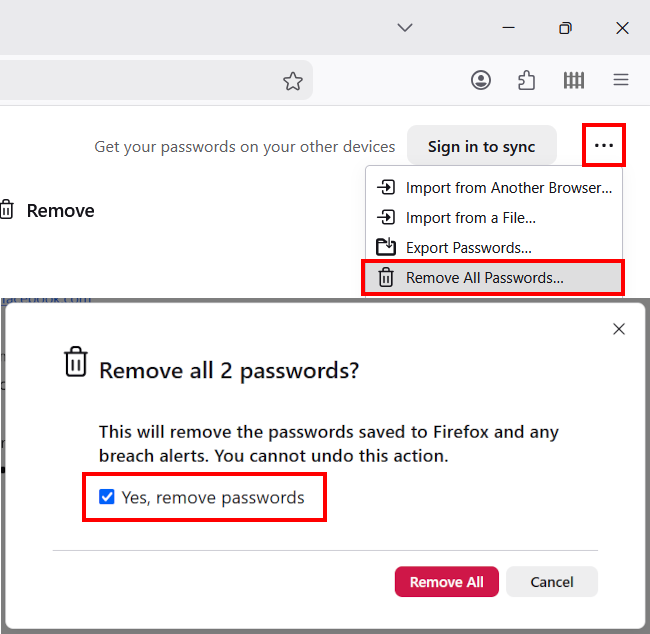
- In the right-hand panel of the logins page, click the three dots (...) icon in the top right corner.
- Click Remove All Passwords in the dropdown menu.
- Check the confirmation box, then click Remove All.
Related:
How to stop browsers from asking to save passwords
How to export saved passwords to a CSV file from your browser