
How to bookmark a file in your web browser
Do you have a PDF, a cheat sheet, or a text file that you refer to every day? Instead of digging through your folders, you can bookmark it in your web browser. This allows you to open your most important local files with a single click, right next to your favorite websites.
What types of files can you bookmark?
Here are a few examples of files you can add to your browser’s bookmarks bar.
| File type | Browser support | Best for... |
|---|---|---|
| PDF (.pdf) | ✅ Full support | Manuals, e-books, worksheets |
| Images (.jpg, .png, .gif, .webp) | ✅ Full support | Infographics, reference photos |
| Text (.txt) | ✅ Full support | Quick Notes, to-do lists |
| HTML (.html) | ✅ Full support | Offline webpages, reports |
| Word/Excel | ⚠️ Limited | Usually requires an extension/upload |
Method 1: Drag and drop (fastest)
This works in Chrome, Edge, Firefox, and Brave.
- Open your web browser (e.g., Chrome, Edge, Firefox, or Brave).
- Open your file manager (e.g., File Explorer).
- Go to the file you want to bookmark.
- Minimize the browser and the file manager window, and make sure both are visible side by side.
-
Drag the file from the file manager window to the browser window.
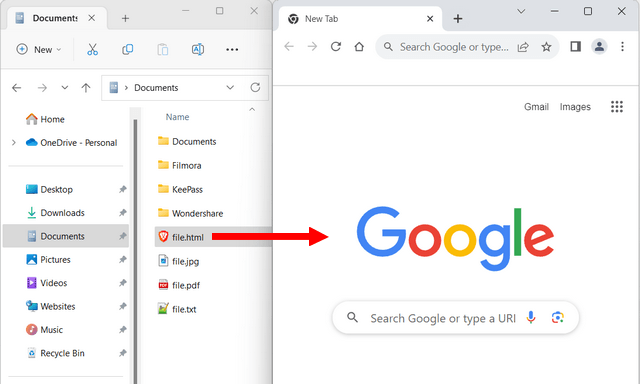
- Once the file is open in your browser, just press Ctrl + D (Windows or Linux) or Cmd + D (Mac) on your keyboard to instantly add it to your bookmarks bar.
Method 2: The address bar trick
This works in Chrome, Edge, Firefox, and Brave.
- Open your web browser (e.g., Chrome, Edge, Firefox, or Brave).
-
Enter the location of the file in your browser’s address (URL) bar, as shown in the example below, but replace YourUsername with your own username.
file:///C:/Users/YourUsername/Documents/file.pdf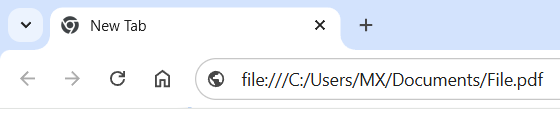
- Press the Enter key on your keyboard.
- Once the file is open in your browser, just press Ctrl + D (Windows or Linux) or Cmd + D (Mac) on your keyboard to instantly add it to your bookmarks bar.
Method 3: The "Open with" menu
This works in Chrome, Edge, Firefox, and Brave.
- Open your file manager (e.g., File Explorer).
- Go to the file you want to bookmark.
- Right-click the file.
- Hover over Open with.
-
Select your web browser (e.g., Google Chrome).
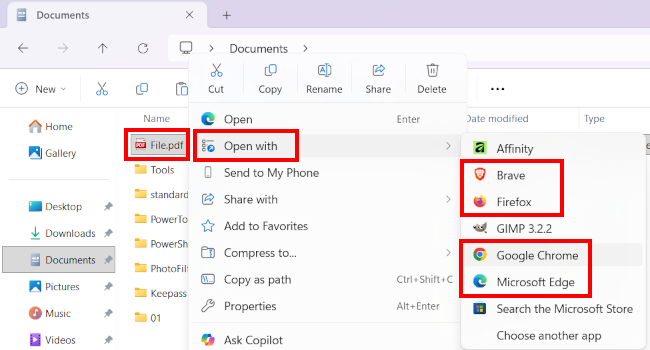
- Once the file is open in your browser, just press Ctrl + D (Windows or Linux) or Cmd + D (Mac) on your keyboard to instantly add it to your bookmarks bar.
Related:
How to bookmark all open tabs in Chrome, Edge, Firefox & Brave
Find bookmark file locations: Chrome, Edge, Brave & Firefox