
How to stop browsers from asking to save passwords: the complete guide
Whether you use a dedicated password manager like Bitwarden or 1Password, or you just prefer the privacy of not saving credentials in your browser, that 'Save Password?' pop-up can be incredibly annoying. This guide will show you how to stop Google Chrome, Microsoft Edge, Firefox, and Brave from asking to save passwords on both desktop and mobile.
Last updated: April 2026. Merged four pages into this one master guide.
What happens to your existing passwords?
- Turning off the prompt does not delete the passwords already saved in the browser.
- You should also go to the "Managed Passwords" section to delete old passwords if you're moving to a new password manager.
Desktop browsers
Google Chrome
To disable the "Save Password" prompt in Google Chrome on a computer, follow these steps:
-
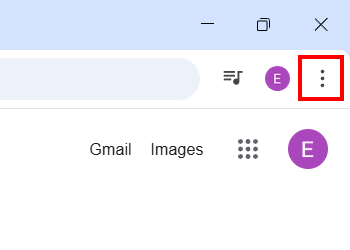
Click the menu button in the top right corner.
-
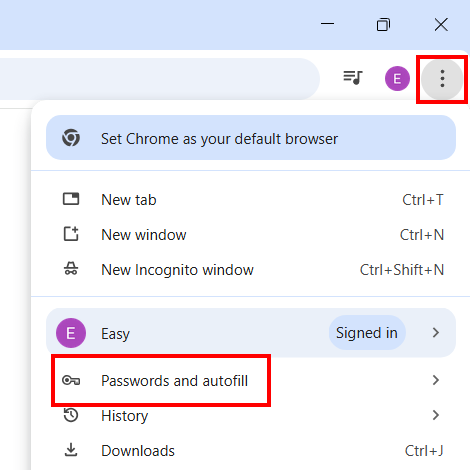
Go to Passwords and autofill.
-
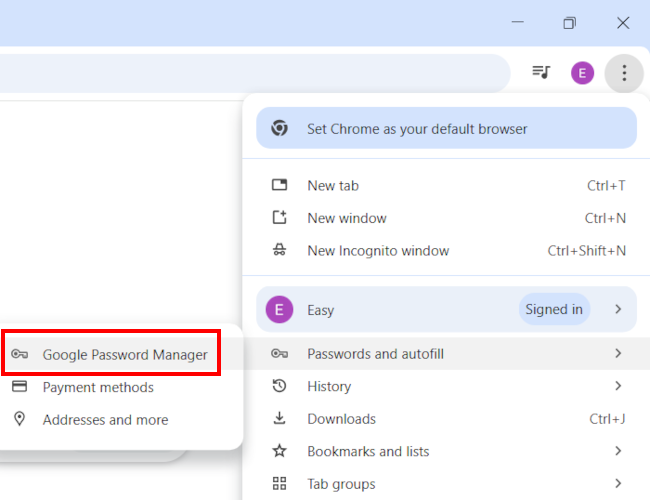
Click Google Password Manager.
-
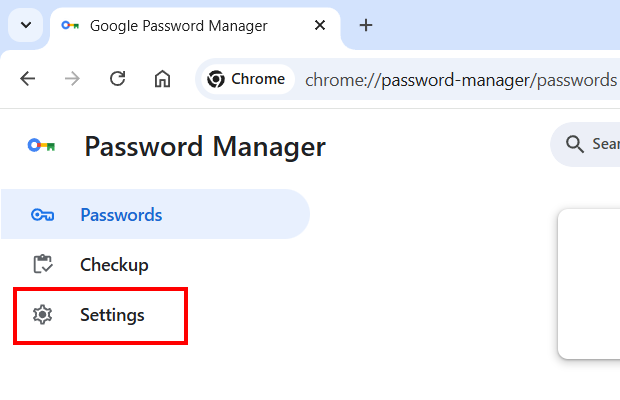
Click Settings in the top left corner.
-
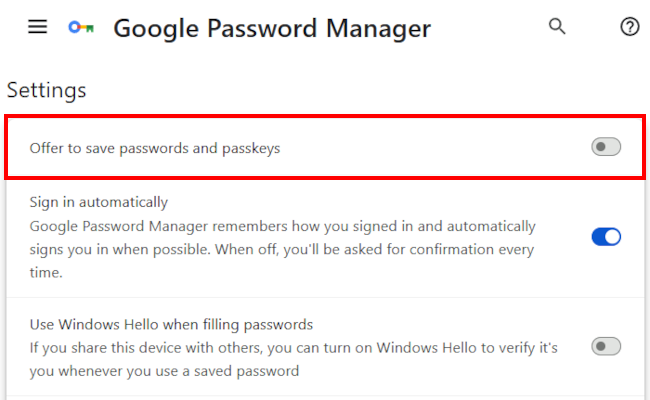
Click Offer to save passwords and passkeys to turn this option off.
Microsoft Edge
To stop the password prompts in Microsoft Edge on a computer, follow these steps:
-
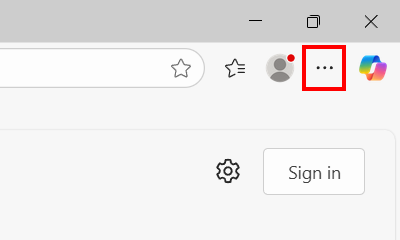
Click the menu button in the top right corner of Edge.
-
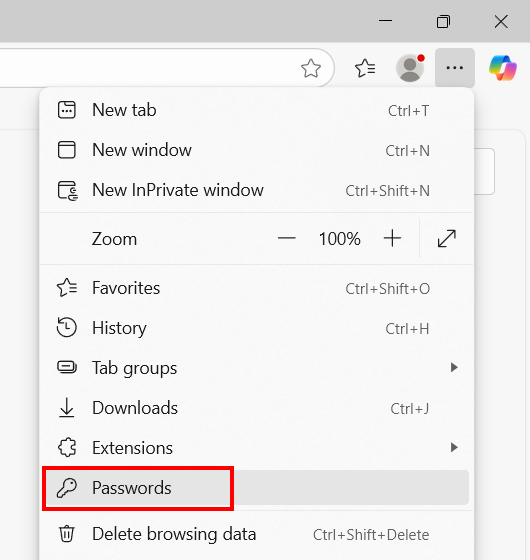
Click Passwords.
-
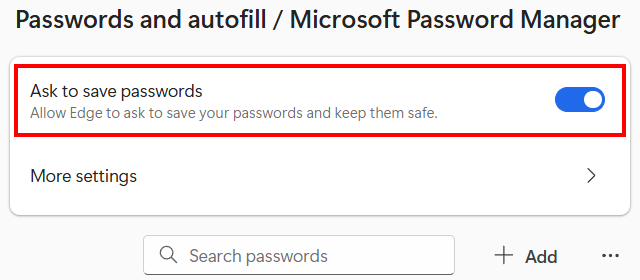
Click Ask to save passwords to turn this option off.
Firefox
To make Firefox stop asking to save passwords on a computer, follow these steps:
-
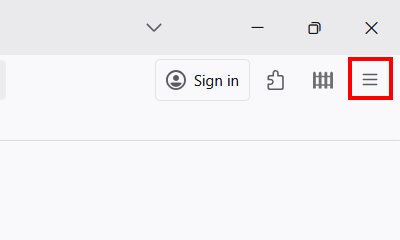
Click the menu button in the top right corner of Firefox.
-
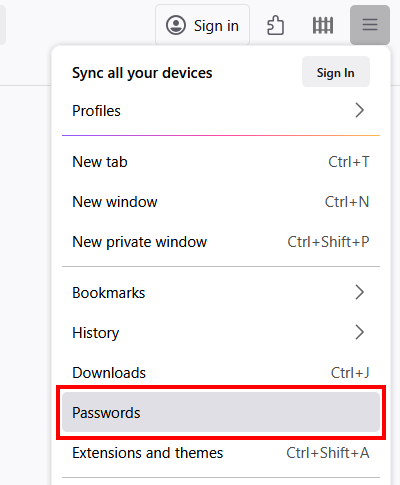
Click Passwords.
-
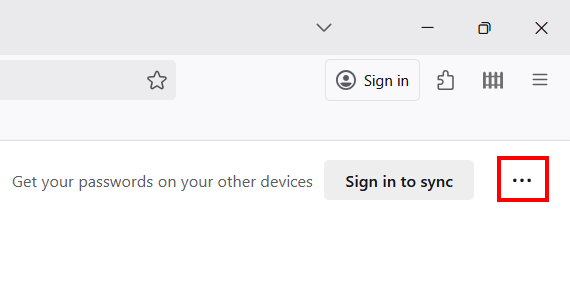
Click the three-dot options button in the top right corner.
-
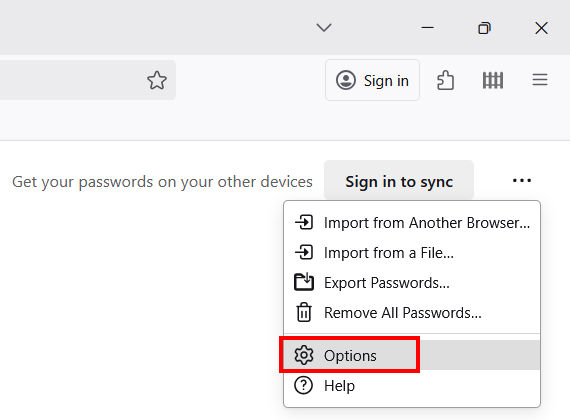
Click Options
-
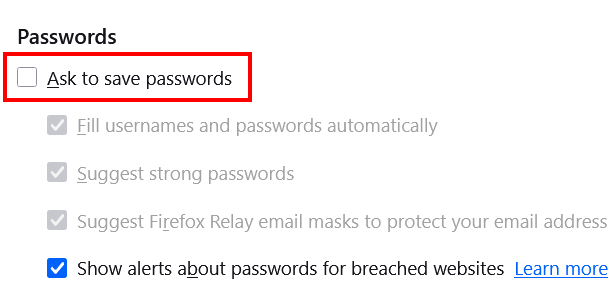
Uncheck the Ask to save passwords option.
Brave
To stop Brave from asking to save passwords on a PC, follow the steps below.
Brave is based on "Chromium," so the steps are nearly identical to Chrome.
-
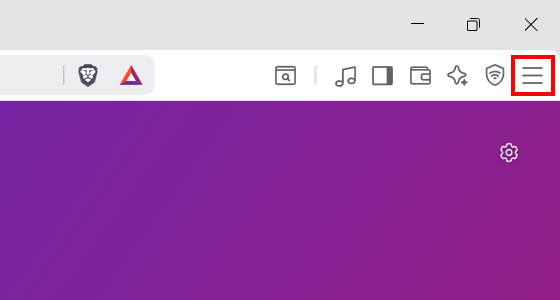
Click the menu button in the top right corner.
-
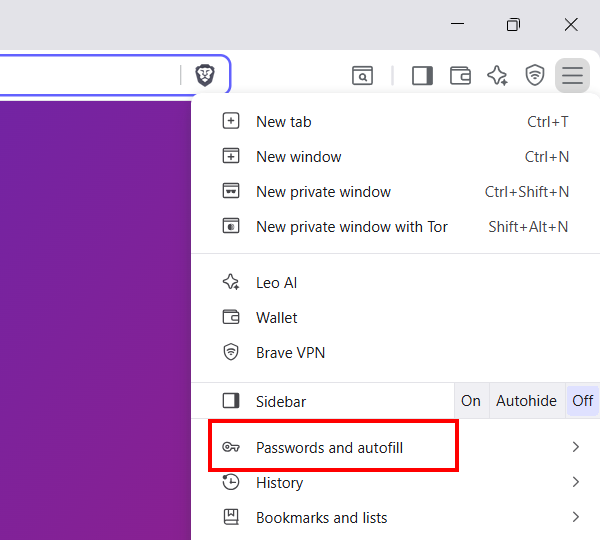
Go to Passwords and autofill.
-
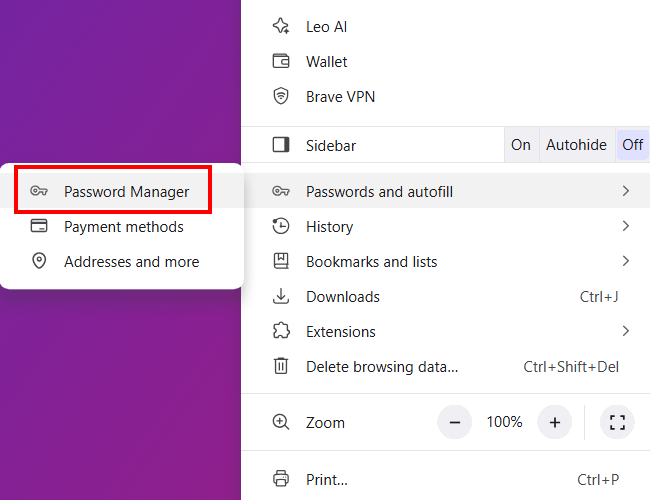
Click Password Manager.
-
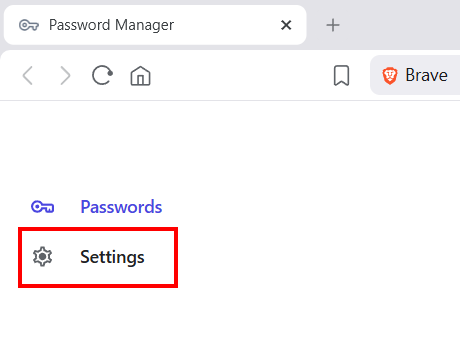
Click Settings in the top left corner.
-
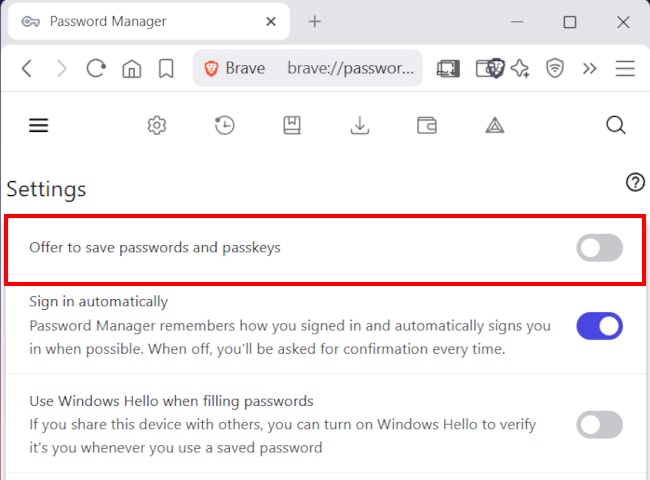
Click Offer to save passwords and passkeys to turn this option off.
Mobile browsers
Google Chrome
To stop the "Save Password" prompt in Google Chrome on an Android device, follow these steps:
-
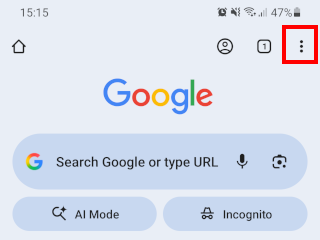
Tap the menu button in the top right corner.
-
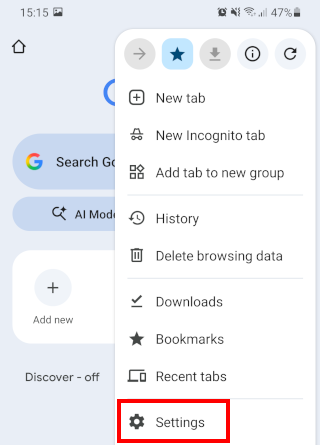
Tap Settings.
-
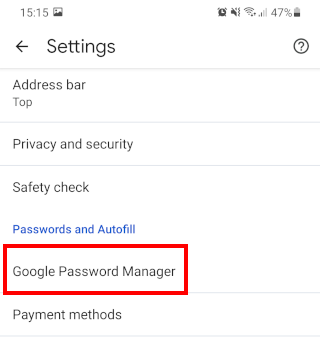
Tap Google Password Manager.
-
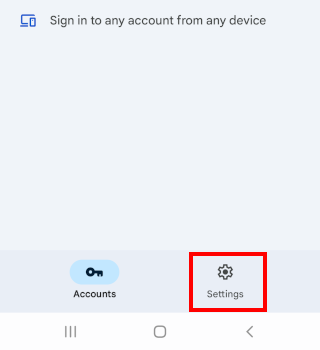
Tap Settings.
-
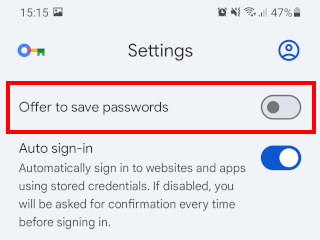
Tap Offer to save passwords to turn this option off.
Microsoft Edge
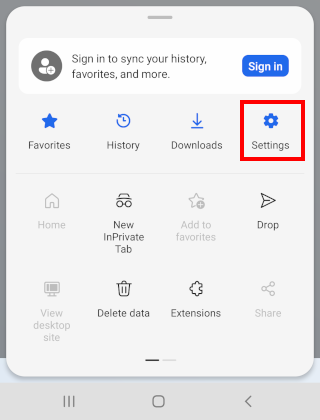
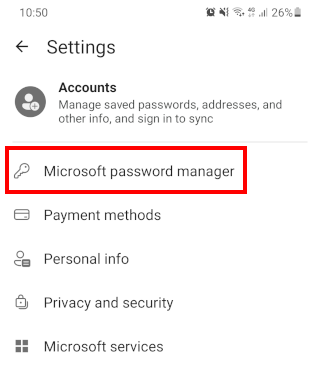
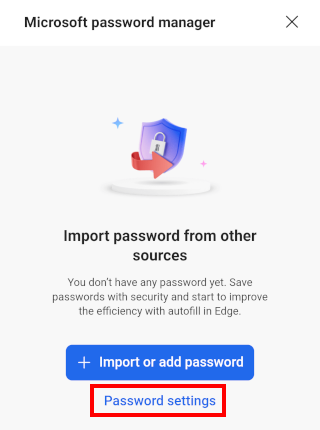
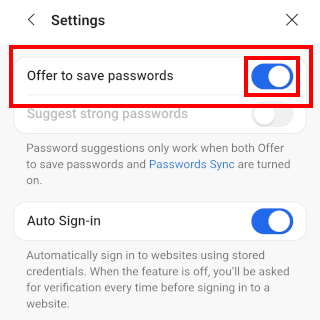
To disable the password prompts in Microsoft Edge on an Android phone or tablet, follow these steps:
-
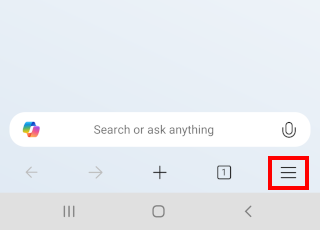
Tap the menu button.
-
Tap Settings.
-
Tap Microsoft password manager.
-
Tap Password settings.
-
Tap Offer to save passwords or the toggle button next to it to turn this option off.
Firefox
To make Firefox stop asking to save passwords on an Android device, follow these steps:
-
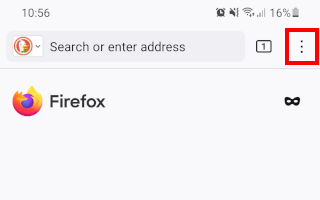
Tap the menu button in the top right corner of Firefox.
-
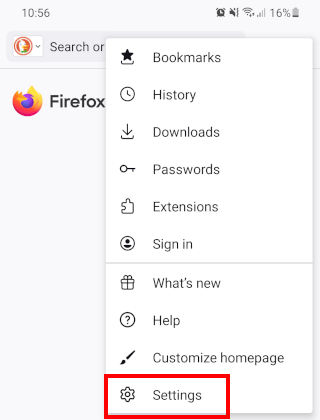
Tap Settings.
-
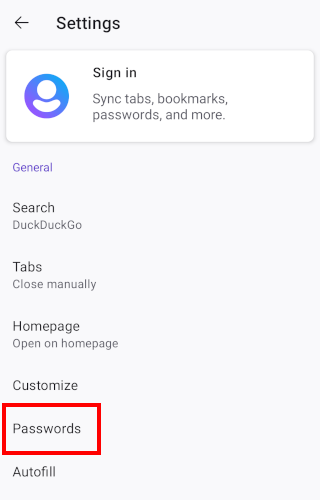
Tap Passwords.
-
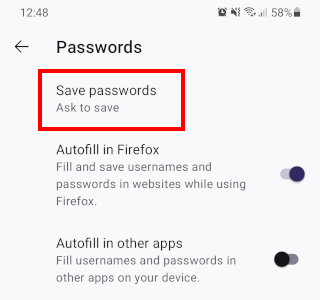
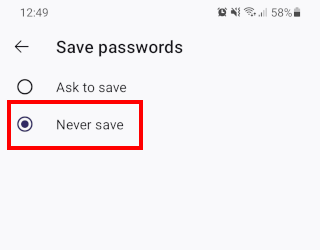
Tap Save passwords.
-
Select the Never save option.
Brave
To stop Brave from asking to save passwords on an Android smartphone or tablet, follow these steps:
-
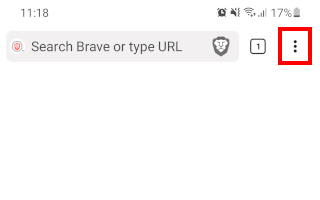
Tap the menu button in the top right corner of Brave.
-
Tap Settings.

-
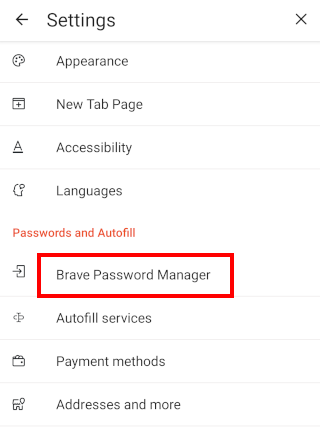
Tap Brave Password Manager.
-
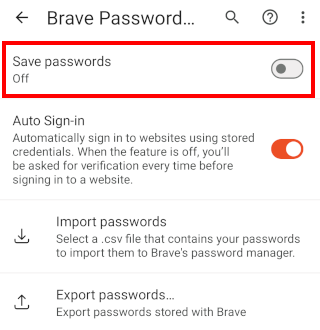
Tap Save passwords to turn this option off.

Related:
How to stop websites from asking for your location