
How to remove the PowerShell update message in Terminal and PowerShell
This tutorial teaches you how to remove the 'Install the latest PowerShell for new features and improvements!' message in Terminal or PowerShell in Windows 11.
Install the latest PowerShell for new features and improvements! https://aka.ms/PSWindows
Follow the steps in this tutorial if the PowerShell update message still appears after updating PowerShell.
Step-by-step instructions
-
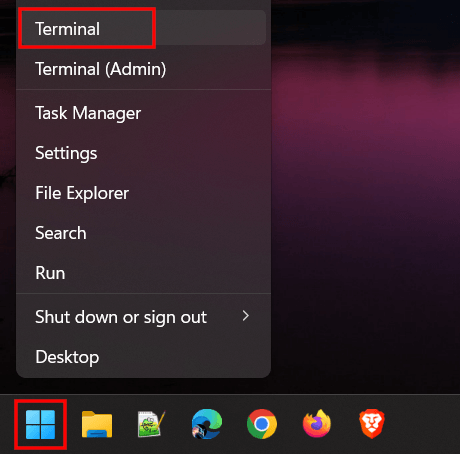
Open Windows Terminal.
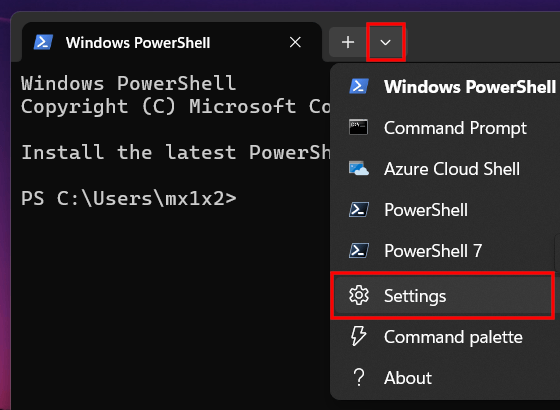
- Click on the drop-down arrow located next to the tabs.
-
Click Settings.
-
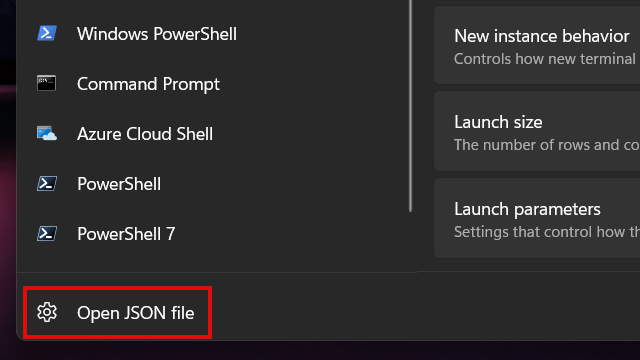
Click on Open JSON file located in the bottom left corner of the Terminal window.
-
In the 'Profiles' section of the settings.json file, change
"commandline": "powershell.exe"to"commandline": "powershell.exe -NoLogo".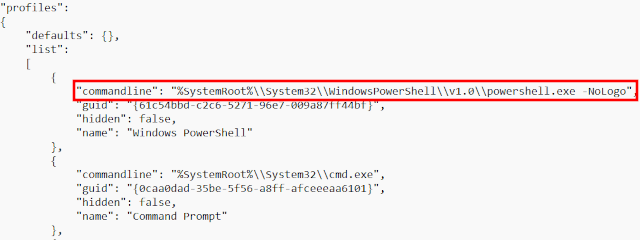
-
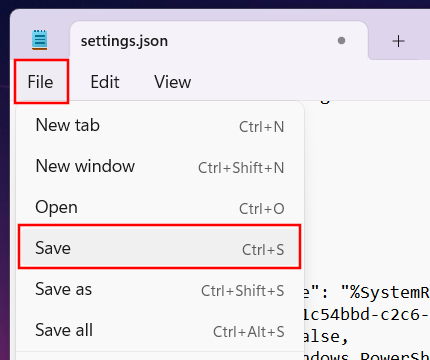
Save the changes.
-
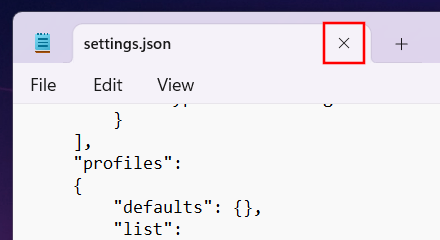
Close the settings.json file.
- Close Windows Terminal.
- Open Windows Terminal or PowerShell to verify the change. The update notification should now be completely gone.
Related:
How to open CMD in a folder as administrator on Windows 11
References: