
How to open CMD in a folder as administrator on Windows 11
Need to run command-line tools with elevated privileges directly from a specific directory? While Microsoft changed the classic Shift + Right-click behavior in recent updates, Windows 11 provides a seamless native workaround using the new Windows Terminal application.
In this step-by-step tutorial, I will show you how to configure your system settings so you can instantly open CMD in a folder as administrator on Windows 11. This method works perfectly for the standard Command Prompt, Windows Terminal, and PowerShell, saving you from manually typing long file paths using the cd command.
How to run Command Prompt as administrator in any folder
-
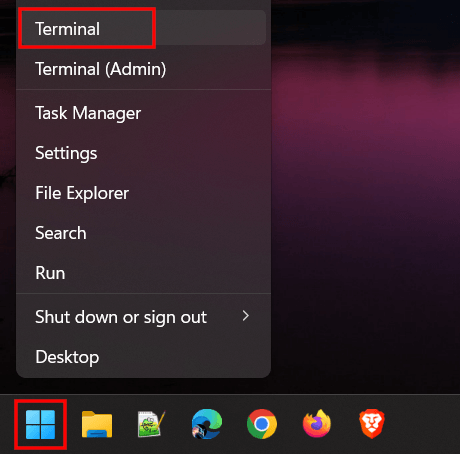
First, you'll have to change two settings. To do so, open Windows Terminal.
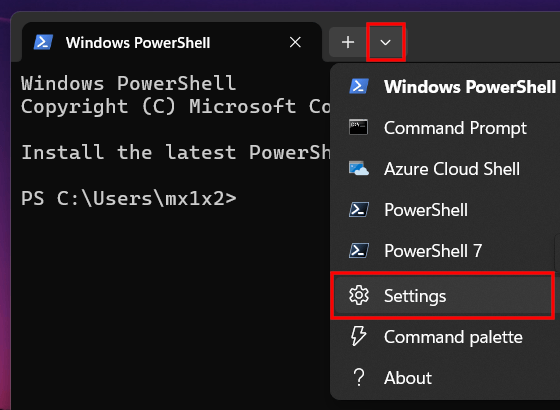
- Click the drop-down arrow located next to the tabs.
-
Click Settings.
-
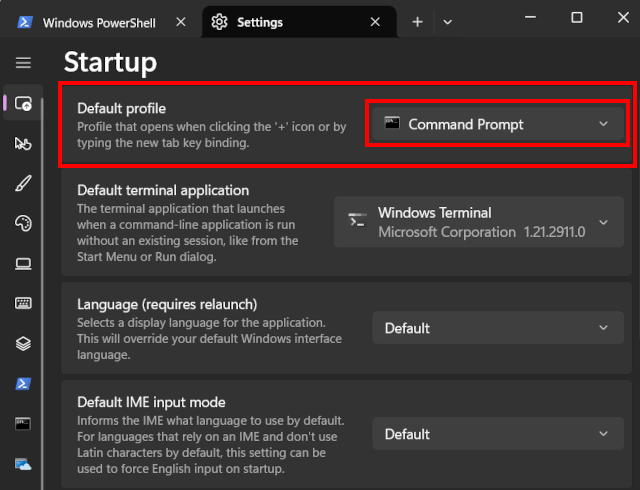
At 'Default profile', select Command Prompt or PowerShell.
-
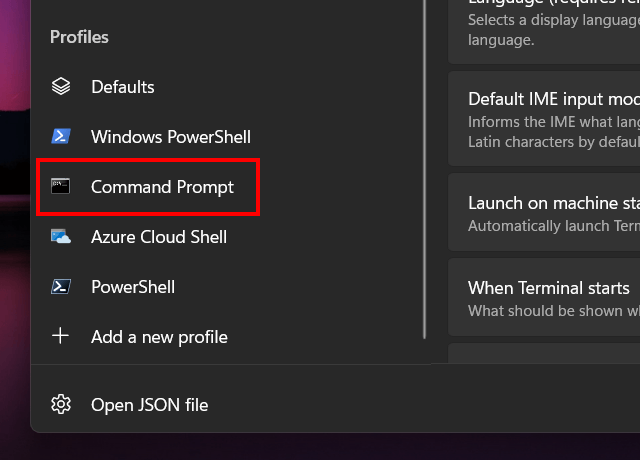
In the 'Profiles' section in the left menu, click Command Prompt or PowerShell, depending on what you've selected in the previous step.
-
Turn on the Run this profile as Administrator option.
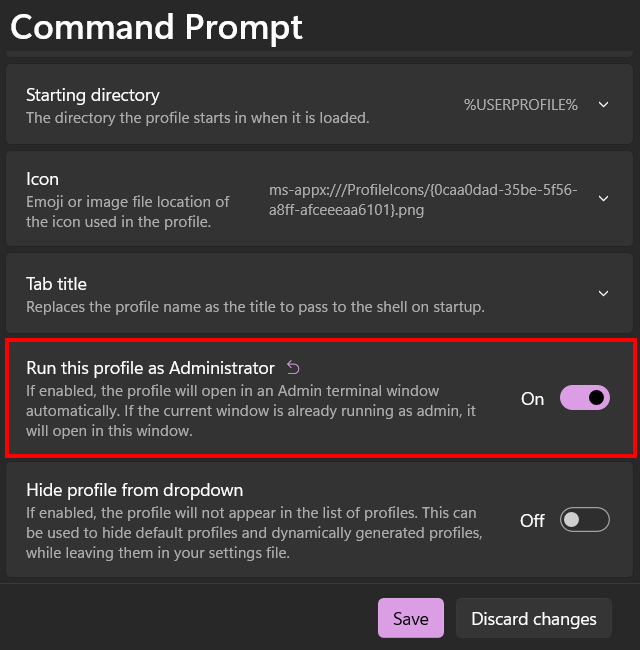
- Click Save at the bottom of the window.
- Close the Terminal window.
- Open File Explorer.
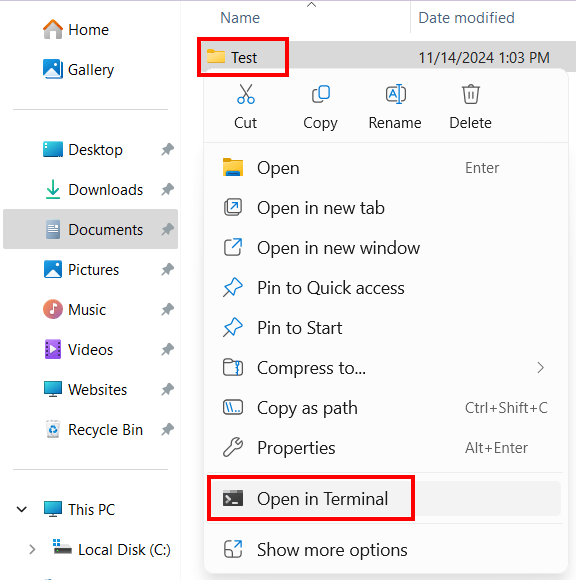
- Right-click the folder.
-
Click Open in Terminal.
Related:
Remove the PowerShell update message in Terminal & PowerShell