
How to enable auto login on your PlayStation 5
Don't want to select your account every time you turn on your PlayStation 5? You can bypass the user selection screen and boot straight to your home screen.
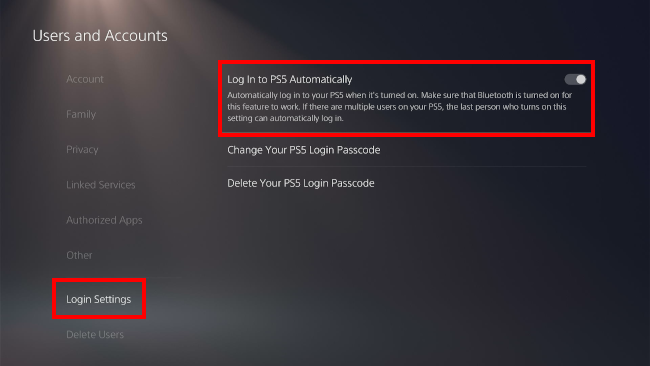
To enable auto login on PS5, go to Settings → Users and Accounts → Login Settings and toggle on Log in to PS5 Automatically. The PS5 will skip the user selection screen and boot straight into that profile next time you turn it on.
ADVERTISEMENT
How to enable automatic login on PS5
- Open Settings (gear icon).
- Select Users and Accounts.
- Select Login Settings.
-
Toggle on Log in to PS5 Automatically.
Notes:
- If you have a 4-digit login passcode enabled (see my PS5 passcode guide), the PS5 will still ask for that code. It skips the user selection screen, but not the login screen.
- If more than one person uses the console, whoever enables this setting last becomes the default login. The other profiles still work, they just have to be selected manually.
- Make sure Bluetooth is on for this to work. It probably already is, or your controller wouldn't work wirelessly and you'd have to keep it plugged in.
ADVERTISEMENT
Related:
How to set, change, delete, or reset your PS5 login passcode