
How to password protect your PlayStation Store purchases
Some of us have been there—you hand the controller to a younger sibling or a child for "just five minutes," and you come back to an email receipt for a $100 Deluxe Edition of a game you’ve never heard of. Or perhaps you’re just worried about your own impulsive late-night "Add to Cart" habits.
By default, the PlayStation 5 makes it too easy to buy things. To protect your bank account, you can set up a "Purchase Requirement." This forces the console to ask for your account password before any transaction is finalized. It’s the ultimate "safety catch" for your digital wallet.
Is your credit card a little too accessible?
- Worried about kids making accidental "In-Game" purchases?
- Sharing a console with roommates and want to keep your card private?
- Tired of worrying every time you leave your PS5 logged in?
- Want an extra layer of security against unauthorized account access?
Setting this up takes less than 60 seconds. Let’s lock it down.
Method 1: Requiring a password at checkout
This is the most effective method. It allows you to browse the store freely, but stops the transaction the second you hit the "Buy" button.
- From the PS5 Home Screen, go to Settings (the gear icon).
- Open Users and Accounts.
- Select Account.
- Open Payment and Subscriptions.
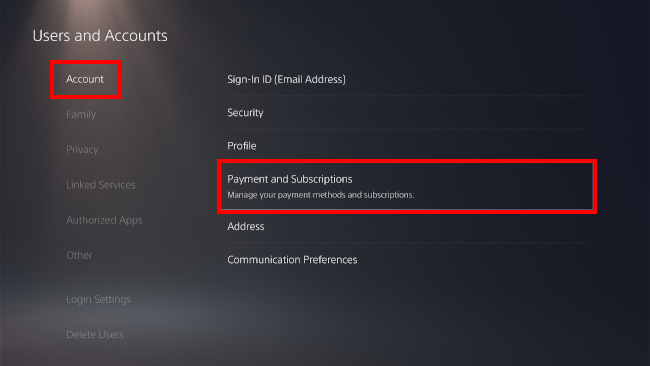
- Open Purchase Settings.
- Toggle on the switch for Require Password at Checkout.
Note: This setting applies to everything—full games, DLC, and even those pesky "V-Bucks" or in-game currencies. If the "Buy" button is clicked, the password box pops up.
Method 2: Setting a "login passcode" (the total lock)
If you want to stop people from even opening your profile (where they could see your library or messages), you should set a 4-digit Login Passcode.
- Go to Settings (the gear icon).
- Open Users and Accounts.
- Select Login Settings.
- Click Require a PS5 Login Passcode.
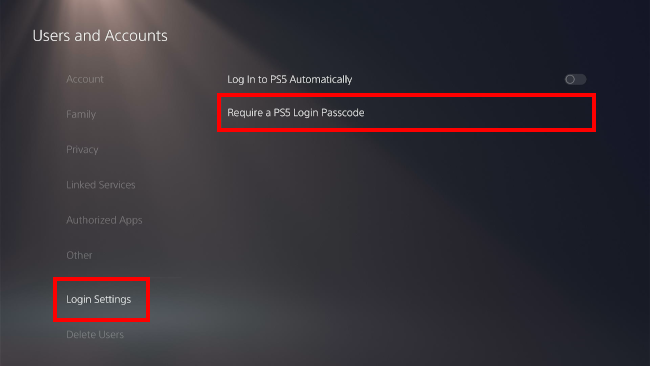
- Set a 4-digit code using the buttons on your controller (cross (X), square, triangle, R1, L2, etc.).
Now, even if the console is turned on, nobody can enter your "space" without that code.
Method 3: Remote lockdown (via the PlayStation app)
If you’re at work and realize you forgot to lock your console, you can often trigger security changes via the mobile app.
- Open the PS App on your phone.
- Select the PlayStation Store icon located at the bottom of the screen.
- Tap the menu button (three lines) in the top right corner.
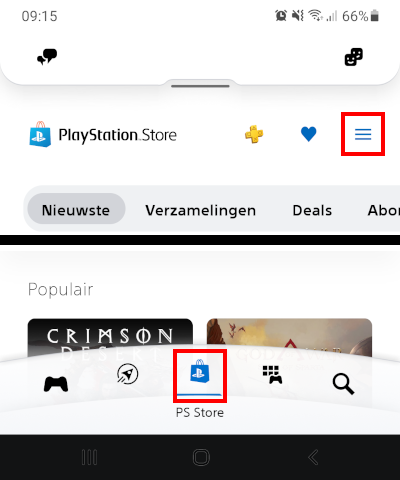
- Tap Payment Methods.
- Turn on Require Password at Checkout.
Troubleshooting: "It’s not asking for a password!"
- Check the "Guest" Account: If you have a Guest account enabled, make sure you haven't stored your credit card info there. It's better to delete the card from the Guest profile entirely.
- Subscription Autopay: Note that "Require Password" usually doesn't stop automatic renewals for PS Plus. You must turn those off separately in the Subscriptions menu.
- 2FA is Your Friend: Password protection is good, but Two-Factor Authentication (2FA) is better. Ensure you have 2FA linked to your phone so that even if someone guesses your password, they can't hijack your account.
Related:
How to set, change, or delete a PS5 passcode
References:
https://www.playstation.com/en-us/support/store/ps-store-checkout-password/