
How to open CMD in a folder as administrator on Windows 11
To open CMD in a folder as administrator on Windows 11, set Windows Terminal to always launch your shell with admin rights, then right-click the folder and choose "Open in Terminal".
This method works for both Command Prompt and PowerShell. Once set up, every time you right-click a folder and click "Open in Terminal", the window opens in that folder with admin rights. No more typing cd paths.
ADVERTISEMENT
How to open CMD in a folder as administrator on Windows 11
-
Open Windows Terminal. You'll change two settings in it.
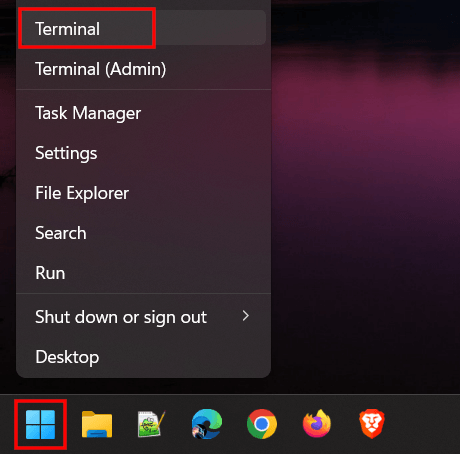
- Click the drop-down arrow located next to the tabs.
-
Click Settings.
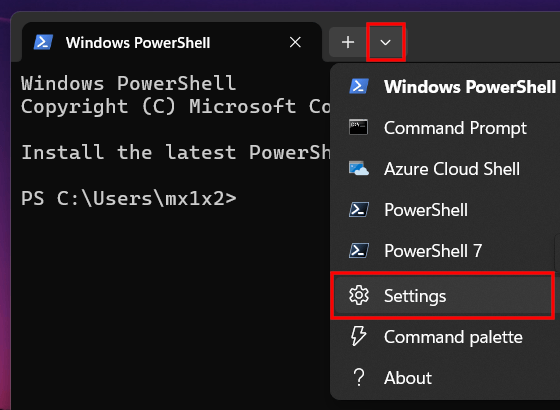
-
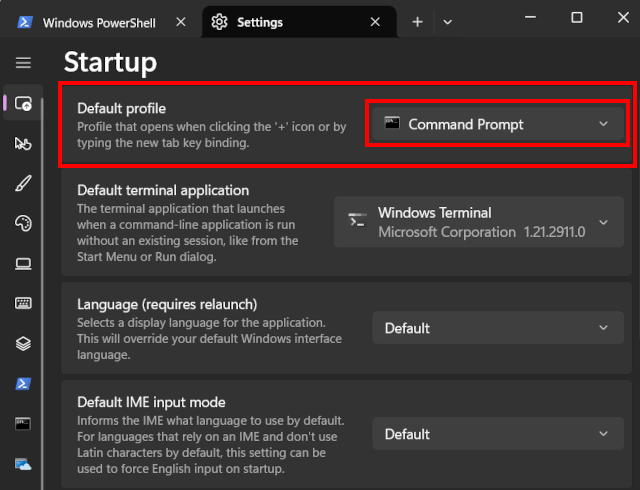
At 'Default profile', select Command Prompt or PowerShell.
-
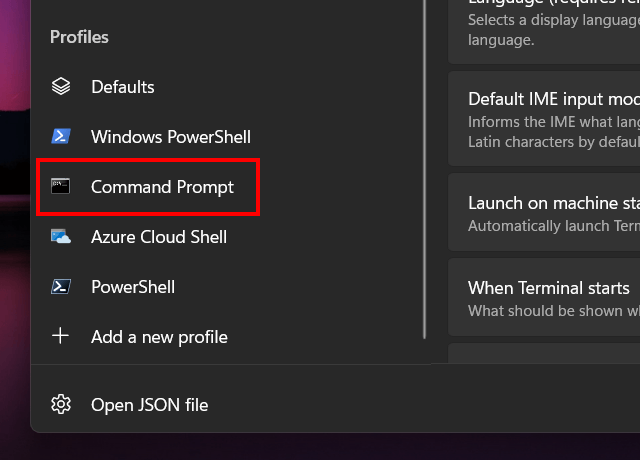
In the left menu, click the same profile you just set as default (Command Prompt or PowerShell).
-
Turn on the Run this profile as Administrator option.
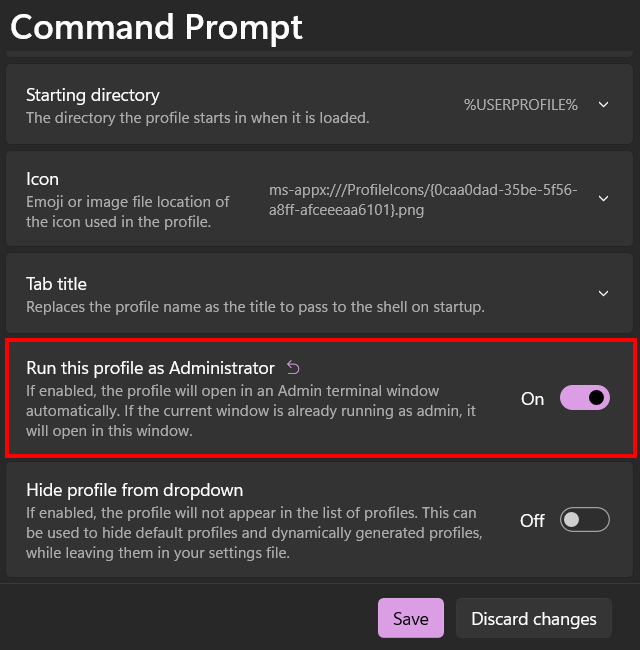
- Click Save.
- Close the Terminal window.
- Open File Explorer.
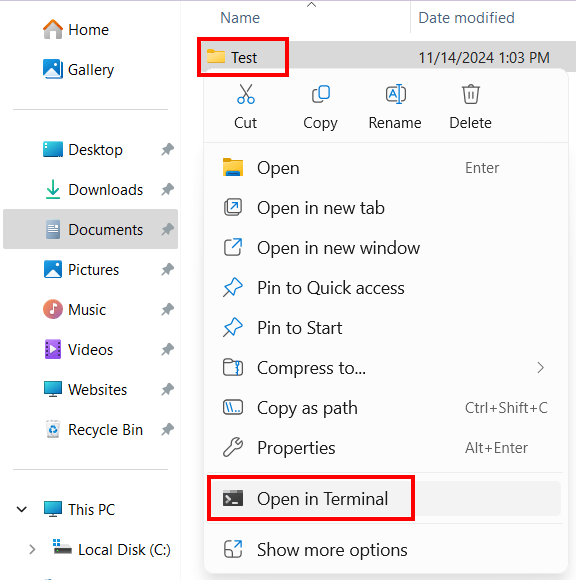
- In File Explorer, right-click the folder.
-
Click Open in Terminal.
ADVERTISEMENT
Related:
Remove the PowerShell update message in Windows Terminal