
How to lock and hide files on Android phones and tablets
You don't need a third-party vault app to keep private files hidden on your Android phone. Files by Google includes a built-in Safe folder that encrypts them behind a 4-digit PIN or pattern. Once a file is in the Safe folder, it's hidden from your gallery, file manager, and cloud backups.
Here's how to set it up, move files in, and the warnings you should know first.
The Files by Google app is pre-installed on many Android devices, including Pixel, Motorola, and Oppo. If your device doesn't have it, download it from the Google Play Store.
How to set up Safe folder in Files by Google
- Open the Files by Google app. (If not pre-installed, download it from the Google Play Store).
- Scroll down to the Collections section and tap Safe folder.
- Choose a lock type: PIN (4 digits) or Pattern.
- Enter your PIN or pattern.
- Tap Next.
- Enter it again to confirm.
- Tap Next.
- Tap OK.
How to move files into Safe folder
- Open the Files by Google app.
- Select a category (e.g., Images, Videos, or Documents) or tap Internal storage to locate your file.
- Tap and hold the file(s) to select them.
- Tap the the three-dot menu button in the top-right corner.
- Select Move to safe folder.
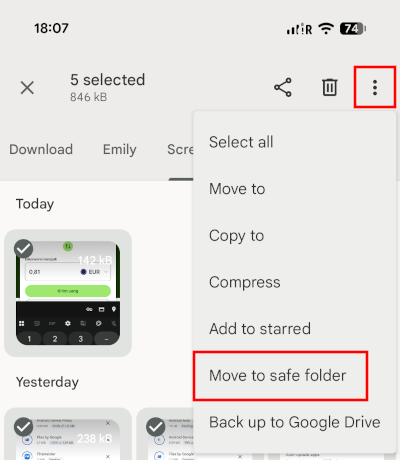
- Enter your PIN or pattern to confirm.
Your files disappear from your gallery and file manager.
How to view or restore files from Safe folder
How to view hidden files:
- Open the Files by Google app.
- Go to the Collections section.
- Tap Safe folder.
- Enter your PIN or pattern.
- Tap Next.
- Tap any file to view, open, or play it.
How to move files out of Safe folder:
- Inside Safe folder, tap the three-dot menu button next to the file you want to restore.
- Select Move out of safe folder.
The file will return to its original folder location and reappear in your photo gallery or Files app.
Things to know before using Safe folder
- No cloud backups: Files in the Safe folder exist only on your local device storage.
- Uninstalling the app permanently deletes your files: If you uninstall the Files by Google app or clear its storage data in system settings, everything in your Safe folder will be permanently deleted.
- No password recovery: Google does not provide a reset option for forgotten Safe folder PINs. If you forget your code, you cannot recover your hidden files.
What happens if you forget your Safe folder PIN?
The Safe folder is encrypted, and there's no recovery option. If you forget your lock code, the only way to use the feature again is to reset it, which permanently deletes all files in the folder.
To reset a locked Safe folder:
- Open Files by Google.
- Tap the hamburger menu (≡) in the top-left corner.
- Select Settings.
- Scroll down and tap Safe folder.
- Tap Reset safe folder.
- Tap Reset to confirm.
Related:
How to block ads on any Android phone or tablet (no app)
References: