
How to keep your laptop on with the lid closed in Windows 10 and 11
By default, closing your laptop lid puts Windows into sleep mode. To keep your laptop running with the lid closed, set "When I close the lid" to "Do nothing" in Power Options.
Quick tutorial: Press Windows + R, type control powercfg.cpl, press Enter. Click Choose what closing the lid does in the left sidebar, set When I close the lid under Plugged in to Do nothing, and click Save changes.
Warning: Never put a running laptop in a bag or backpack with the lid closed. The heat can damage the battery or other parts.
How to keep laptop on with lid closed
- Right-click the Start button (Windows logo) on the taskbar.
- Click Run.
Keyboard shortcut: hold down the Windows key (the one with the Windows logo on it), then press the R key.
- Type
control powercfg.cpl. - Click OK or press Enter.
- Click Choose what closing the lid does in the left sidebar.
- Set When I close the lid under Plugged in to Do nothing.
- Click Save changes.
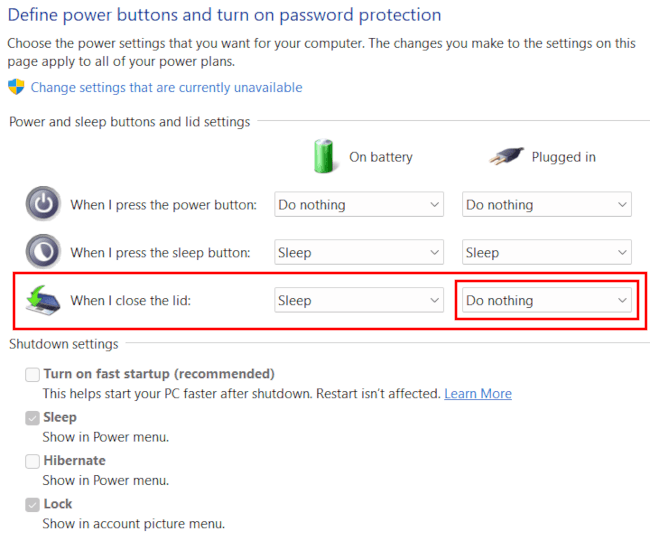
Close the lid while the laptop is plugged in. It will stay on.
Windows 11 Settings app (24H2 and later)
- Right-click the Start button (Windows logo) on the taskbar.
- Click Power Options.
- Click Lid, power & sleep button controls.
- Set Closing the lid will make my PC under Plugged in to Do nothing.
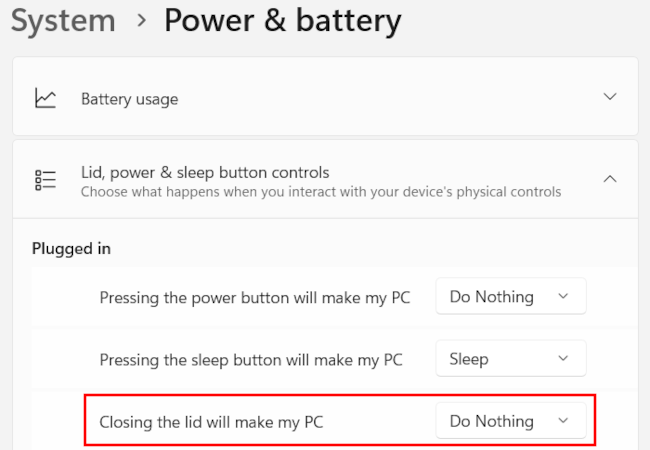
Plugged in vs. On battery settings
Recommended settings:
- Plugged in: Do nothing
- On battery: Sleep
Do nothing under Plugged in lets you use the laptop with the lid shut while it charges.
Sleep under On battery is a safety net. If you close the lid while unplugged, the laptop goes to sleep right away and avoids overheating.
Is it safe to use a laptop with the lid closed?
For basic daily tasks like streaming music, downloading, or web browsing on an external monitor, keeping the lid closed is completely safe.
However, if you perform heavy, hardware-intensive tasks, keep these thermal tips in mind:
- Watch heat-sensitive displays: Many laptops blow hot air out near the hinge. Closing the lid traps that heat against the screen, which can warp it over time.
- Use a vertical laptop stand: A vertical laptop stand lets air flow in from the bottom.
- Leave the lid slightly open during heavy tasks: If the fans are running hard (gaming or video editing), crack the lid open a few centimeters so air can flow.
Related:
How to stop Windows 11 from turning off your screen
How to disable the power button in Windows 10 and 11