
How to show or hide the Recycle Bin on Windows 11
It’s one of the most frustrating minor glitches in Windows: you go to empty your trash, and the Recycle Bin icon is completely gone from your desktop. Because the Recycle Bin is a core system folder rather than a regular shortcut, you can’t simply right-click your screen and create a new one.
Whether you accidentally hit delete on the icon, a recent Windows update hid it from view, or you simply want to hide it yourself to clear desktop clutter, managing it is incredibly simple. I’ll show you the exact settings menu you need to visit to show or hide it instantly.
Bring back or hide the Recycle Bin icon
- Right-click any empty space on your desktop and select Personalize from the menu.
- In the Settings window that opens, click on Themes on the right side.
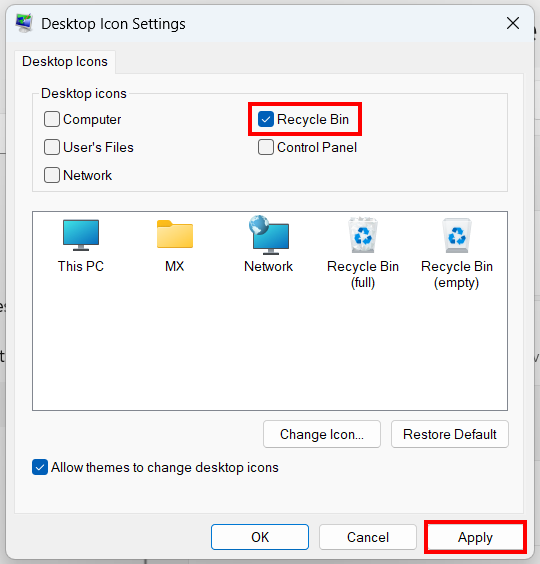
- Scroll down to the 'Related settings' section and click Desktop icon settings.
- In the pop-up window, locate the checkbox next to Recycle Bin:
- To bring back the icon: Check the box so a checkmark appears.
- To hide the icon: Uncheck the box to remove the checkmark.
- Once you have made your choice, click Apply, then click OK to save your changes.
- Check your desktop—the Recycle Bin icon will now instantly reflect your changes.
Still missing? Check this hidden desktop setting
If you checked the box in the steps above and the Recycle Bin still isn't showing up, you have likely accidentally turned off desktop visibility entirely. When this happens, Windows hides every single file, folder, and icon on your screen.
- The Fix: Right-click any empty space on your desktop.
- Hover your mouse cursor over the View option in the context menu.
- Look at the sub-menu and ensure there is a checkmark next to Show desktop icons. If it is unchecked, click it once.
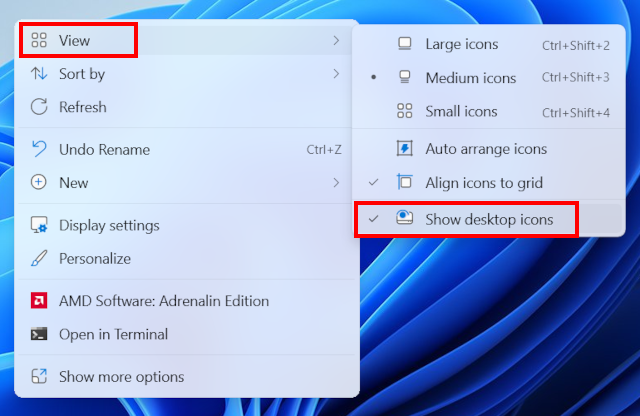
The moment you toggle this on, your Recycle Bin and all other hidden shortcuts will instantly reappear on your screen.
💡 Bonus tip: Pin the Recycle Bin to File Explorer (for a clean desktop)
If you prefer a completely clean desktop with zero icons, you can pin the Recycle Bin directly to your File Explorer sidebar instead. This lets you access and empty your trash from any folder window without cluttering your desktop wallpaper.
- Use the steps above to temporarily show the Recycle Bin icon on your desktop.
- Right-click Recycle Bin on your desktop.
- Select Pin to Quick access.
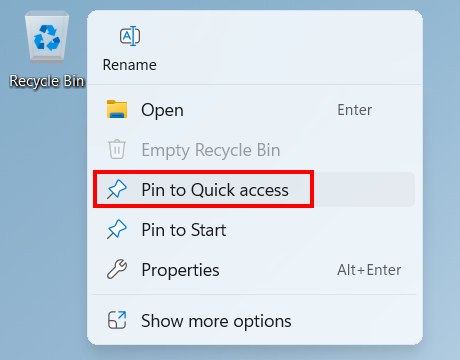
Once pinned, you can go back into your desktop icon settings and hide the desktop shortcut again. Your desktop stays completely spotless, but your trash is always just one click away.
Related:
Fix desktop icons missing or disappeared in Windows 10 & 11