
How to play a video frame by frame in VLC Media Player
Whether you're trying to capture the perfect screenshot, analyze a fast-moving clip, or spot a hidden detail in a movie, playing a video frame by frame is an incredibly useful feature. While VLC Media Player has this capability built right in, the controls are hidden by default.
I'll show you the instant keyboard shortcut to step forward frame by frame, as well as how to add a physical button to your player interface if you prefer using your mouse.
Method 1: The one-key keyboard shortcut (fastest)
The absolute fastest way to examine a video frame by frame is by using VLC's native hotkey. It requires zero configuration and works instantly during live playback.
- Open your video inside VLC Media Player.
- Press the E key on your keyboard when you reach the scene you want to inspect.
- Press the E key repeatedly to go frame by frame or hold it down to advance slowly.
The very first tap of the E key will instantly pause regular playback. Every time you tap it after that, the video will advance forward by exactly one single frame, and a small Next frame alert will briefly appear in the top-right corner.
Method 2: Enable the on-screen "Advanced Controls" button
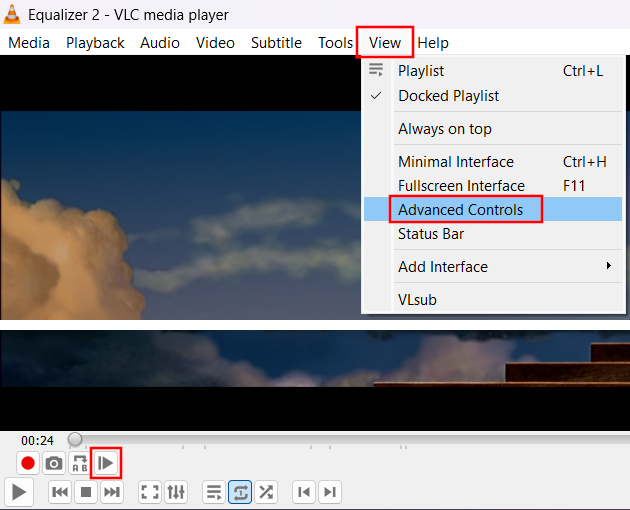
If you prefer clicking a physical button with your mouse rather than using your keyboard, you can force VLC to display its hidden advanced toolbar panels.
-
Click the far-right icon (the one featuring a small vertical line next to a right-facing play arrow). This is the dedicated Frame-by-Frame button.
Can you go backward frame by frame?
Unfortunately, no. Out of the box, VLC Media Player does not support stepping backward by a single frame. This is a core limitation of how digital video files are encoded—videos store full images only every few seconds, filling the gaps with moving changes. Going backward requires an immense amount of processing power that modern media players skip to stay lightweight.
The Workaround: If you accidentally skip past the frame you wanted to see, use this rapid combination:
- Press the < (left arrow key) on your keyboard to instantly jump backward by 10 seconds.
- Let the video play for a moment, tap the Space bar (space key) to pause it just before your target mark, and use the E key or VLC frame-by-frame button to step forward precisely again.
Related:
How to play VIDEO_TS on Windows 10 and 11 (step by step)
References: