
How to make File Explorer open 'This PC' in Windows 11
Tired of Windows opening your files to the clutter of the "Home" page? Let me show you how to make File Explorer open to 'This PC' by default in Windows 11 instead of 'Home' or 'Quick access'.
ADVERTISEMENT
By default, Microsoft configures the Windows 11 File Explorer to display your recently viewed files and frequent folders. Fortunately, you can change a single built-in setting to force the application to open straight to your drives and devices layout every time you launch it.
Make File Explorer open to 'This PC' in Windows 11
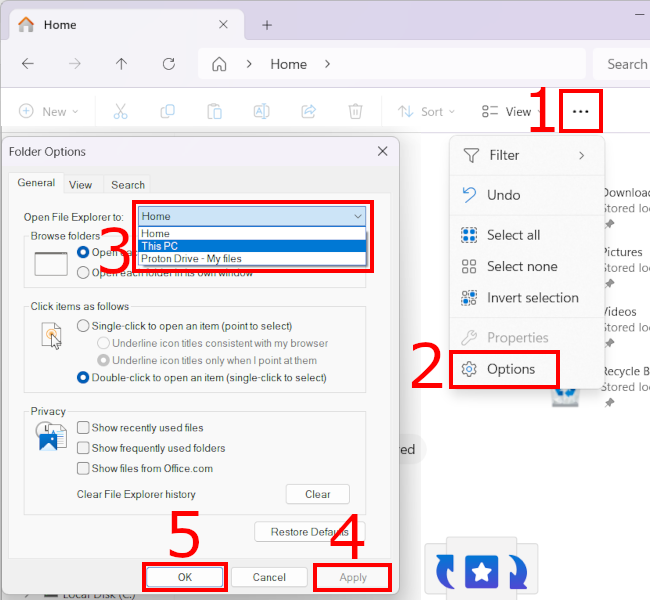
- Open File Explorer.
- Click on the three-dot icon (...) located in the top menu bar of File Explorer.
- Click on Options.
- In the Folder Options window that opens, select This PC instead of Home in the drop-down menu next to Open File Explorer to.
- Click on Apply to save your configurations.
- Click on OK to close the Folder Options window.
File Explorer will now bypass the default landing page and open straight to 'This PC' showing your local disk drives, network locations, and core user folders immediately.
ADVERTISEMENT
Related:
How to turn off File Explorer grouping by date in Windows 11
References: