
How to copy text from an image on Windows 11
Instead of squinting at your screen and manually retyping text from a screenshot, a locked PDF, or an image file, you can let Windows 11 do the work for you. Thanks to built-in optical character recognition (OCR), you can grab text instantly using two quick native methods—no third-party apps required.
Method 1: Use the Photos app (for saved images)
If you already have a JPEG or PNG image saved on your computer, you don't need to take a new screenshot. The default Windows 11 Photos app has a native OCR tool built directly into its bottom control bar.
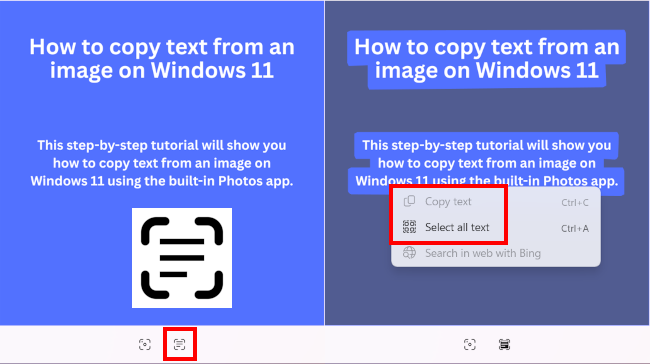
- Double-click your image file to open it in the default Windows 11 Photos app.
- Click the scan text button in the toolbar at the bottom of the window.
- Right-click the image.
- Click Select all text.
- Right-click the image.
- Click Copy text.
- Open Notepad, Microsoft Word, or your email client and press Ctrl + V to paste your freshly extracted plain text.
💡 Quick tip: You can use this method for instant screenshots, too. Just press Windows ⊞ + Print Screen (PrtScn, PrtSc, or PrtScr) to capture your screen, open that image from your Pictures > Screenshots folder in the Photos app, and click the scan text button.
Method 2: Use the Text Extractor shortcut (for live screen content)
If the text you want to grab is stuck inside a video, a website that blocks copying, or a program menu, you can use the native Windows text extraction overlay to grab it directly off your screen.
- Open the content on your screen that contains the text you want to grab.
- Press Windows ⊞ + Shift + T on your keyboard to open the text extractor.
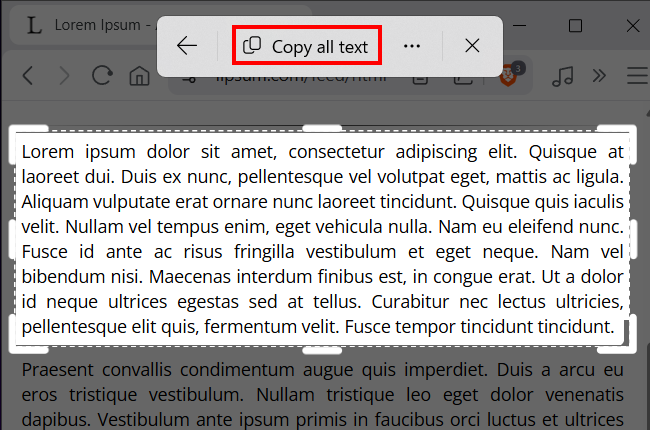
- Click and drag a box directly over the text you want to copy.
- Release the mouse button. Windows automatically reads the text inside the box.
- Click Copy all text, or select specific words with your mouse and copy them.
- Open any document or text field (like Notepad) and press Ctrl + V to paste it.
Troubleshooting: Shortcut not working?
If pressing Win + Shift + T doesn't open the text extractor, it usually means your system app needs an update.
- Update the Snipping Tool: Open the Microsoft Store, click Library in the bottom left, and click Get updates. Make sure Snipping Tool is running the latest version.
- Check your language settings: Windows native OCR relies on installed language packs. If you are trying to extract non-English text, go to Settings > Time & Language > Language & Region and ensure the corresponding language pack is installed.
Still on Windows 10? Use Microsoft PowerToys
The native Win + Shift + T shortcut requires a recent Windows 11 update. If you are using Windows 10, you can get the exact same functionality by installing Microsoft PowerToys (free from the Microsoft Store).
- Open PowerToys and ensure the Text Extractor module is turned on.
- Press Windows ⊞ + Shift + T on your keyboard to select and copy text.
(Note: If you are on Windows 11 and use PowerToys, the native Snipping Tool shortcut may conflict with it. You can remap the PowerToys hotkey in its settings menu).