
How to change the icon of an Internet shortcut
By default, every internet shortcut you drag to your desktop looks exactly like your default browser (Chrome, Edge, or Brave). If you have a dozen shortcuts on your screen, it's impossible to tell them apart at a glance. You can easily fix this by swapping the generic browser icon for a custom one.
I’ll show you how to swap the icon using Windows' built-in icon library, or how to use a custom image file if you want a specific brand logo.
Change your shortcut icon
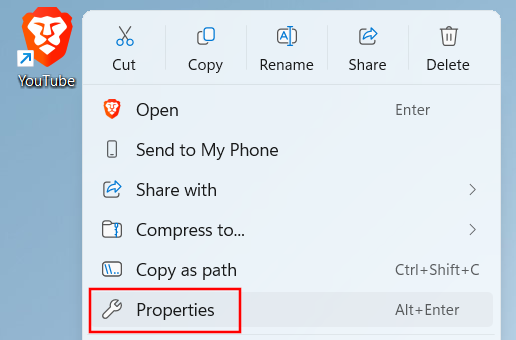
- Right-click the shortcut on your desktop.
-
Select Properties from the context menu.
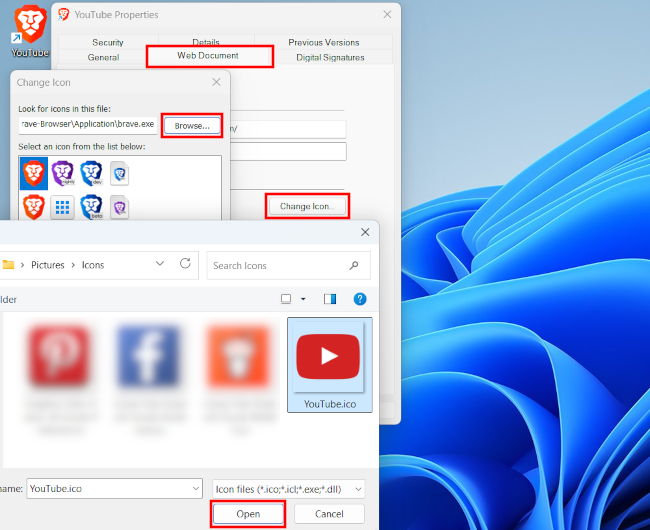
- Make sure you're on the Web Document tab.
- Click the Change Icon button.
- A window will pop up showing the current icon. Click Browse to find your own custom icon file (must be a .ico file), or look through the default Windows library.
- Select your desired icon.
-
Click Open.
- Click OK.
- Click Apply on the 'Properties' window to apply the change.
- Click OK to close the window.
Quick Tip: Where to get icons?
Windows only accepts .ico files for shortcut icons. If you have a PNG or JPG logo you want to use, you must convert it first.
- Convert images: You can use free websites like CloudConvert or ConvertICO to turn any PNG into a professional-looking .ico file.
- Icon size: For the best results, use an icon that is at least 64x64 pixels; Windows will automatically scale it down for your desktop.
- Persistence: Don't move or delete the .ico file after you've applied it to the shortcut, or the icon will revert to the default browser look. Move your collection of icons into a permanent folder (like
C:\Icons) before applying them.
Related:
How to create a website shortcut on the desktop of your PC