
How to auto-delete temporary files in Windows 10 and 11
Temporary files (leftovers from your browser, apps, and old updates) take up space. Windows has a built-in feature called Storage Sense that auto-deletes temporary files in the background, empties the Recycle Bin, and frees up space on a schedule you set.
Using Windows 10? See the Windows 10 steps.
How to enable Storage Sense in Windows 11
- Right-click the Start button (Windows logo) on the taskbar.
- Click Settings.
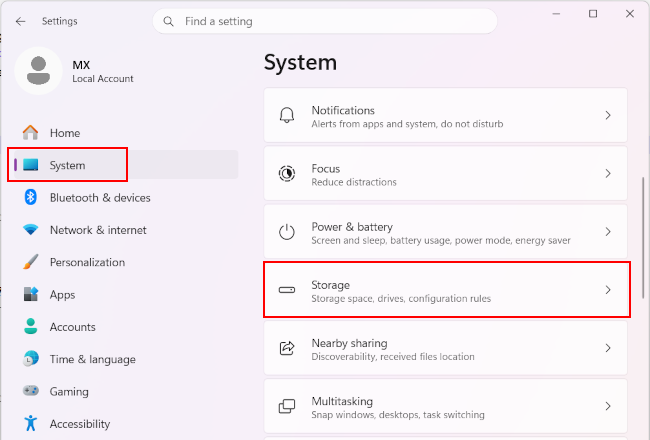
- Click System in the left menu.
-
Click Storage on the right side.
-
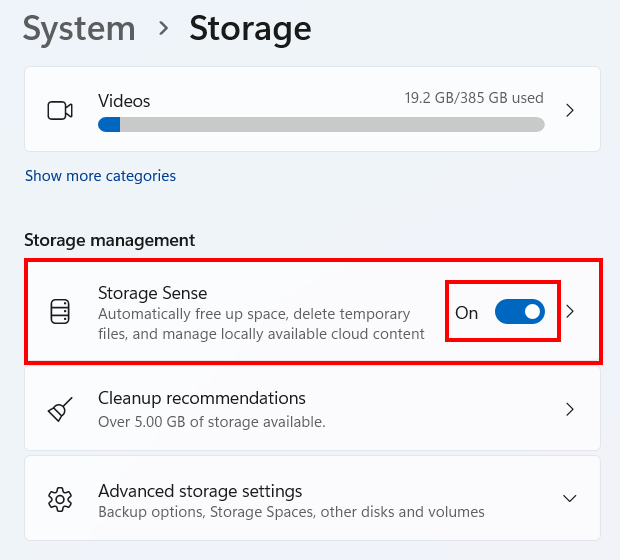
Turn on Storage Sense.
-
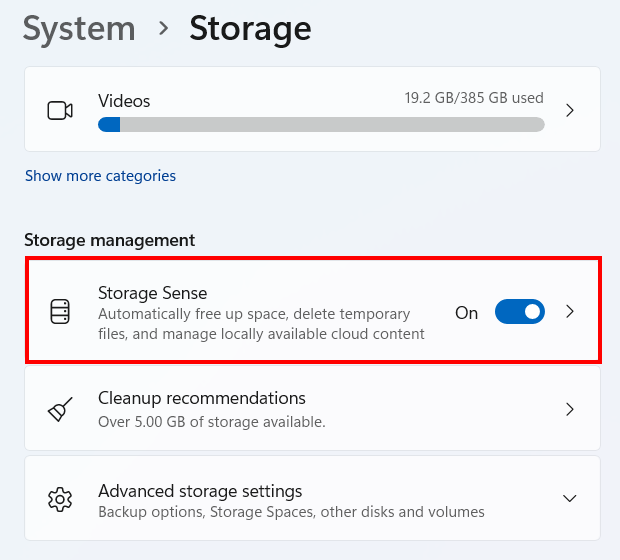
Click Storage Sense.
-
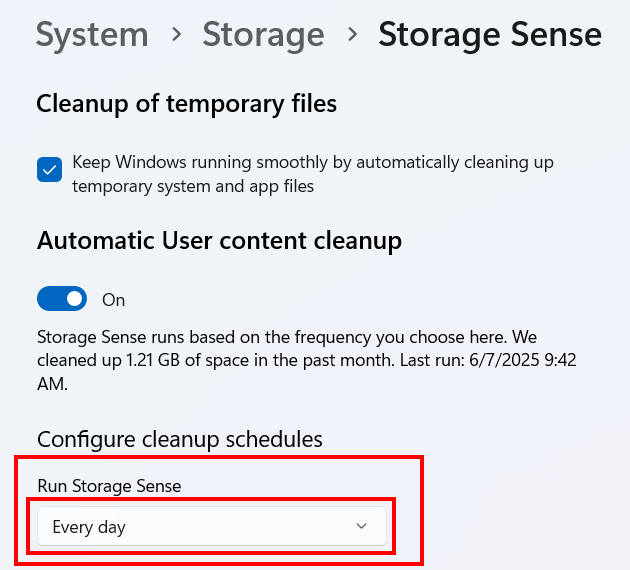
Check the box for Keep Windows running smoothly by automatically cleaning up temporary system and app files.
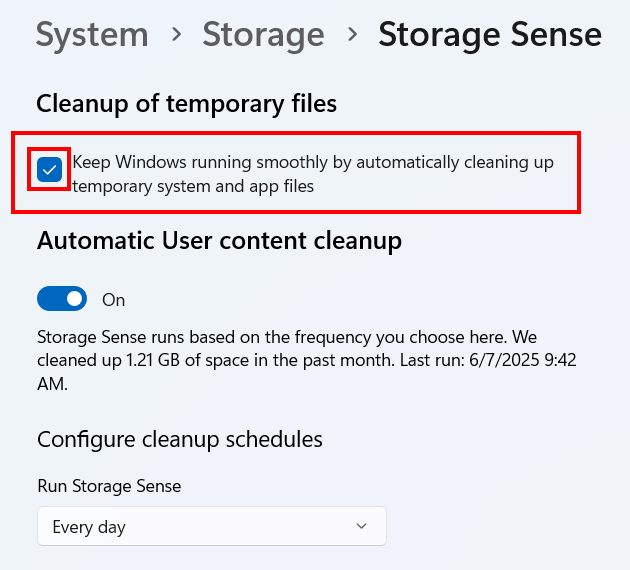
- Click the Run Storage Sense drop-down menu.
-
Select how often Storage Sense runs.
Note: By default, Storage Sense leaves your Downloads folder alone. If you want it cleaned too, change Delete files in my Downloads folder to 30 or 60 days. Move anything you still need out of that folder first.
How to enable Storage Sense in Windows 10
- Right-click the Start button (Windows logo) on the taskbar.
- Click Settings.
- Click System.
- Click Storage.
- Toggle Storage Sense to On.
- Click Configure Storage Sense or run it now.
- Select how often Storage Sense runs.
Note: If you set Delete files in my Downloads folder to 30 days, Windows will permanently delete anything you haven't opened in a month. Move important files out first.
Related:
How to delete temporary files in Windows 11 (step by step)
How to delete the Windows.old folder in Windows 10 and 11