
How to enable 3-button navigation on a Google Pixel
Google Pixel phones default to gesture navigation, but you can switch back to the 3-button bar (Back, Home, Recent) at any time. Here's how to turn off gestures and enable the navigation bar in settings.
Quick tutorial: Go to Settings > System (or Display and touch) > Navigation mode and select 3-button navigation.
How to turn on 3-button navigation on a Pixel
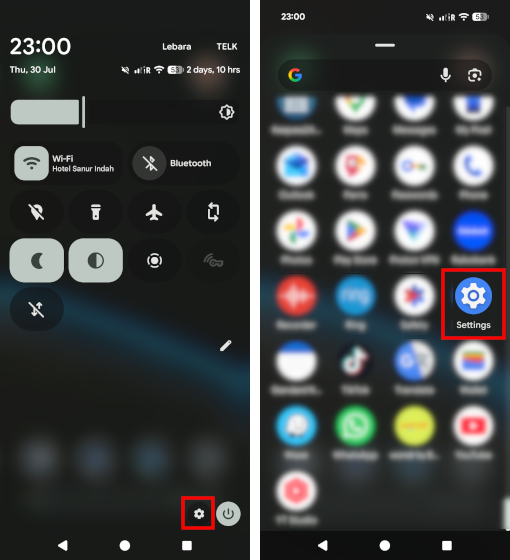
Step 1: Open Settings
Swipe down twice from the top of your screen and tap the Gear icon, or open the Settings app.
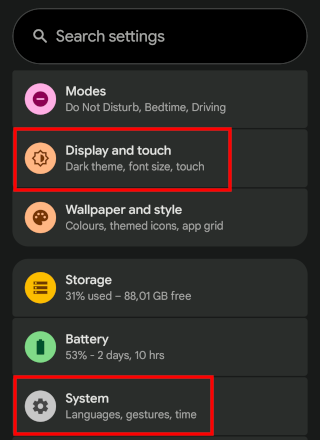
Step 2: Tap on System (or Display & touch)
Scroll down and tap System. (Note: On some Android versions, this setting is located under Display & touch.)
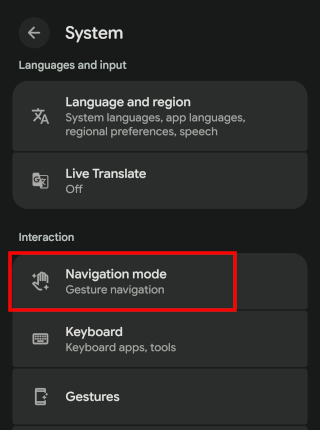
Step 3: Tap Navigation mode
Scroll down until you see Navigation mode. It should currently say Gesture navigation. Tap Navigation mode.
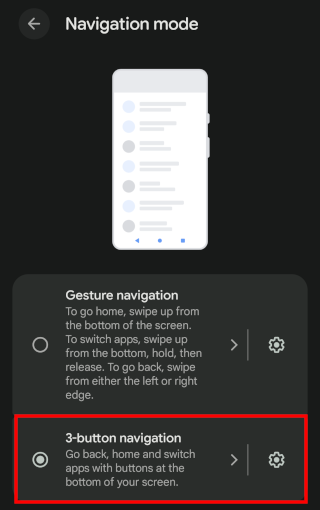
Step 4: Select 3-button navigation
Select 3-button navigation. The gesture bar is replaced with the Back, Home, and Recent buttons. Your preference persists across reboots and updates.
Frequently Asked Questions
Can you swap the Back and Recent buttons on a Pixel?
Yes. In Android 16 QPR3 and Android 17, you can change the button order. Go to Settings > System (or Display and touch) > Navigation mode, tap the Settings (gear) icon next to 3-button navigation, and choose between Back, Home, Recent or Recent, Home, Back.
How do I switch back to gesture navigation later?
Go to Settings > System (or Display and touch) > Navigation mode and select Gesture navigation.
What if I can't find the "Gestures" menu?
Open Settings, tap the search bar at the top, and type Navigation mode. Tap the result to jump straight to the setting.
Related:
How to change Google Gemini button to power button on Pixel