
How to extract audio from a video on Windows 11
Whether you want to save a catchy background track from a video clip, pull a voice memo out of a recorded meeting, or turn a lecture into an offline podcast file, separating sound from visual media shouldn't be a headache. You don't need to purchase heavy editing suites or download sketchy third-party utility software just to rip a soundtrack.
Windows 11 actually features a powerful, free tool built right into the operating system that handles this task flawlessly. In this step-by-step tutorial, we will show you exactly how to extract audio from a video on Windows 11 using the native Microsoft Clipchamp app in just a few clicks.
Extract audio from a video on Windows 11 using Clipchamp
- Press the Windows key on your keyboard or click the Windows start menu button.
- Type clipchamp.
- Press Enter or click on Clipchamp in the search results to open it.
- Click the Create a new video button.
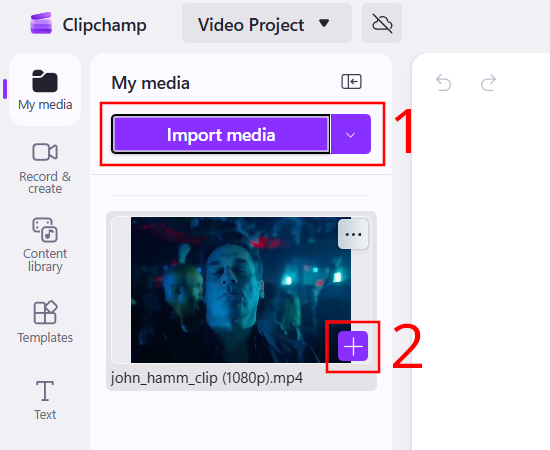
- Click Import media and select your video file (or just drag and drop your video file into the window).
-
Hover over your imported video in the top-left section and click the green + button (or drag it down) to drop it into the editing timeline at the bottom of the screen.
- Click the Export button in the top-right corner.
- From the dropdown menu of quality options, click the Audio-only option at the very bottom.
- You can edit the file name in the File name field.
-
Click the Export button.
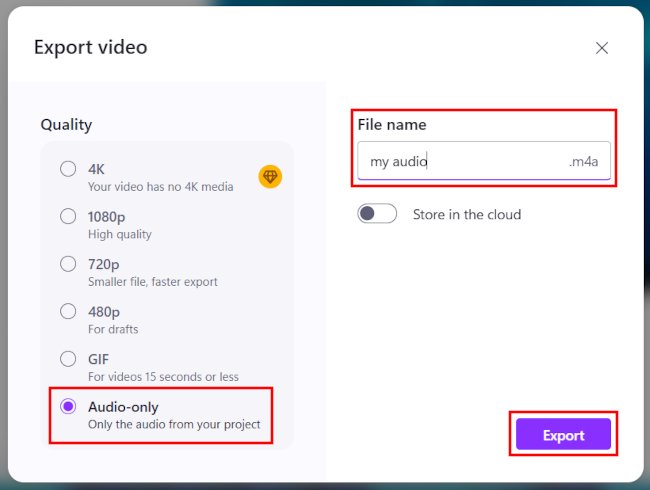
Clipchamp will instantly pull the audio track out and save it directly to your computer as a clean, high-quality .m4a audio file.
Note: If you specifically need it to be an .mp3 rather than an .m4a for an older device, you can use a free browser-based tool like CloudConvert, but for almost all modern phones, media players, and websites, the .m4a file Clipchamp gives you will work perfectly.
Related:
How to remove sound from a video (step by step)