The complete guide to disabling location tracking in Chrome, Edge, Firefox, Brave, and Samsung Internet
Whether you're using Google Chrome, Microsoft Edge, Firefox, Brave, or Samsung Internet, this guide will show you how to block those annoying location permission pop-ups for good on both your computer and your mobile devices.
Constant permission requests aren't just a distraction—they can also be a privacy risk if you're not careful about which sites are tracking your movement.
Last updated: April 2026. Consolidated (merged) 5 pages into this one master guide.
Tip: On mobile, blocking location in the browser only stops websites from asking. To stop the browser app itself from knowing where you are, you also need to check your Android system privacy settings.
Desktop browsers (Windows & Linux)
How to stop location requests in Google Chrome
-
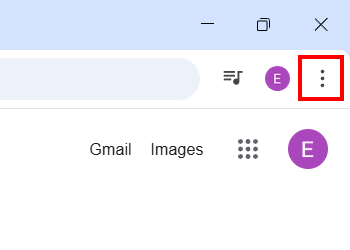
Click the menu button in the top right corner.
-
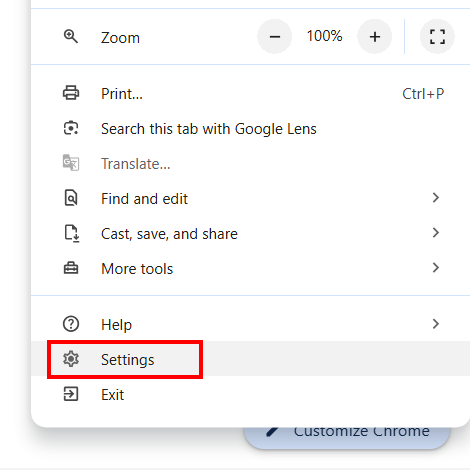
Click Settings.
-
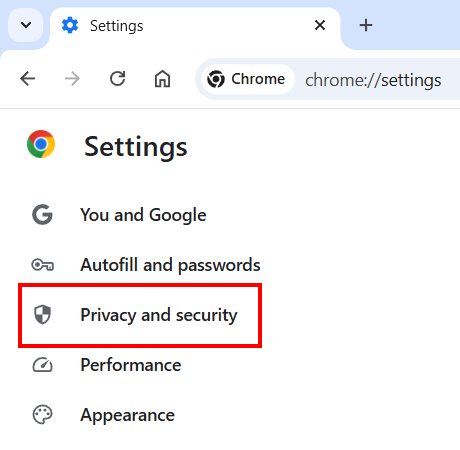
Click Privacy and security in the left menu.
-
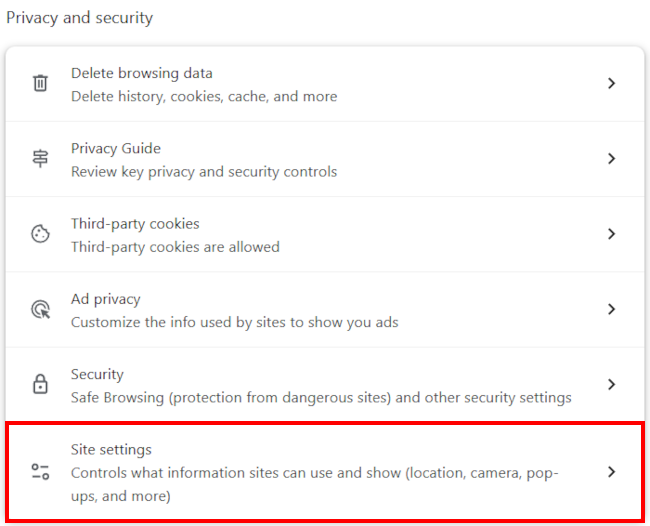
Click Site settings.
-
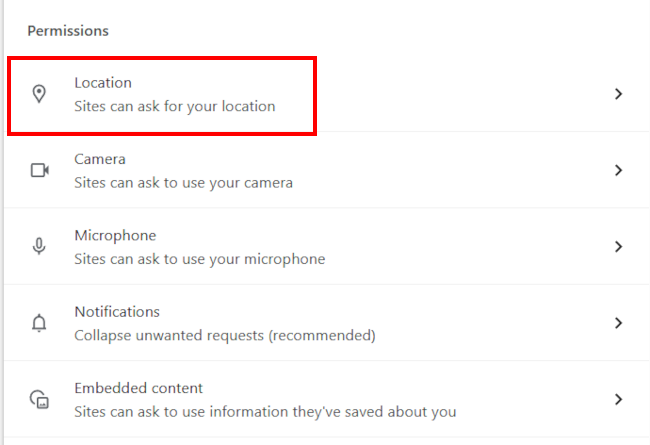
Click Location.
-
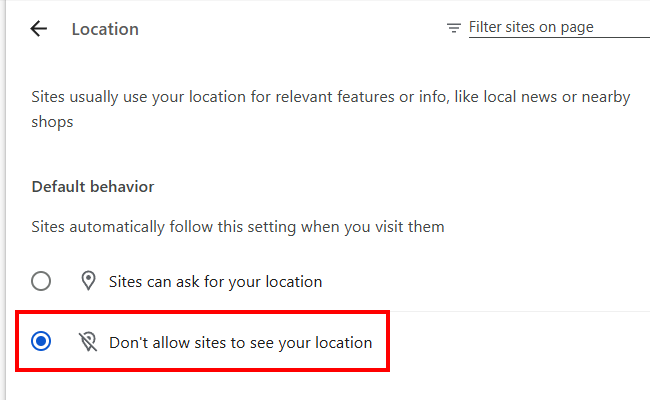
Select the Don't allow sites to see your location option.
How to stop location requests in Microsoft Edge
-
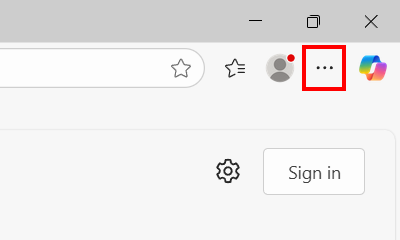
Click the menu button in the top right corner.
-
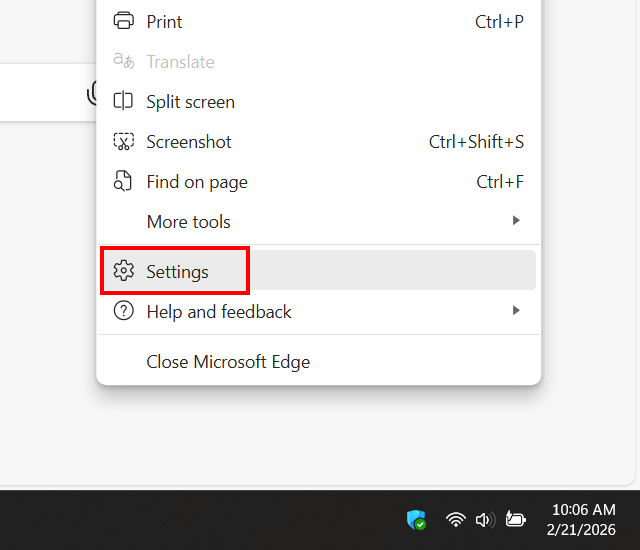
Click Settings.
-
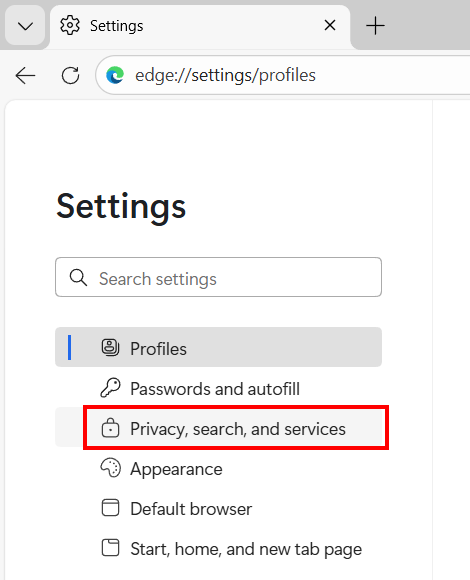
Click Privacy, search, and services in the left menu.
-
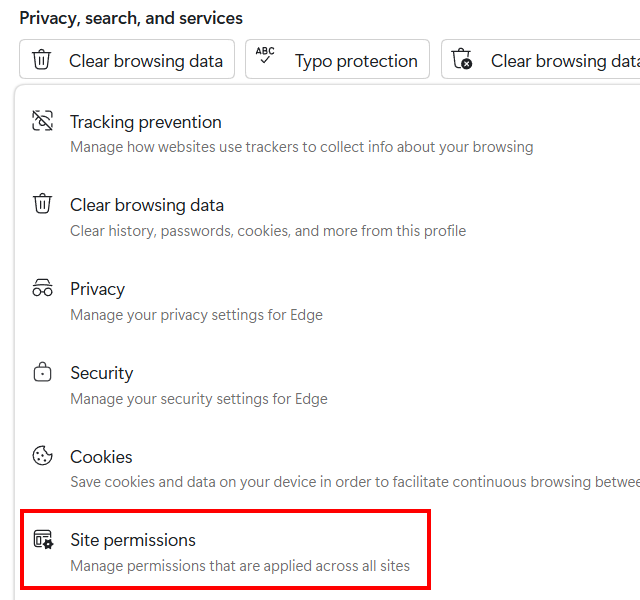
Click Site permissions.
-
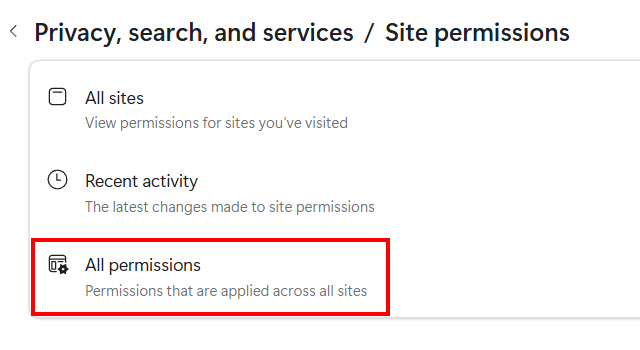
Click All permissions.
-
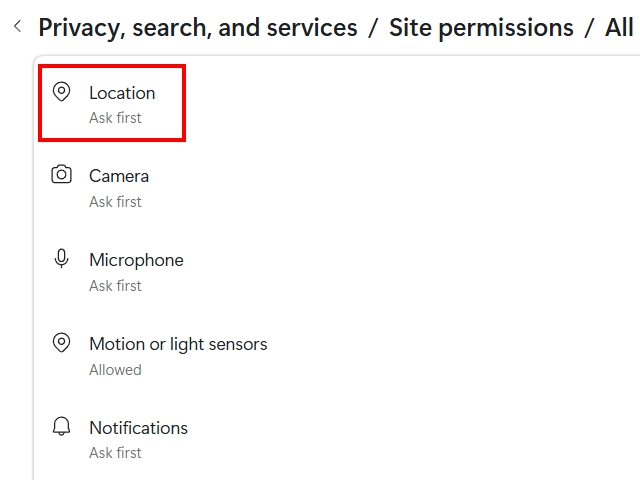
Click Location.
-
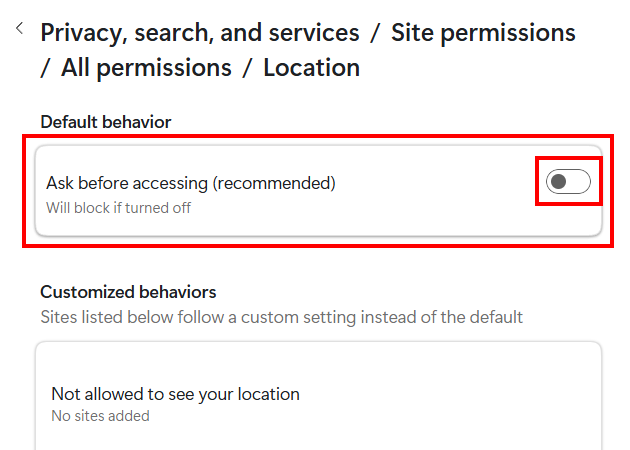
Click Ask before accessing or the toggle button next to it to turn this option off.
How to stop location requests in Firefox
-
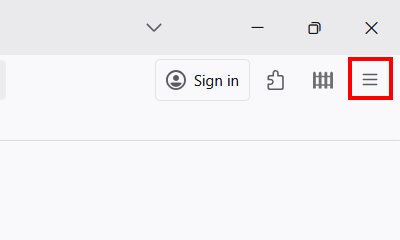
Click the menu button in the top right corner.
-
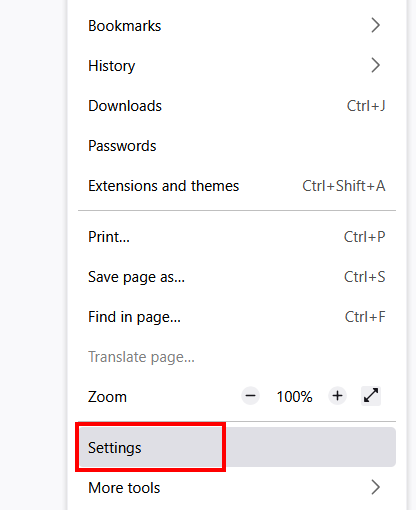
Click Settings.
-
Click Privacy & Security.
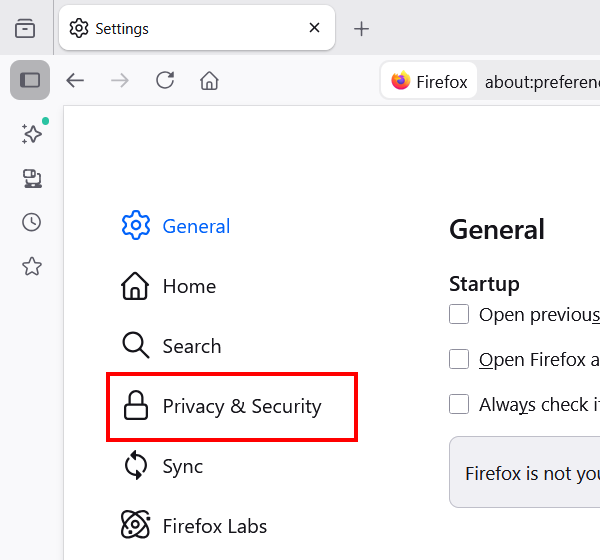
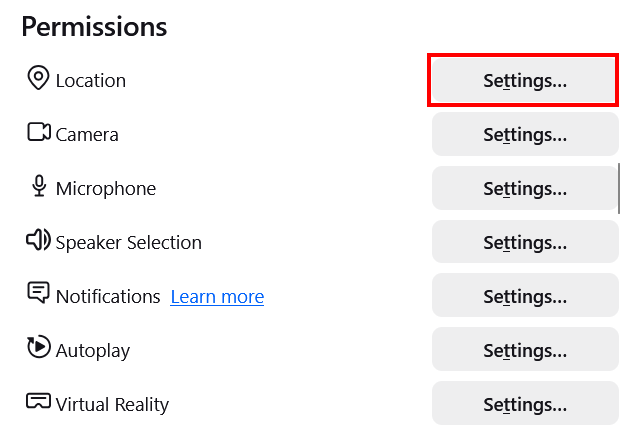
- Scroll down to the Permissions section.
-
Click the Settings button next to Location.
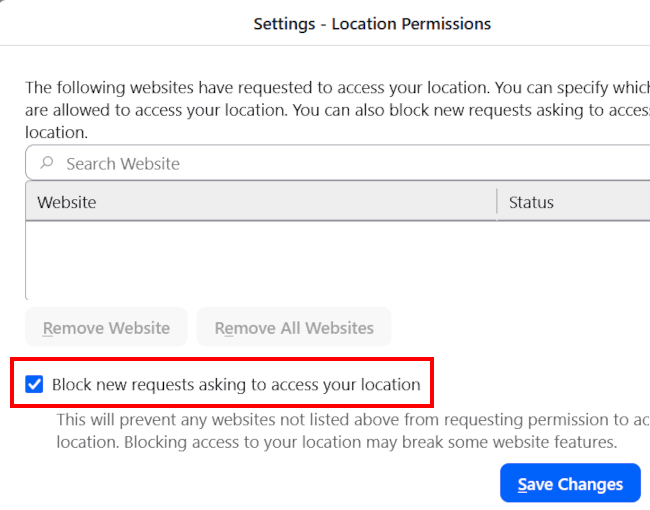
-
Check the Block new requests asking to access your location option.
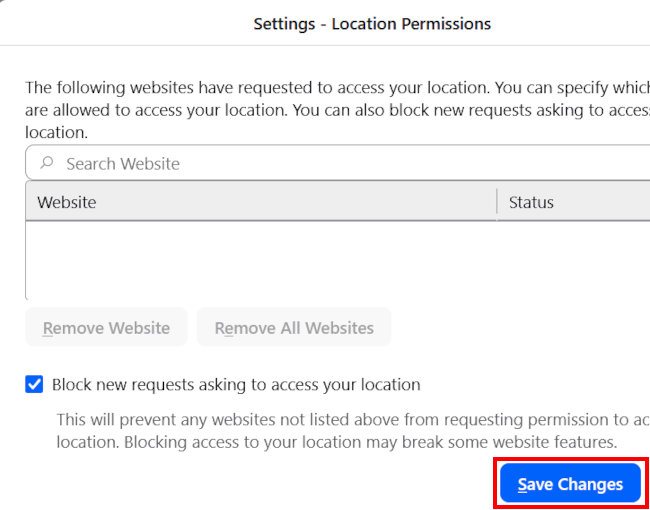
-
Click Save Changes.
How to stop location requests in Brave
-
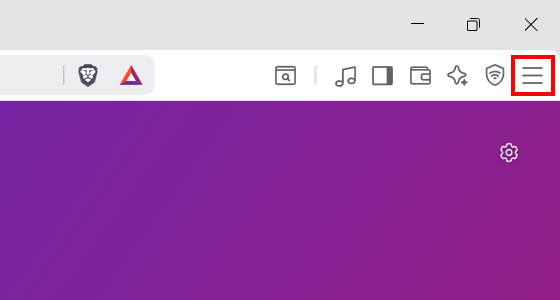
Click the menu button in the top right corner of Brave.
-
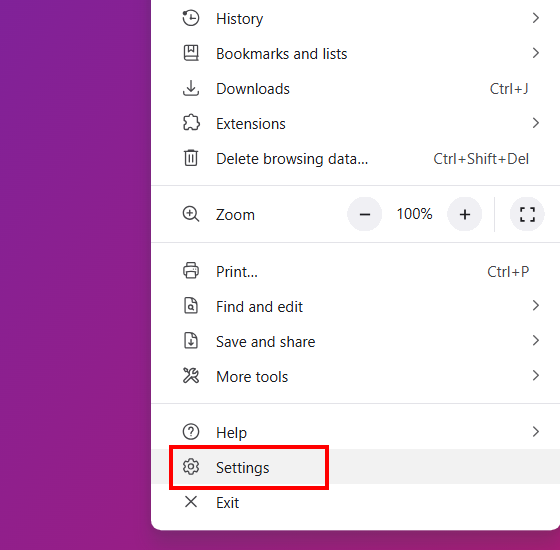
Click Settings.
-
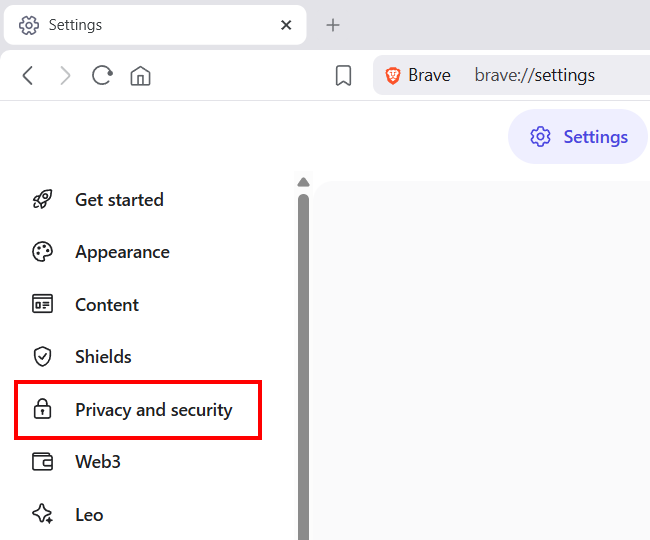
Click Privacy and security.
-
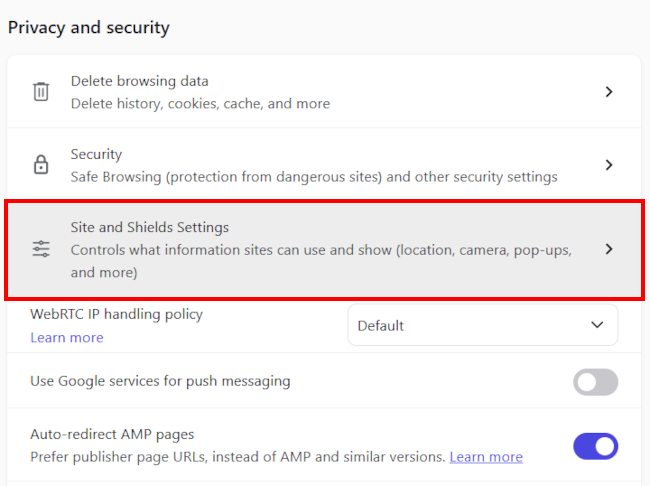
Click Site and Shields Settings.
-
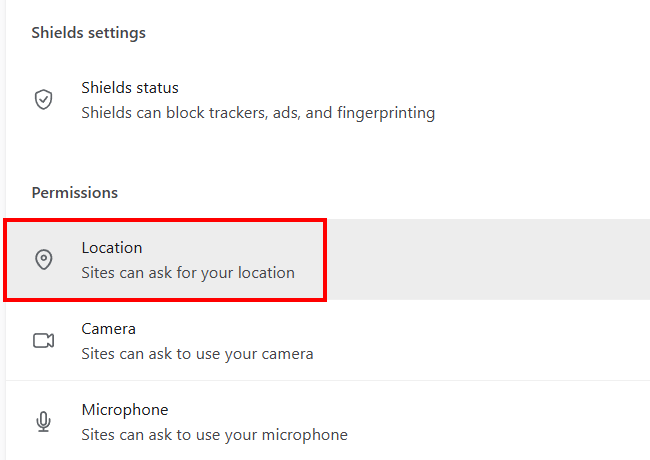
Click Location.
-
Select the Don't allow sites to see your location option.

Mobile browsers (Android)
How to stop location requests in Google Chrome (Mobile)
-
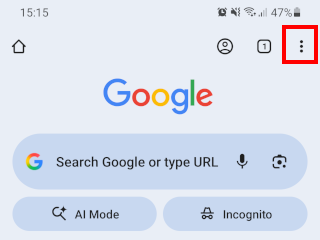
Tap the menu button in the top right corner.
-
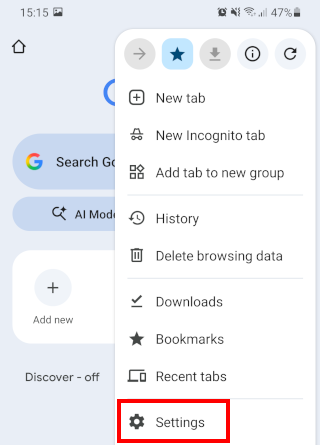
Tap Settings.
-
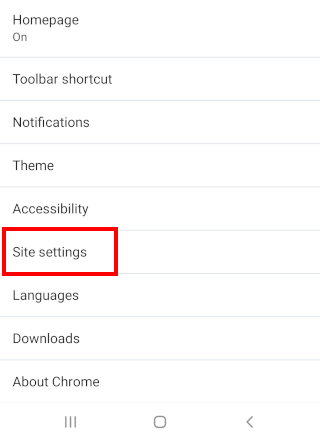
Tap Site settings.
-
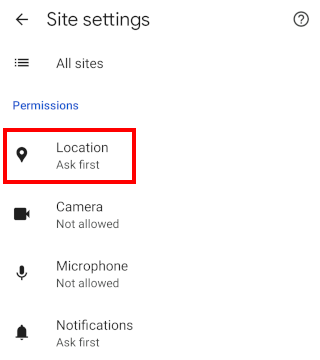
Tap Location.
-
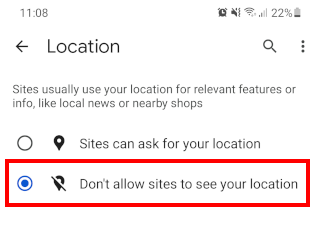
Select the Don't allow sites to see your location option.
How to stop location requests in Microsoft Edge (Mobile)
-
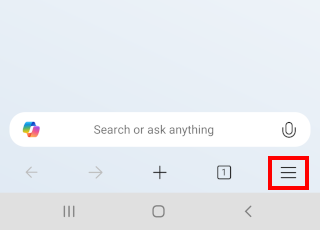
Tap the menu button.
-
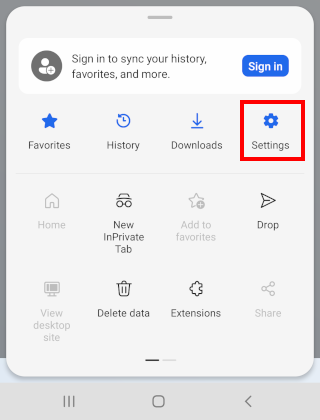
Tap Settings.
-
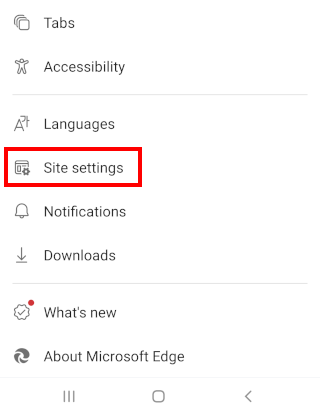
Tap Site settings.
-
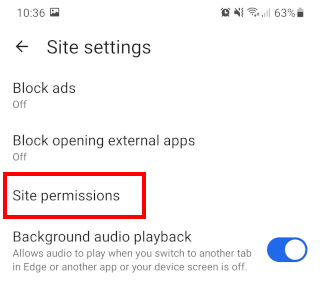
Tap Site permissions.
-
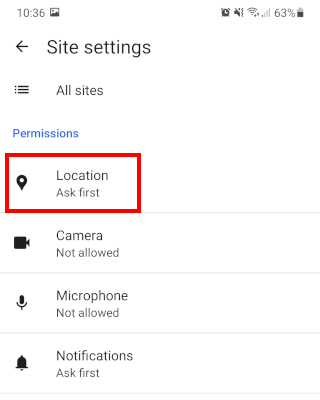
Tap Location.
-
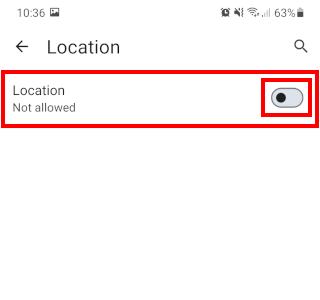
Tap Location or the toggle button next to it to turn this option off.
How to stop location requests in Firefox (Mobile)
-
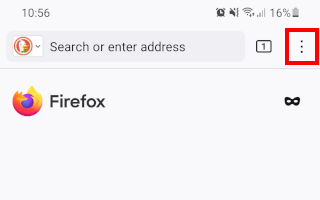
Tap the menu button in the top right corner of Firefox.
-
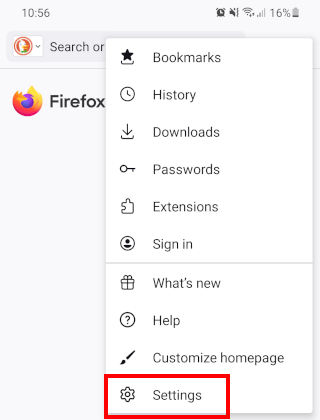
Tap Settings.
-
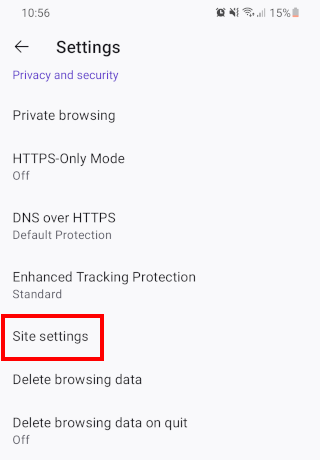
Tap Site settings.
-
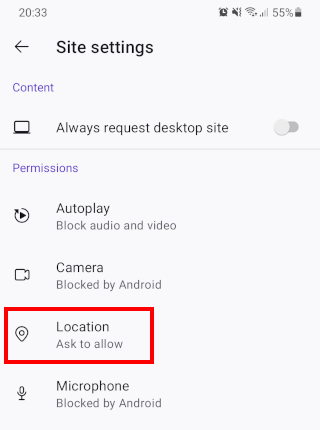
Tap Location.
-
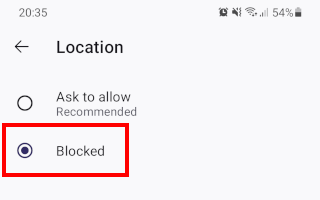
Select the Blocked option.
How to stop location requests in Brave (Mobile)
-
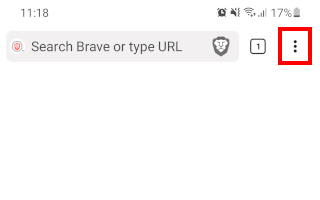
Tap the menu button in the top right corner of Brave.
-
Tap Settings.

-
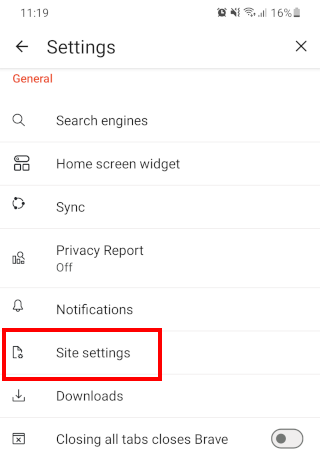
Tap Site settings.
-
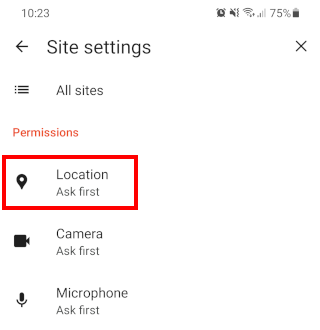
Tap Location.
-
Tap Location to disable this option.
How to stop location requests in Samsung Internet (Mobile)
-
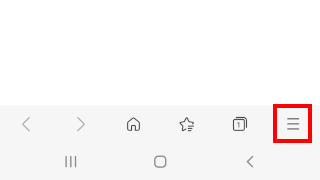
Tap the menu button in the bottom right corner of Samsung Internet.
-
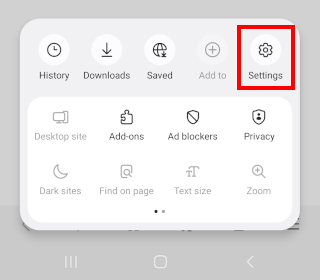
Tap Settings.
-
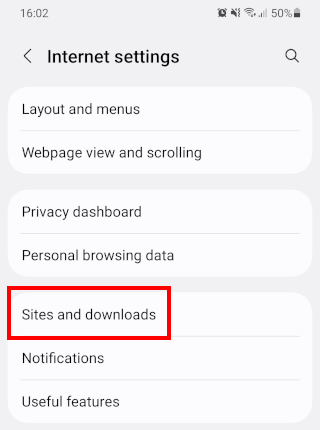
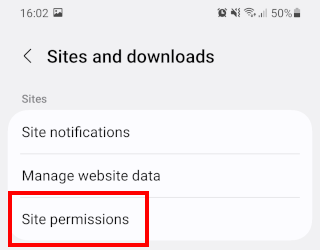
Tap Sites and downloads.
-
Tap Site permissions.
-
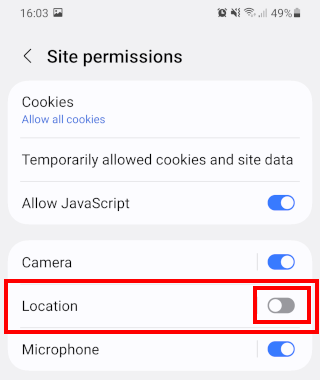
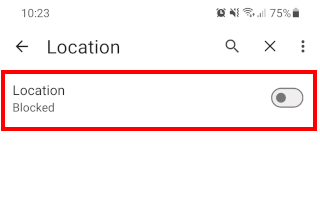
Tap the toggle button next to Location to turn this option off.