How to stop videos from automatically playing in Edge, Firefox, Brave, and Samsung Internet
Autoplaying videos can be one of the most annoying parts of browsing the web—suddenly a tab starts blasting audio, or a video begins playing before you’re ready. The good news is that several browsers give you control over this behavior. In this guide, you’ll learn exactly how to stop videos from automatically playing in Microsoft Edge, Firefox, Brave, and Samsung Internet on both your computer and your mobile devices, with simple steps that put you back in charge of your browsing experience.
Last updated: April 2026. Merged three older pages into one bigger guide.
What about Google Chrome?
Chrome lacks a setting to disable autoplay videos, which is somewhat disappointing. To block autoplay videos in Google Chrome, you can use third‑party extensions like Video Blocker, Disable HTML5 Autoplay (M3), or AutoplayStopper from the Chrome Web Store.
WARNING! Be careful with browser extensions. Some malicious extensions can capture your passwords, track your browsing activity, insert ads into the pages you visit, or even infect your computer with malware [1] [2] [3].
What about Microsoft Edge on Android?
Edge for Android phones and tablets doesn’t have a setting to turn off autoplay videos, which is somewhat disappointing.
Desktop browsers
Microsoft Edge
-
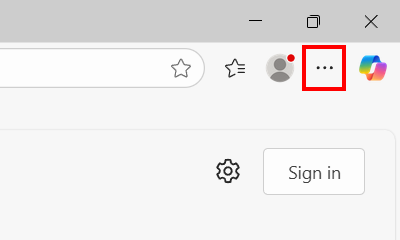
Click the menu button in the top right corner.
-
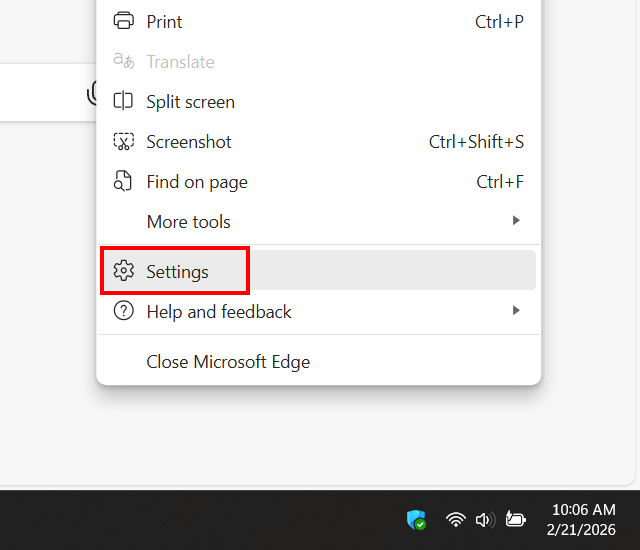
Click Settings.
-
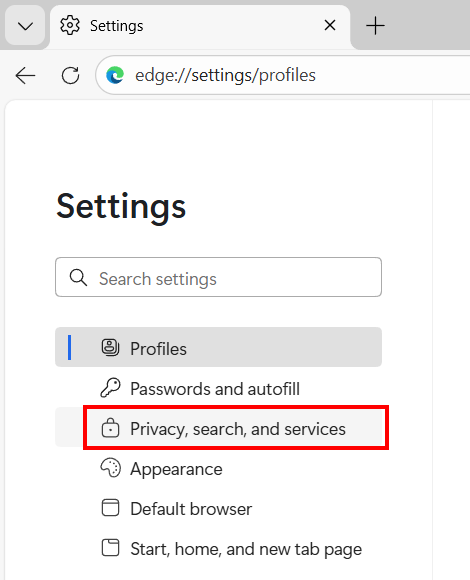
Click Privacy, search, and services in the left menu.
-
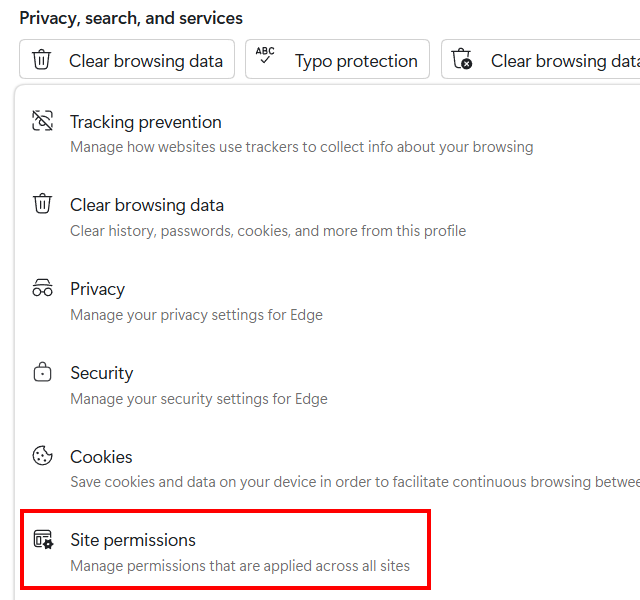
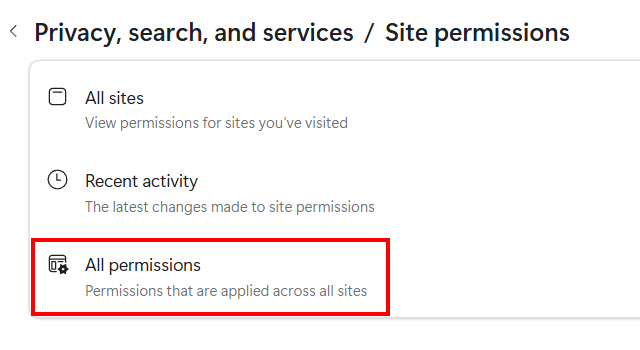
Click Site permissions.
-
Click All permissions.
-
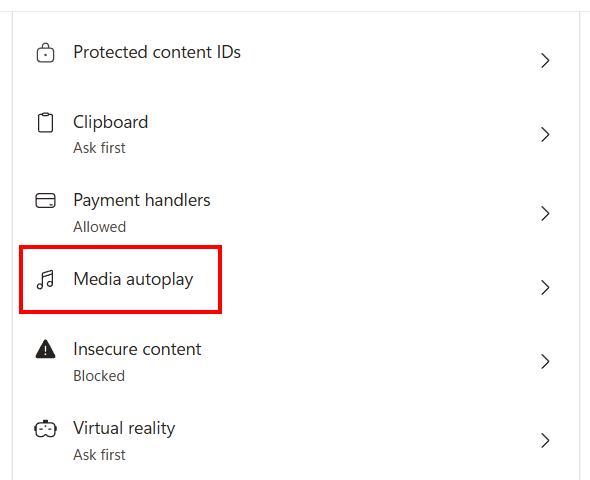
Click Media autoplay.
-
In the Control if audio and video play automatically on sites section, click the selection menu button and select Block.
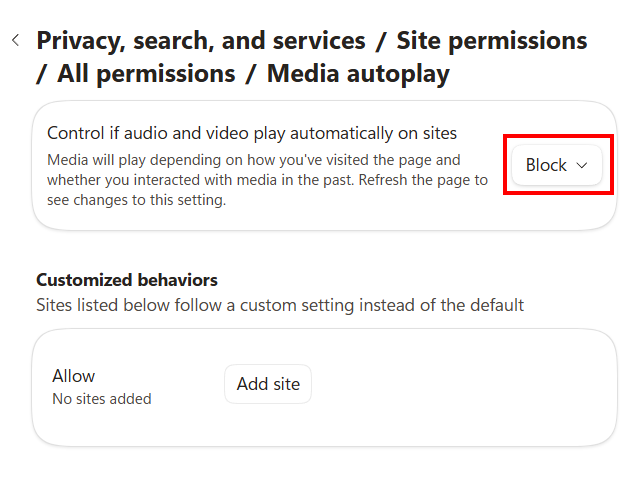
- Restart Edge.
Firefox
To stop websites from automatically playing videos in Firefox on a computer, follow these steps:
-
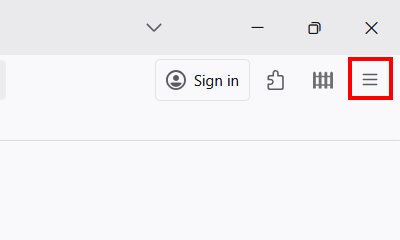
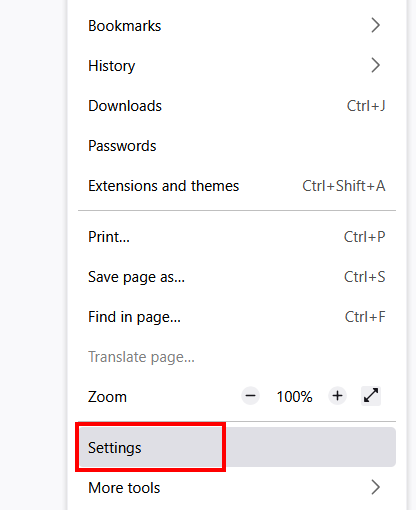
Click the menu button in the top right corner of Firefox.
-
Click Settings.
-
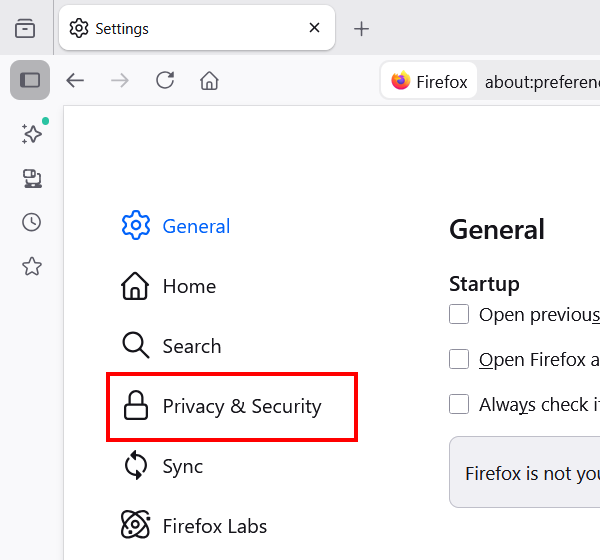
Click Privacy & Security.
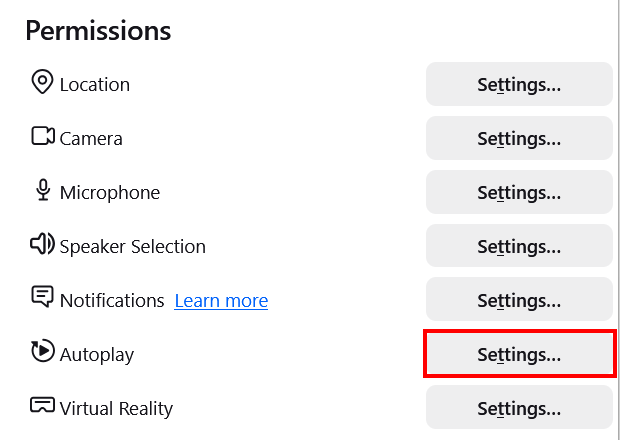
- Scroll down to the Permissions section.
-
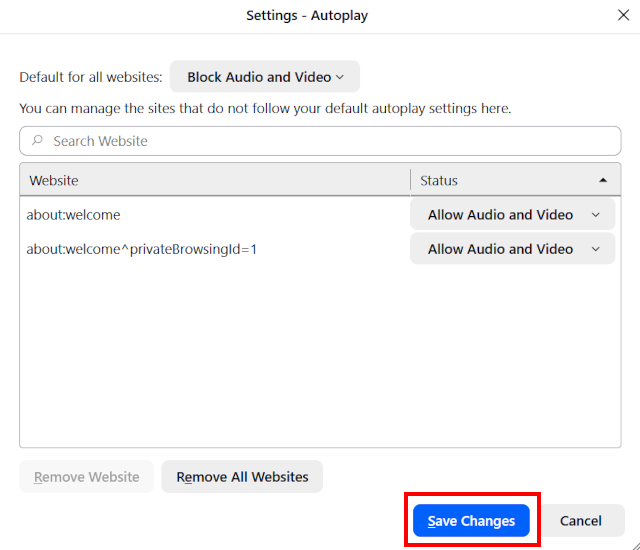
Click on the Settings button next to Autoplay.
-
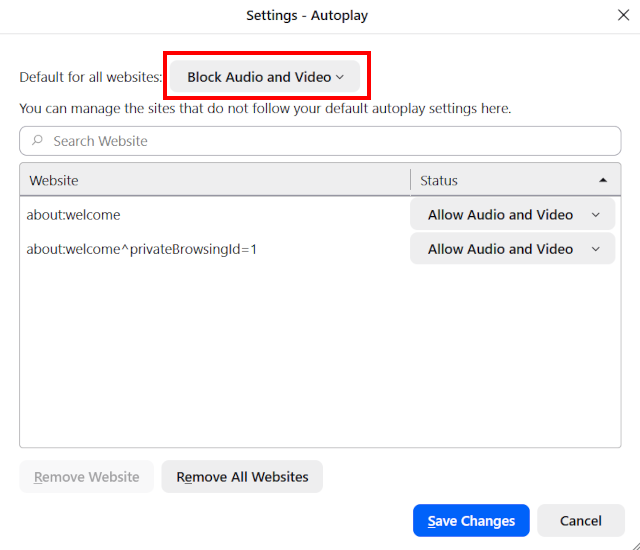
Select Block Audio and Video.
-
Click Save Changes.
- Restart Firefox.
Brave
To disable autoplay videos in the Brave browser on a PC, follow these steps:
-
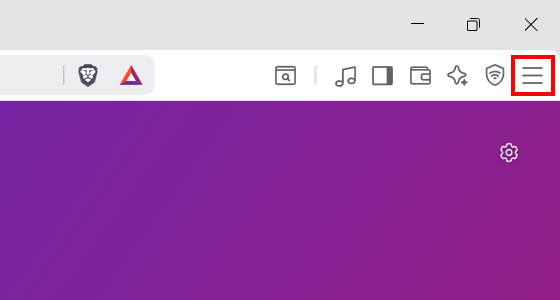
Click the menu button in the top right corner of Brave.
-
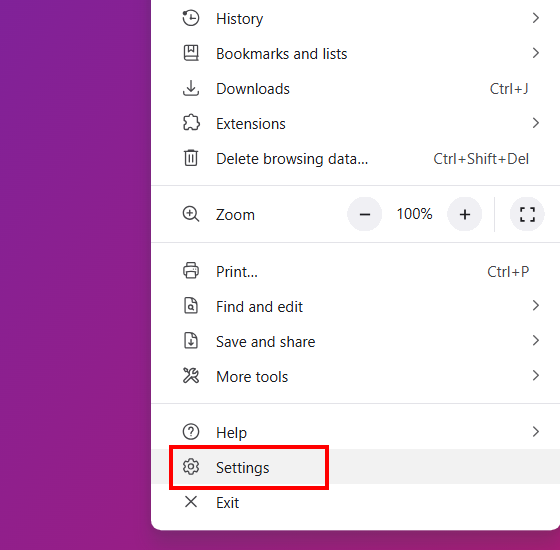
Click Settings.
-
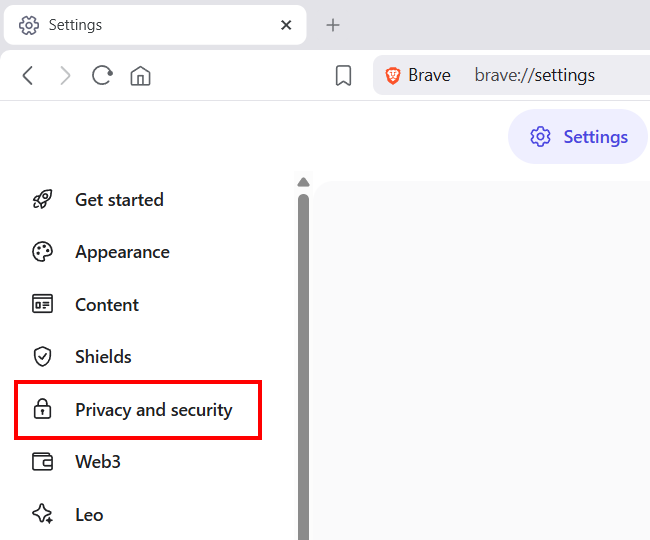
Click Privacy and security.
-
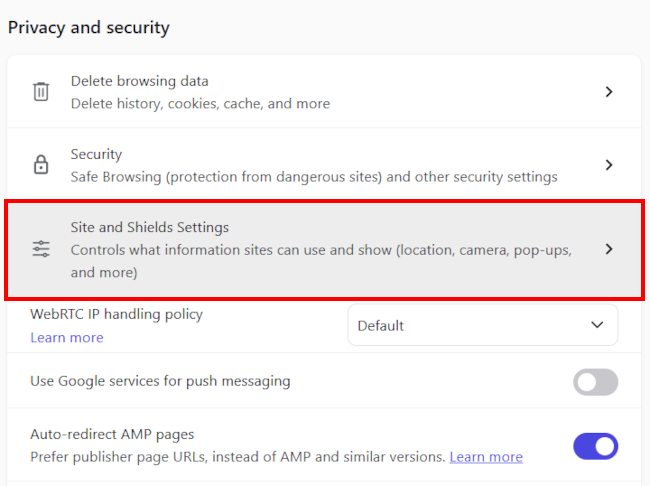
Click Site and Shields Settings.
-
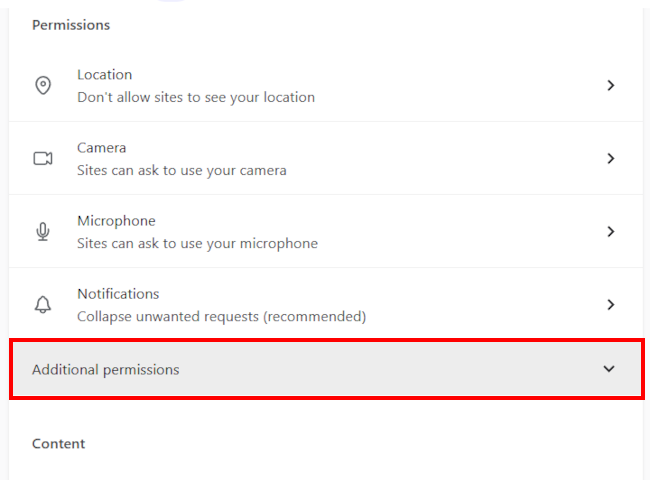
Click Additional permissions.
-
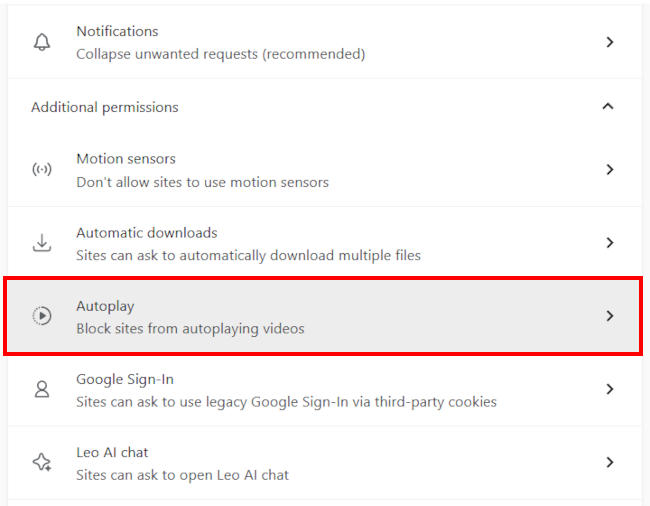
Click Autoplay.
-
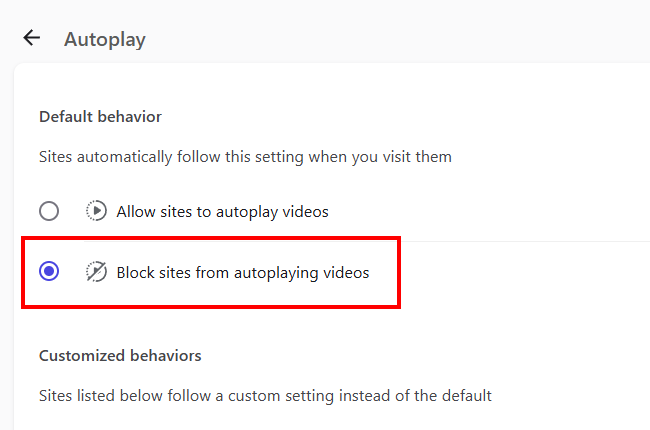
Select the Block sites from autoplaying videos option.
- Restart Brave.
Mobile browsers
Firefox
To disable autoplay videos in Firefox on an Android phone or tablet, follow these steps:
-
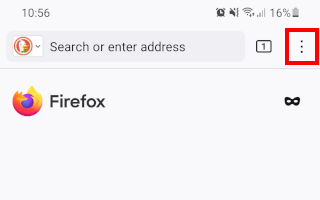
Tap the menu button in the top right corner of Firefox.
-
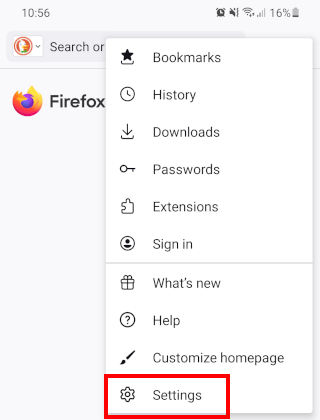
Tap Settings.
-
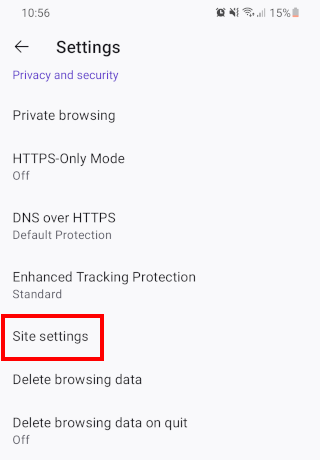
Tap Site settings.
-
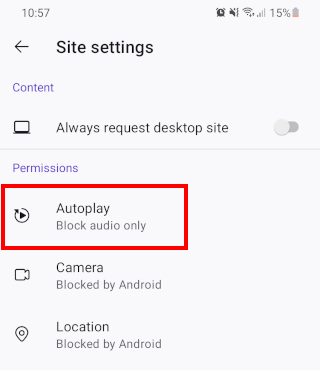
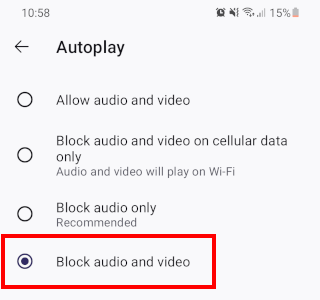
Tap Autoplay.
-
Select Block audio and video.
- Restart Firefox.
Brave
To stop websites from automatically playing videos in the Brave browser on an Android phone or tablet, follow these steps:
-
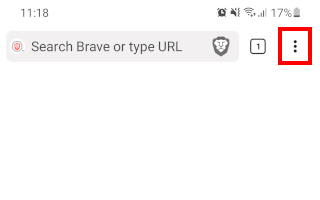
Tap the menu button in the top right corner of Brave.
-
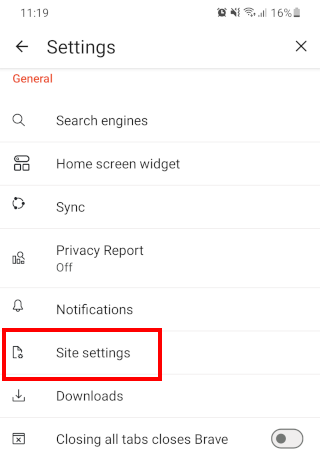
Tap Settings.

-
Tap Site settings.
-
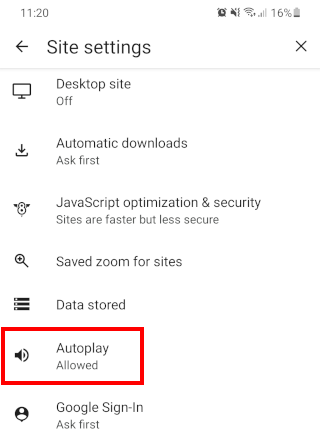
Tap Autoplay.
-
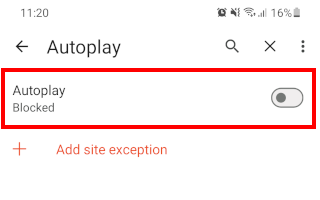
Tap Autoplay to disable this option.
- Restart Brave.
Samsung Internet
To turn off autoplay videos in Samsung Internet on an Android device, follow these steps:
-
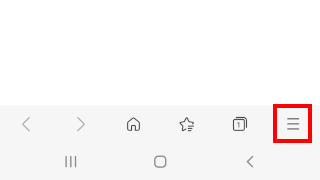
Tap the menu button in the bottom right corner of Samsung Internet.
-
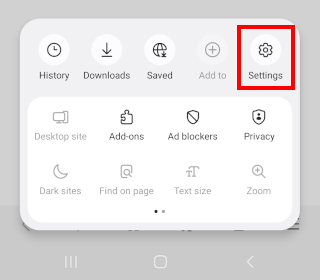
Tap Settings.
-
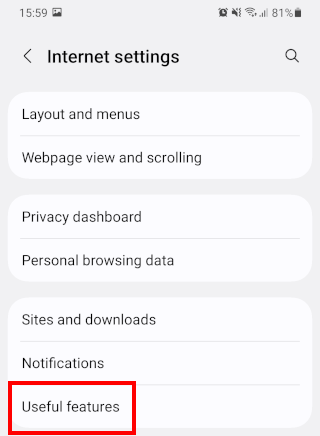
Tap Useful features.
-
Tap Allow autoplay videos to turn this option off.
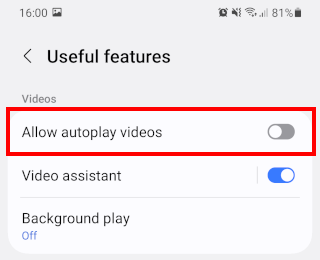
- Restart Samsung Internet.