
How to stop videos from automatically playing in Firefox & Brave
These step-by-step tutorials will show you how to stop videos from automatically playing on websites in Firefox and Brave on a PC.
The steps on this page work for blocking autoplay videos on websites such as YouTube, Facebook, Instagram, TikTok, X (Twitter), and many other sites.
How to stop videos from automatically playing in Firefox on a PC
Video ↓
-
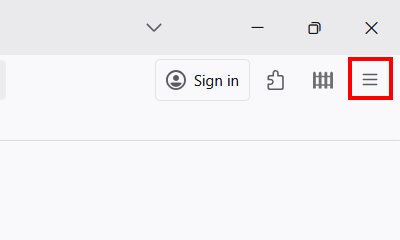
Click the menu button in the top right corner of Firefox.
-
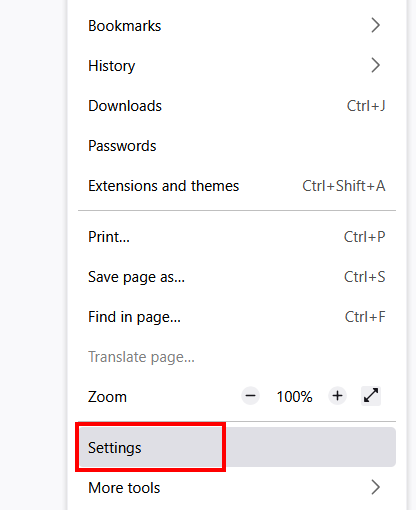
Click Settings.
-
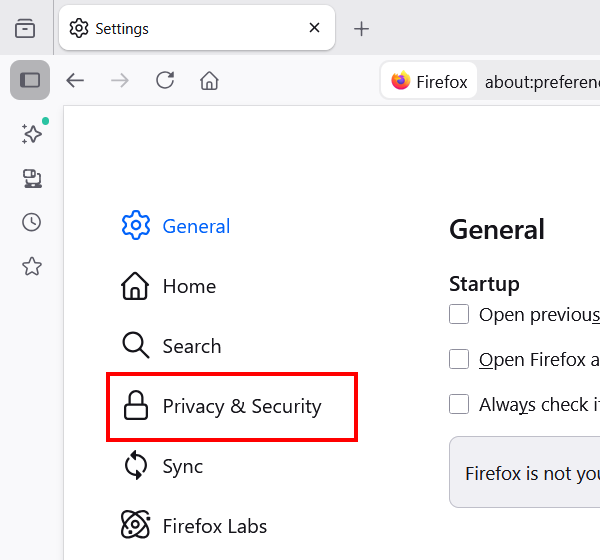
Click Privacy & Security.
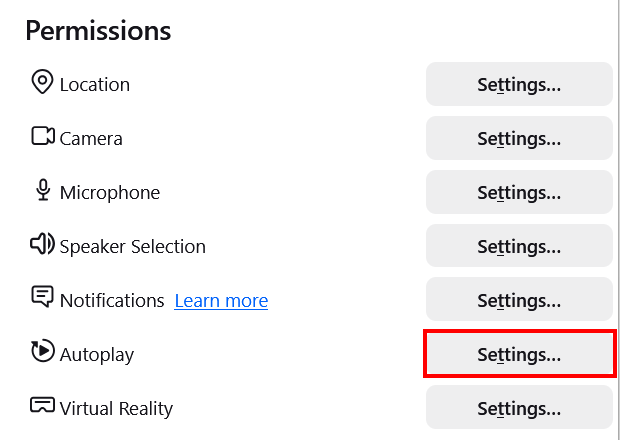
- Scroll down to the Permissions section.
-
Click on the Settings button next to Autoplay.
-
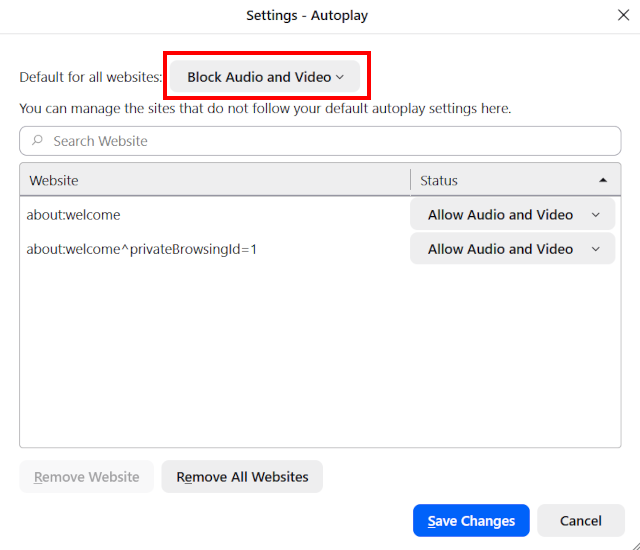
Select Block Audio and Video.
-
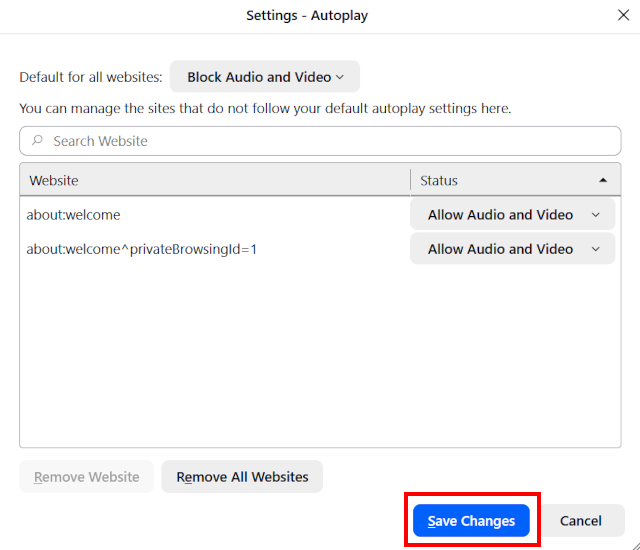
Click Save Changes.
- Restart Firefox.
Videos will no longer play automatically in Firefox.
How to stop videos from automatically playing in Brave on a PC
Video ↓
-
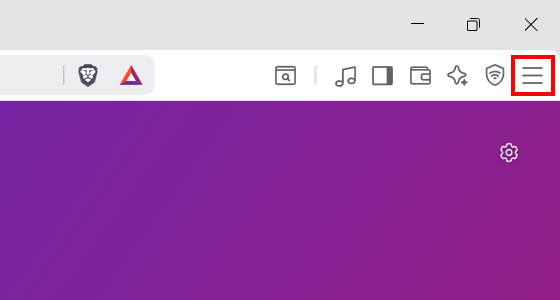
Click the menu button in the top right corner of Brave.
-
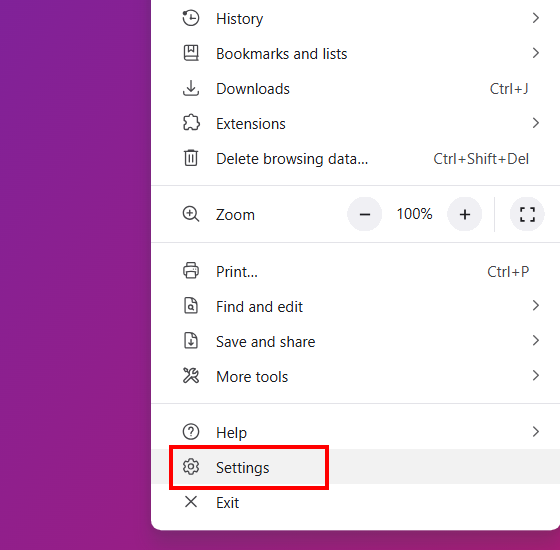
Click Settings.
{
-
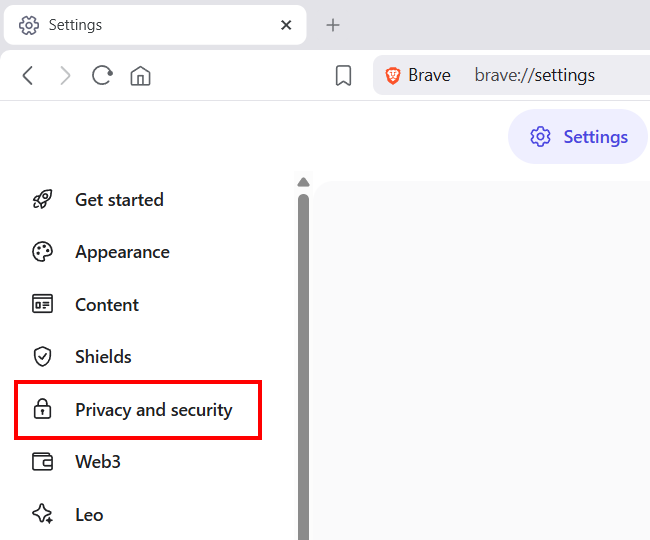
Click Privacy and security.
-
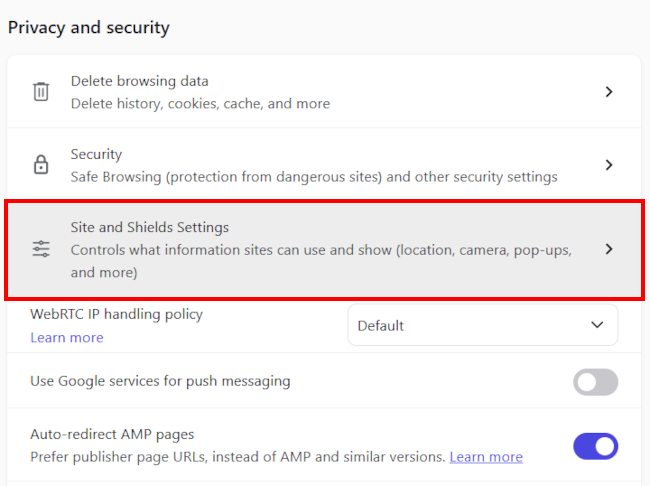
Click Site and Shields Settings.
-
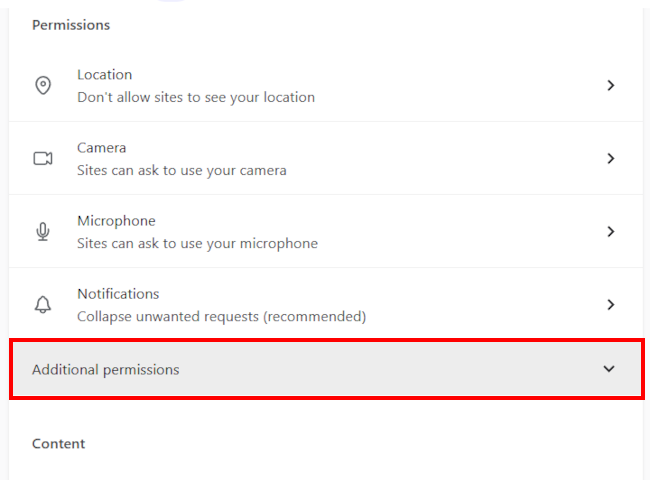
Click Additional permissions.
-
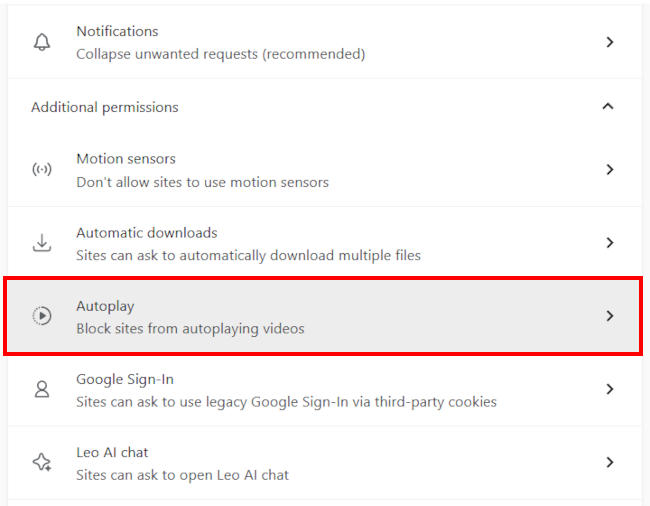
Click Autoplay.
-
Select the Block sites from autoplaying videos option.
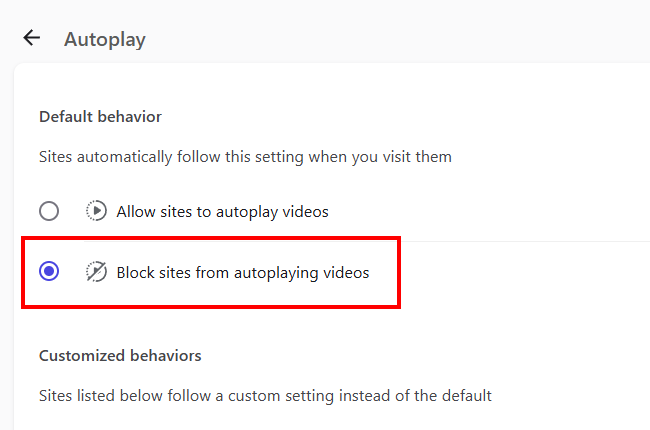
- Restart Brave.
Videos will no longer play automatically in Brave.