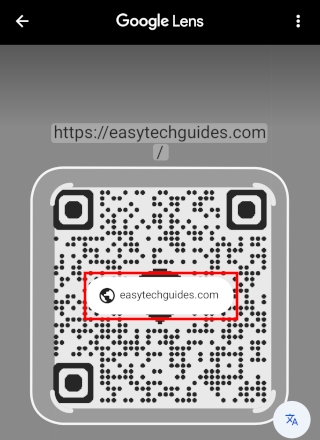
How to scan a QR code on your own Android screen or screenshot
When you receive a QR code in an email, text message, or website on your phone, you face an obvious problem: you can't point your camera at your own display. Luckily, you don't need a second device to scan it.
Whether it's a screenshot, a saved image, or a code currently open in your browser, here are 3 quick ways to scan a QR code on your own Android phone or tablet screen.
Method 1: Circle to search (fastest — no screenshot needed)
If you have a newer Android device (such as a Samsung Galaxy S21 or newer, Google Pixel 6 or newer, or any phone running Android 14+ with Circle to Search enabled), you can scan a QR code instantly without taking a screenshot first.
- Open the app, webpage, or email displaying the QR code on your screen.
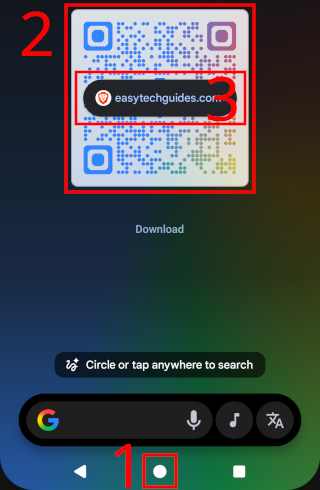
- Press and hold the Home button or the navigation handle bar at the very bottom of your screen.
- Your screen will freeze with a slight shimmer. Tap directly on the QR code displayed on your screen.
-
Tap the pop-up link that appears to open the URL.
Method 2: Google Photos or Samsung Gallery (best for saved screenshots)
If you have an image or screenshot of the QR code saved on your device, you can scan it directly inside your gallery app.
- Open Google Photos or your phone's default Gallery app (such as Samsung Gallery).
- Select the screenshot containing the QR code.
-
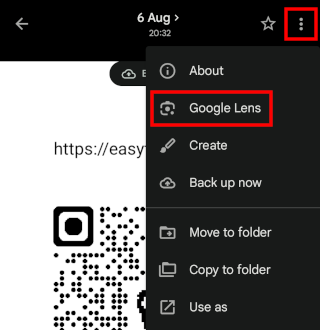
Tap the three-dot icon in the top-right corner of the screen and select Google Lens (or tap the link badge overlay if your gallery automatically detects it).
-
Tap the link to open the destination page.
Method 3: The Google app (Universal method for any saved QR image)
This method works on virtually all Android phones and tablets using the pre-installed Google app.
- If you haven't already, take a screenshot of the QR code (press the Power + Volume Down buttons simultaneously).
- Open the Google app on your phone or tablet.
-
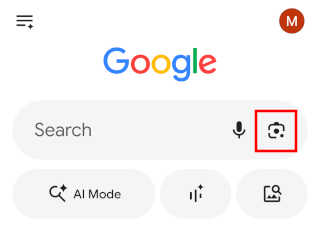
Tap the Camera icon (Google Lens) located on the right side of the main search bar.
-
Tap the round photo picker icon located next to the search button.
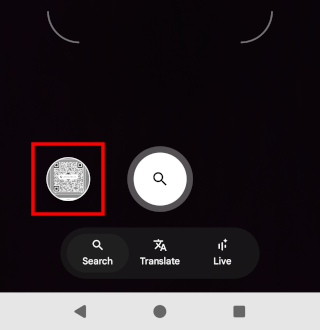
- Select the QR code image from your gallery.
-
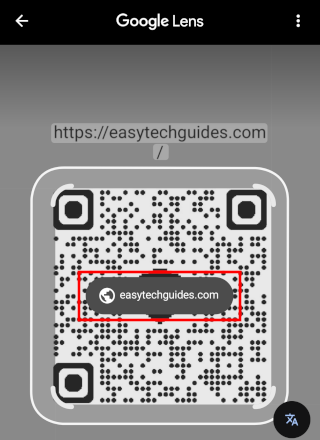
Tap the overlay link to open it.