
How to manage and block players on your PS5
Want to find, block or unblock a player on your PlayStation 5? Here's how to manage your blocked list, see recent players, and stop friend requests.
ADVERTISEMENT
How to find players you recently played with
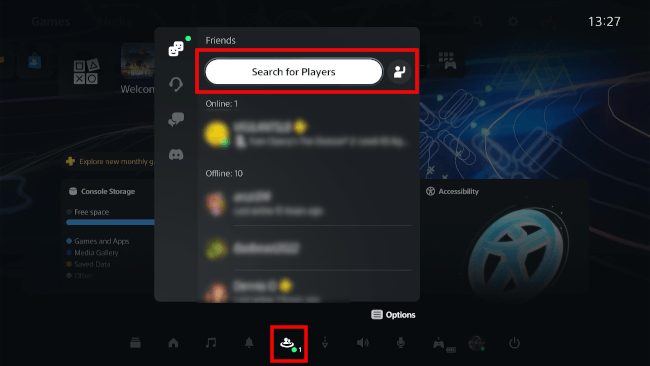
- Press the PS button (PlayStation logo) on your controller to open the Control Center (the menu with icons at the bottom).
- Select Game Base and press the X button.
-
Select Search for Players and press X.
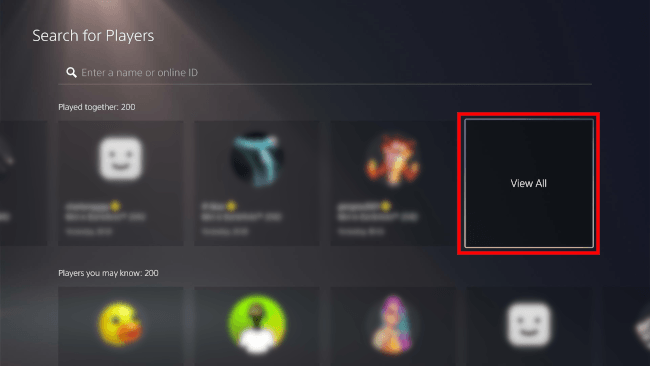
- Now you'll see a list of players you recently played with. Scroll to the right and select View All to see more people you recently played with.
ADVERTISEMENT
How to block a player on PS5
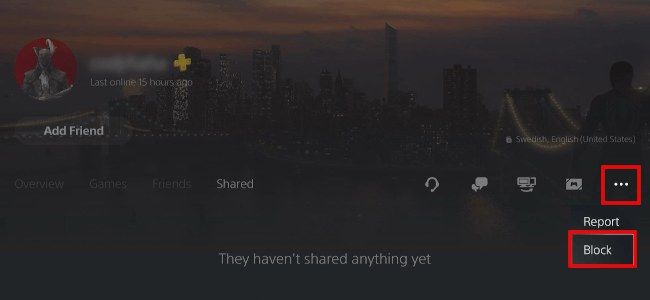
- Go to the player’s profile (from your Friends list, Search, or 'Played Together' list).
- Select the three-dot (More) button.
- Select Block.
- Select Block to confirm.
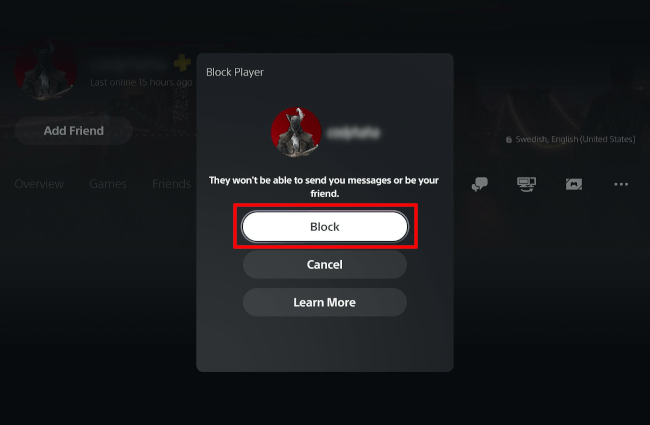
When you block someone on your PS5, it is a system-wide block. This means they cannot message you, see your status, or send friend requests across all PlayStation platforms, including the PS4 and the PlayStation mobile app.
Managing your blocked list (view & unblock)
- Open settings (gear icon).
- Open Users and Accounts.
- Select Privacy.
- Open View and Customize Your Privacy Settings.
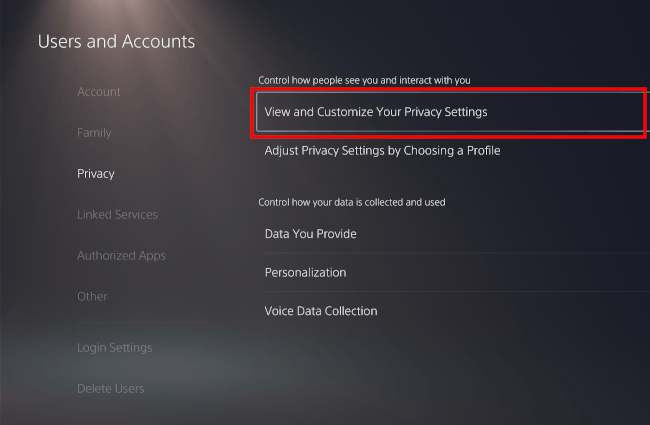
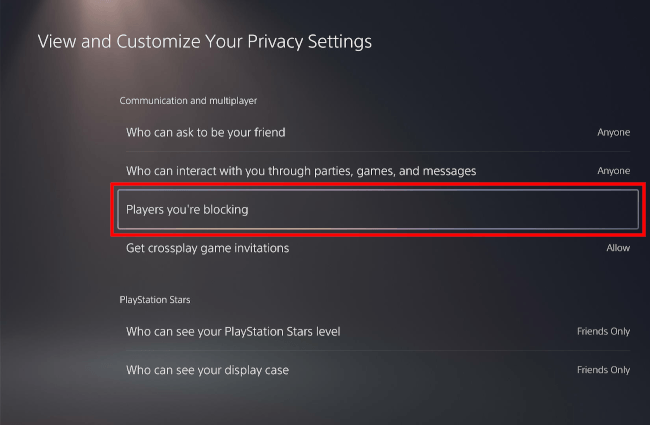
- Select Players you're blocking.
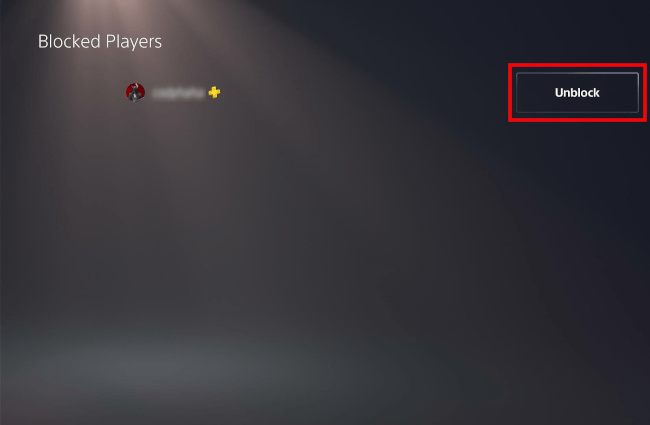
- To unblock someone, click Unblock next to their name.
How to block incoming friend requests
(Perfect for preventing unwanted contact before it happens.)
- Open settings (gear icon).
- Open Users and Accounts.
- Select Privacy.
- Open View and Customize Your Privacy Settings.
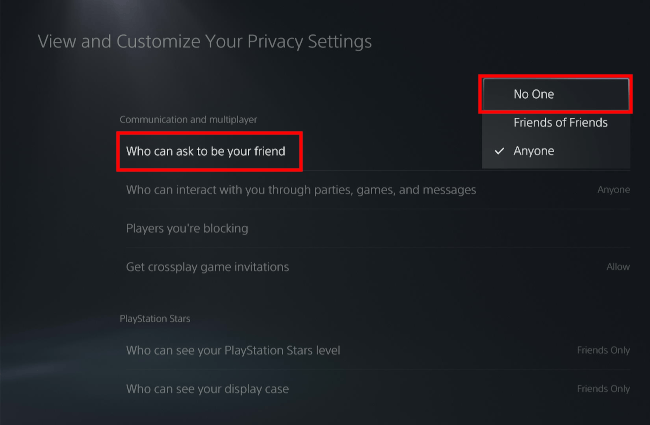
- Select Who can ask to be your friend.
- Change the setting to No One or Friends of Friends.
ADVERTISEMENT
Related:
PS5 privacy settings: appear offline, hide friends & history
References:
https://www.playstation.com/en-us/support/account/block-players-psn/