
How to make Firefox stop asking to save passwords
These step-by-step tutorials will show you how to make the Firefox web browser stop asking to save passwords.
The steps on this page work for the Firefox web browser on Windows, macOS, and GNU/Linux computers, as well as on Android phones and tablets from Samsung, Google, Motorola, Lenovo, Nokia, OnePlus, Oppo, Xiaomi, and other manufacturers.
Firefox has a built-in password manager that offers to save your passwords. When you log into a new website, this web browser will prompt you to save the password. If you prefer not to use this feature, you can disable the “Save Password” pop-ups in your browser settings.
How to make Firefox stop asking to save passwords on a computer
Video ↓
-
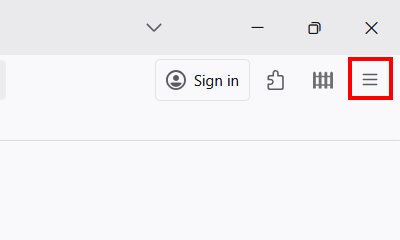
Click the menu button in the top right corner of Firefox.
-
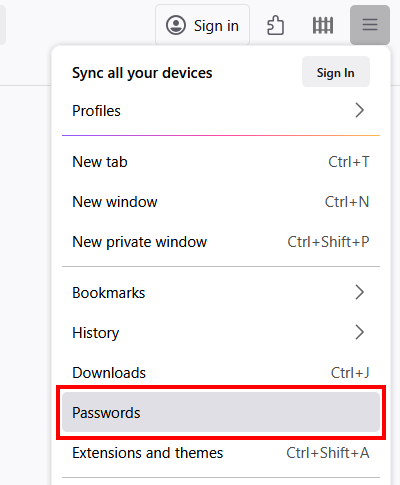
Click Passwords.
-
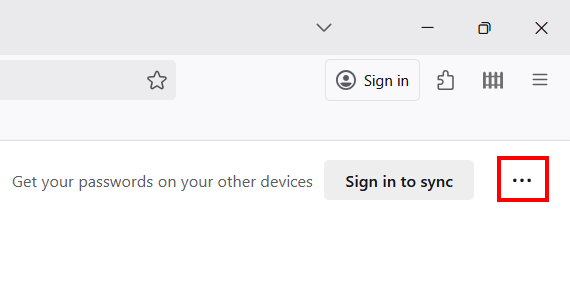
Click the three-dot options button in the top right corner.
-
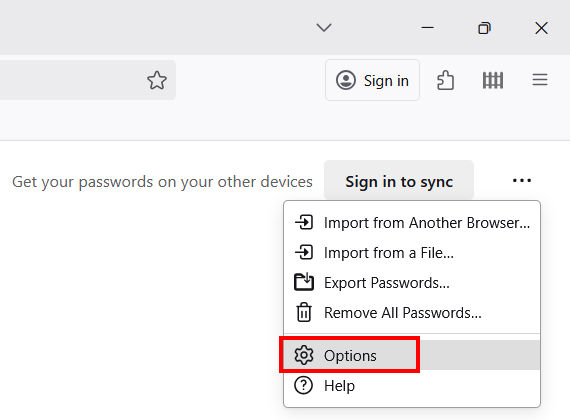
Click Options
-
Uncheck the Ask to save passwords option.
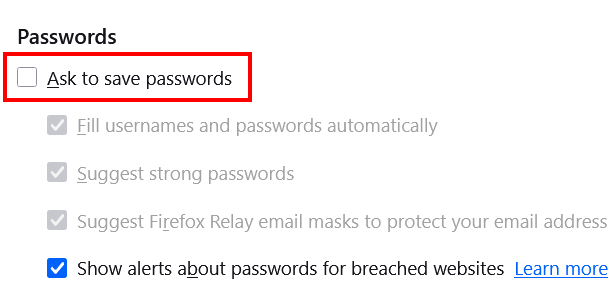
Firefox will no longer ask you to save passwords.
How to make Firefox stop asking to save passwords on Android
Video ↓
-
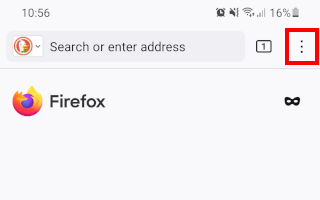
Tap the menu button in the top right corner of Firefox.
-
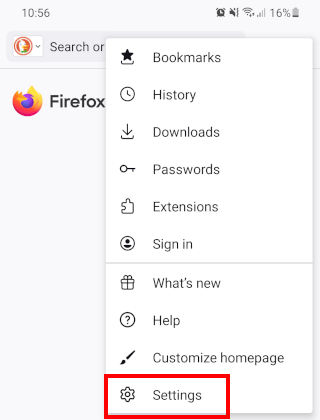
Tap Settings.
-
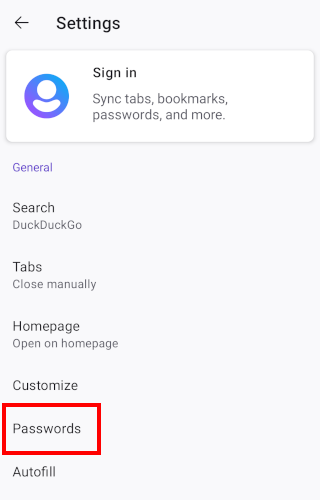
Tap Passwords.
-
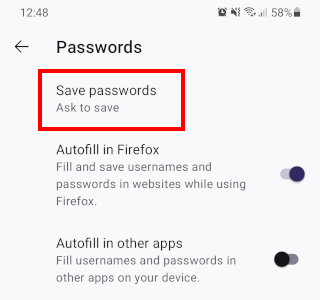
Tap Save passwords.
-
Select the Never save option.
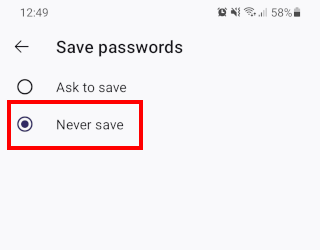
Firefox will no longer ask you to save passwords.
Related:
How to make the Brave browser stop asking to save passwords
How to make Google Chrome stop asking to save passwords
How to make Microsoft Edge stop asking to save passwords
How to stop websites from asking for your location in Firefox
How to stop videos from automatically playing in Firefox