
How to burn videos to a DVD on Windows 10 and 11
To watch MP4, MKV, or AVI files on a DVD player, you need to burn them to a physical disc. Two free Windows programs do this.
Some free DVD burning programs bundle adware or add watermarks. The two below do not.
How to burn videos to a DVD with WinX DVD Author
WinX DVD Author is a free Windows program that converts and burns video files (like MP4, MKV, and AVI) into a format that plays on any DVD player.
Note: You can fit multiple videos on one DVD. How many depends on file size and disc capacity (usually 4.7 GB).
-
Click Video DVD Author.
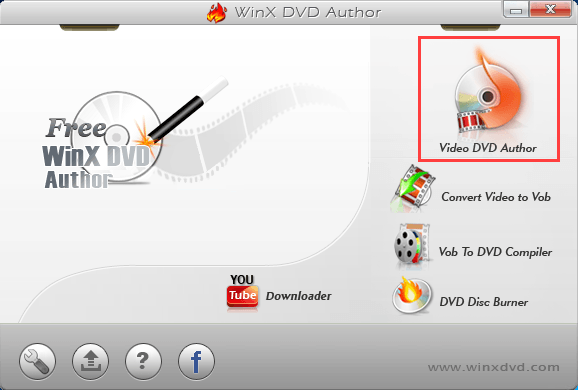
-
At Encoder Engine, pick a quality setting.
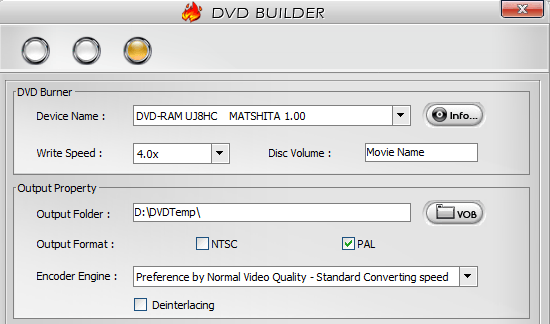
WinX DVD Author will now convert and burn your files. This can take a few minutes to over an hour, depending on video length and drive speed.
How to burn videos to a DVD with DVD Flick
DVD Flick is a free, open-source program that converts almost any video format into a standard DVD. No watermarks, no adware.
Note: You can burn multiple videos to a single DVD. The number of files depends on your video file sizes and the storage capacity of your disc (usually 4.7 GB).
Note: DVD Flick installs a second program called ImgBurn to write the disc. This is normal and happens automatically.
- Insert a blank DVD into your DVD drive.
- Open DVD Flick.
-
Click Add title on the right. Choose your video file, then click Open.
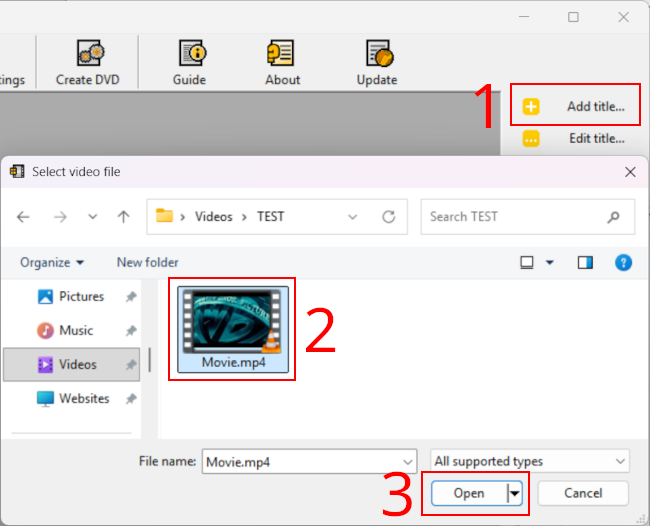
Tip: To include subtitles, make sure your .srt file has the exact same name as your video file and is saved in the same folder before adding the video.
-
To change subtitles, audio, or chapters, select your video in the list and click Edit title.
Tip: Go to the Subtitle tracks tab. If your subtitles are not listed, click Add, choose your .srt file, and the text will be burned into the video.
-
Click Project settings in the top menu bar.
You can adjust audio, video, playback, burning, and general settings. Most defaults are fine.
- On the General tab, give your disc a title, such as the movie’s name.
-
At Target size, select the disc size you will burn to, for example DVD (4.3 GB).
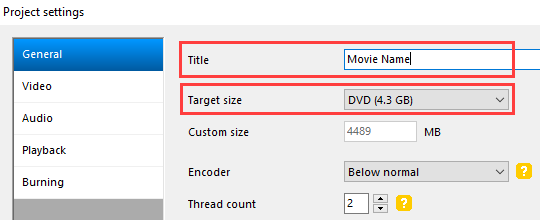
- In the Video tab, set Target format to NTSC for North America and Japan, or PAL for Europe and Australia.
- In the Burning tab, check the box for Burn project to disc to burn directly to DVD after conversion.
- Check that the correct drive is selected at Drive.
-
Set Speed to 4x or 6x. Slower writes make errors less likely.
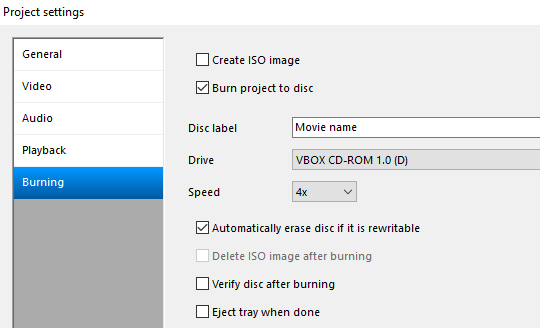
- Click Accept at the bottom of the window to save the settings.
- Click Menu settings in the top menu bar to edit the DVD menu.
- Click Browse at the bottom right. Choose a folder on your hard drive to save the DVD files.
- Click Create DVD in the top menu bar to start the process.
DVD Flick will now convert and burn your files. This can take a few minutes to over an hour, depending on video length and drive speed.
Related:
How to burn a CD or DVD in Windows 10 & 11 (step by step)